Understanding the Survey Permissions tool for Classic Survey Reports (Legacy)
Last updated: July 30, 2026
The Survey Permissions tool in Platform Admin helps your team manage who can access survey report data across all Survey Reporting.
With this tool, you can clearly define what each role can see - whether it's full report data, free response comments, or completion lists. This article will walk you through default permissions and key actions you can take to get started.
Accessing the Survey Permissions tool
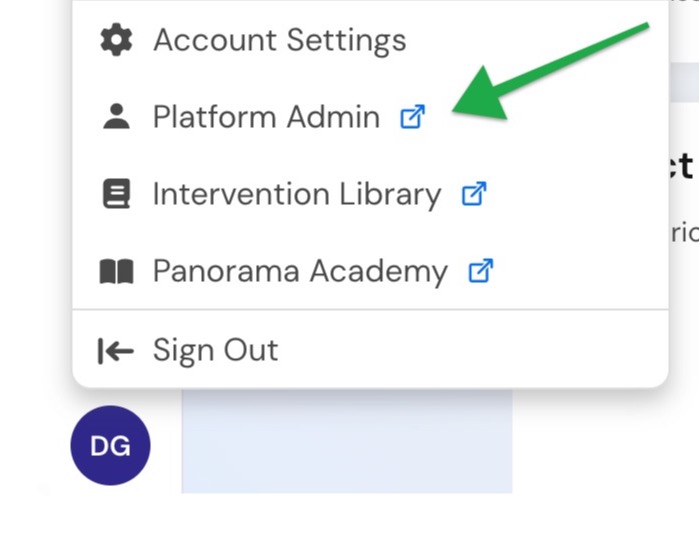
Select your initials in the lower-left corner of the screen and select Platform Admin.
Once on the Platform Admin page, locate the Permissions tile and select Roles & Permissions.
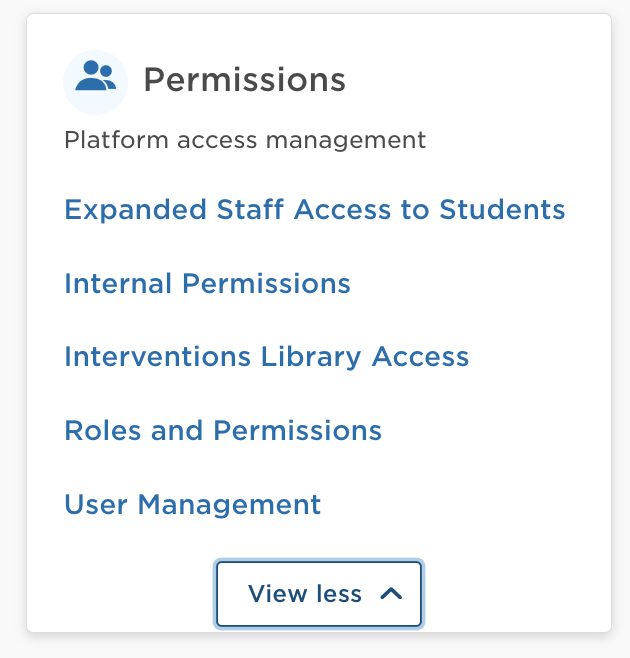
If you do not have access to Platform Admin, you can select Admin from the Applications menu and then select the Roles and Permissions tab:

Understanding permission sets
Permission sets are at the heart of how your team manages who can access survey data. Think of a permission set as a saved bundle of rules that define what each role in your district can see in Panorama’s survey reports.
What’s included in a permission set?
Each permission set controls whether roles have access to:
Survey Reports (overall survey results)
Free Response Data (aggregated open-ended comments)
The Response Rate Dashboard (how many responses have been recorded)
Completion Lists (who has and hasn’t completed a survey)
How permission sets work
You are able to create one permission set and use that same set across multiple survey administrations.
For example, if your district typically runs multiple types of student surveys throughout the year, you can apply the same permission set to all of them without the need to adjust or recreate it each time.
Permission sets are designed to be:
Flexible: You can edit a permission set whenever you need to update who can see what.
Customizable: You can assign a different permission set to a specific survey if needed—helpful for one-off scenarios.
Clean: You can delete a permission set when it’s no longer in use as long as it’s not tied to an active survey.
Default permission sets
If your district is new to Panorama, the system will automatically create a permission set labeled “Auto-generated permissions.” This set acts as the default for all student, staff, and family survey types.

This default permission set is:
Automatically applied to future survey administrations of the corresponding respondent type (e.g., student, staff, family).
Pre-populated based on Panorama’s standard role configurations (e.g., Global Admin, District Admin).
Editable and replaceable: Your team can create new permission sets and either assign them to individual survey administrations or set them as the new default.
Please Note: For existing Panorama clients, this default permission set does not apply retroactively to past survey administrations. You can override the settings in any permission set—past or present—by editing it or replacing it with the current default.
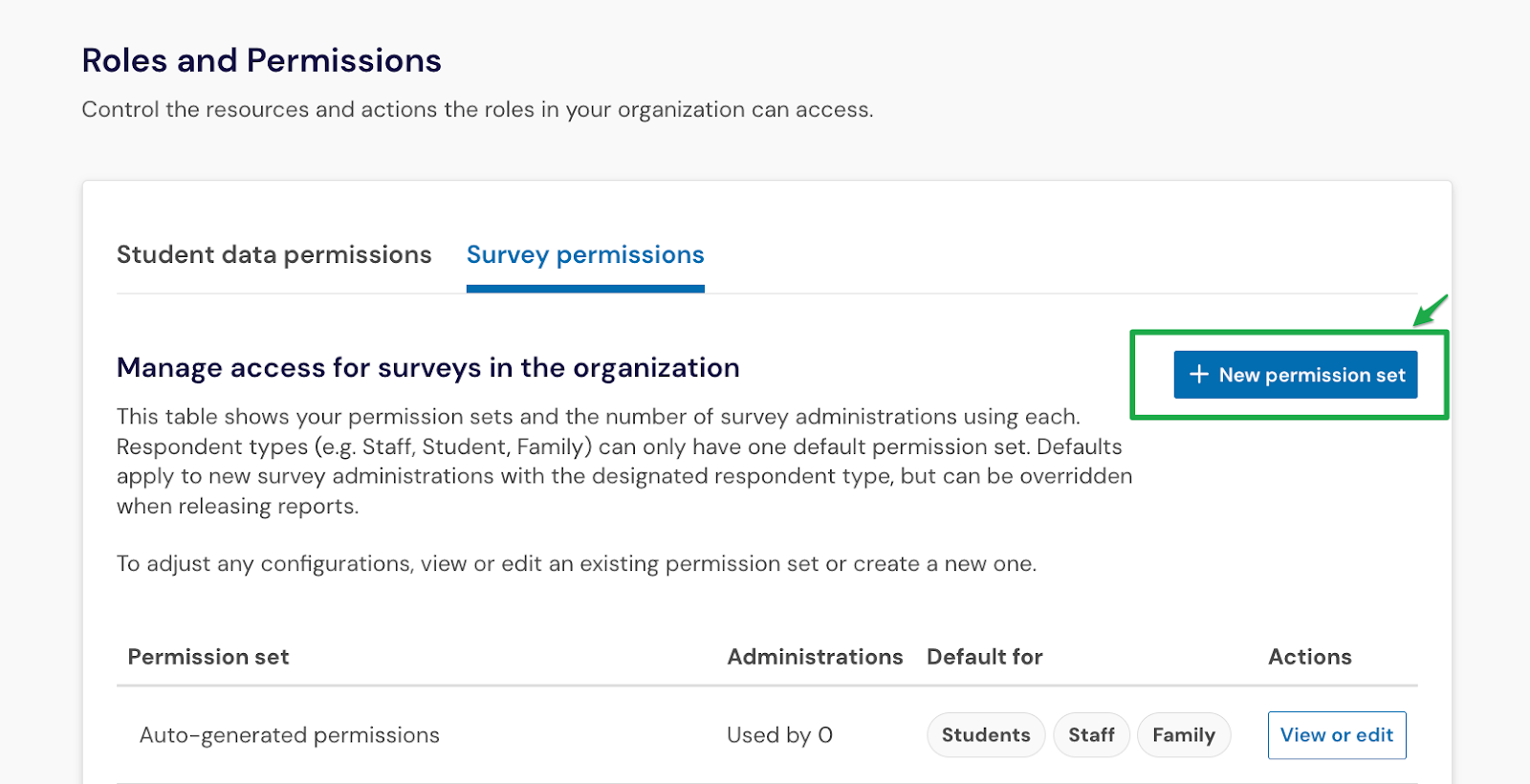
Each row in the table represents a distinct permission set. The permission set table contains the following columns:
Permission set: This is the name of the permission set, which acts as a reusable group of access settings.
Administrations: This shows the number of survey administrations that currently use this permission set. This helps you quickly identify whether a set is shared across multiple surveys or used for just one.
Default for: Indicates whether this permission set will be used as the default for a specific survey respondent type for future surveys: Students, Staff, or Family.
Actions: Click on View or edit to review, delete or set default permission sets.
Default permissions for Survey Reports
By default all users in the Global Administrator role will have access to view:
All reports about their schools and districts
All free responses for all reports
Response Rate Dashboard for each survey
Completion lists for each confidential survey
Teacher and course section filters for surveys within their schools
Permissions for any other role will not be turned on by default and will need to be enabled by a Global Administrator or someone within the district who has access to the Surveys Permissions tool.
Default roles and permissions for Classic Survey Reports
Within each permission set, you’ll see a list of roles for your district. These roles come with pre-configured access to report data, free responses, response rate dashboards and completion lists. You can view, adjust, or override these defaults at any time based on your district's needs.
If your district is new to using Panorama Surveys & Engagement, the following table shows the default access each role has in Classic Reporting. If your district has run surveys with Panorama before, your existing permissions will be automatically carried over and visible in the tool. You can continue using those pre-populated permission sets or make updates at any time to match your current needs.
Role | Classic Reporting |
|---|---|
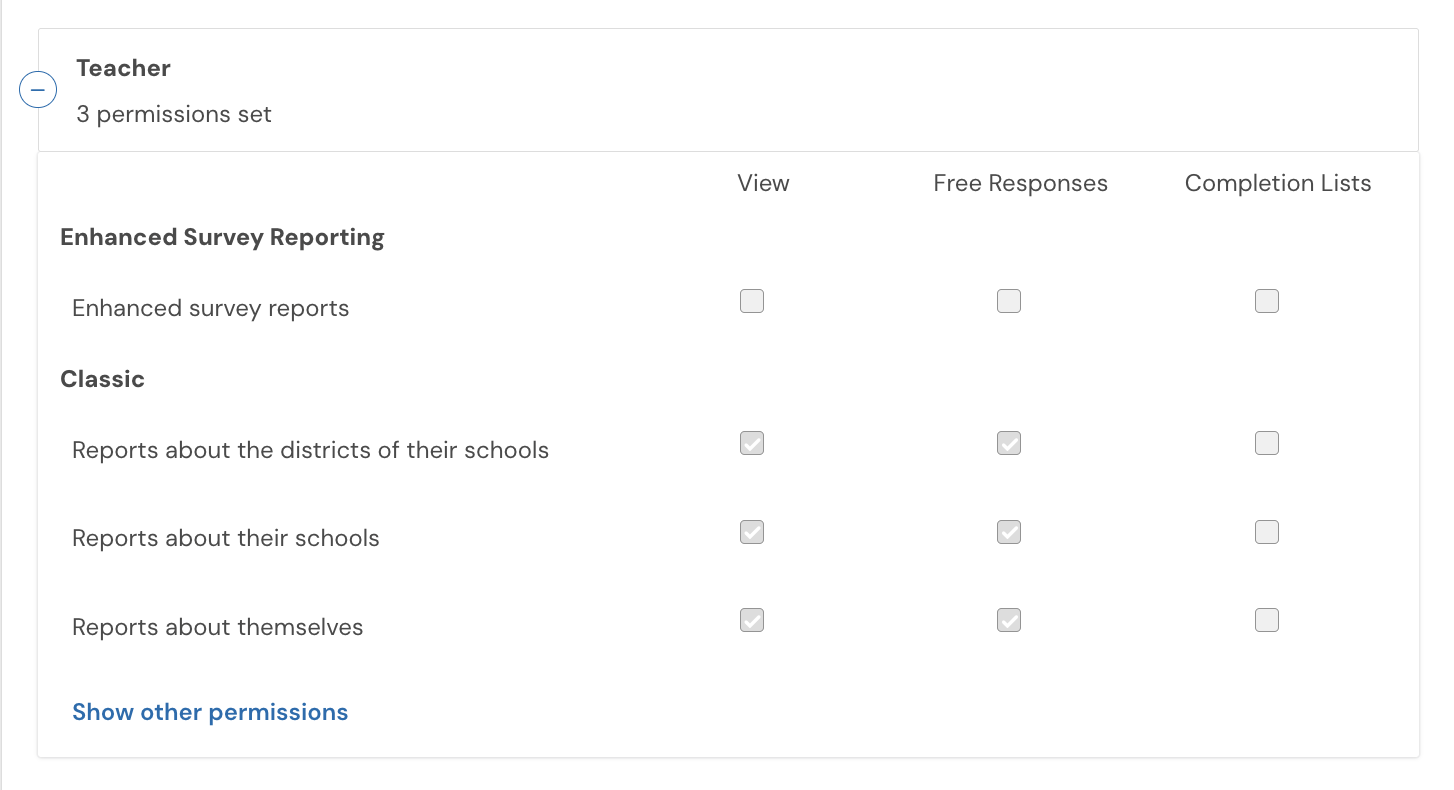
📘 Teacher | Can view reports and free responses for:
 |
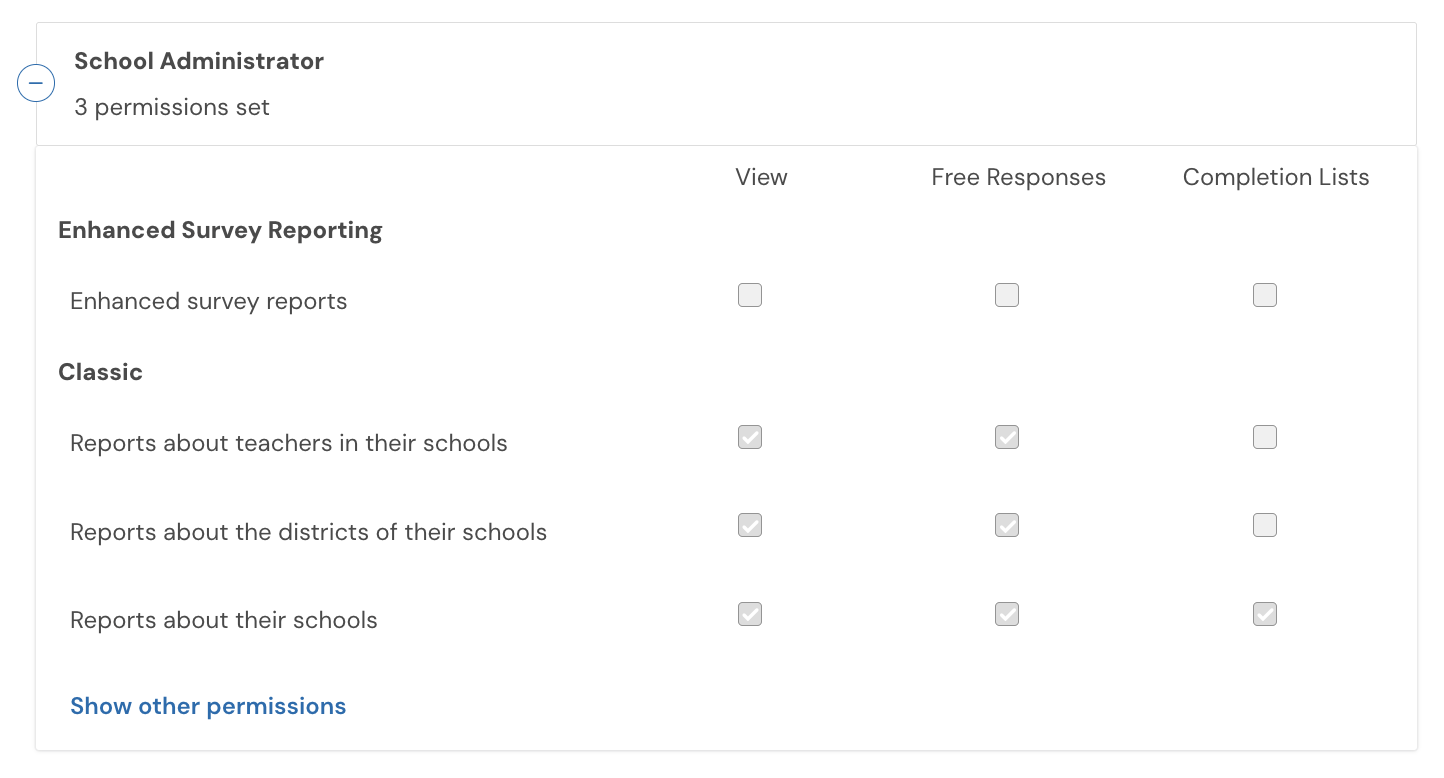
🏫 School Admin | Can view reports and free responses for:
View completion lists for:
 |
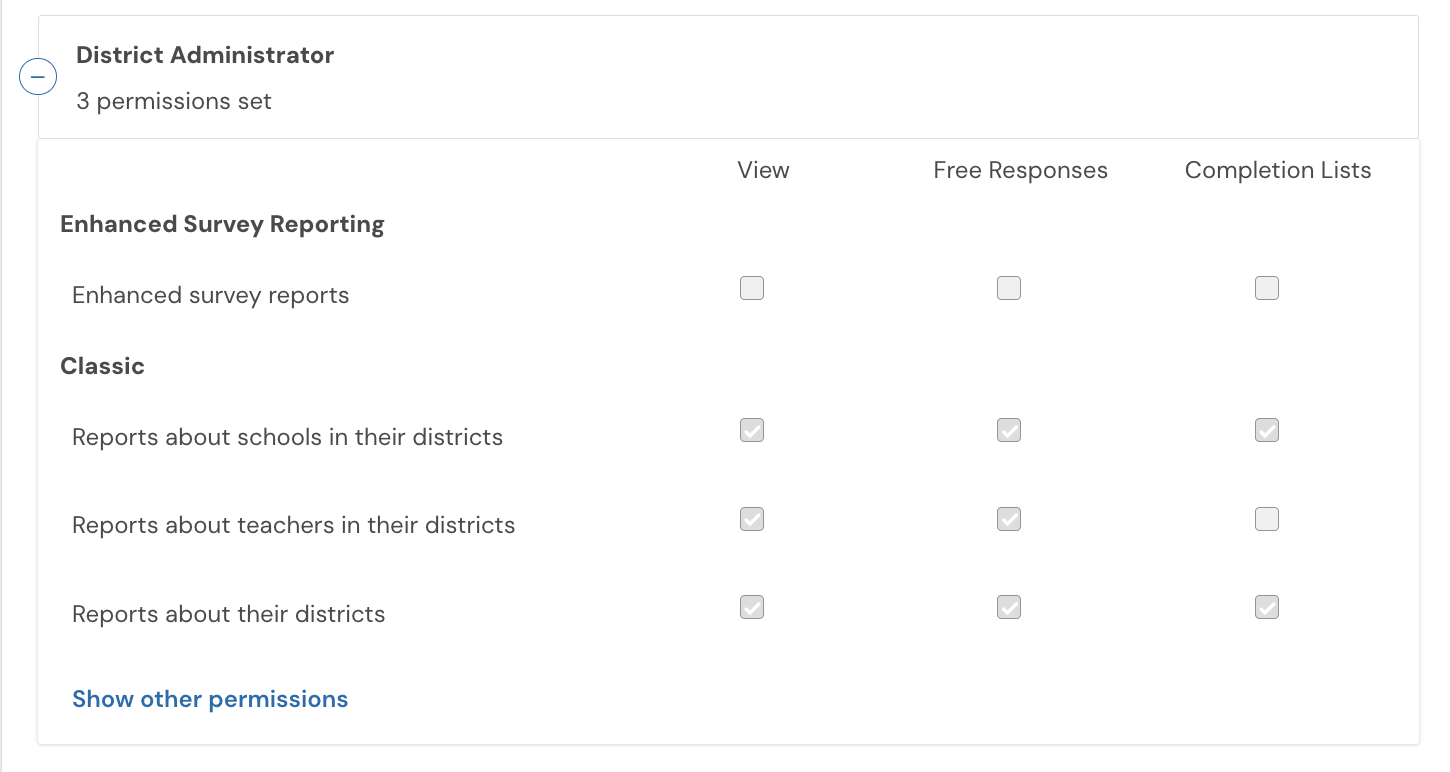
🏢 District Admin | Can view reports and free responses for:
View completion lists for:
 |
🌐 Global Admin | Can view reports and free responses for:
View completion lists for:
By default, users with the Global Administrator role have full access to Survey Reporting. This includes the ability to view all reports and all free response data. 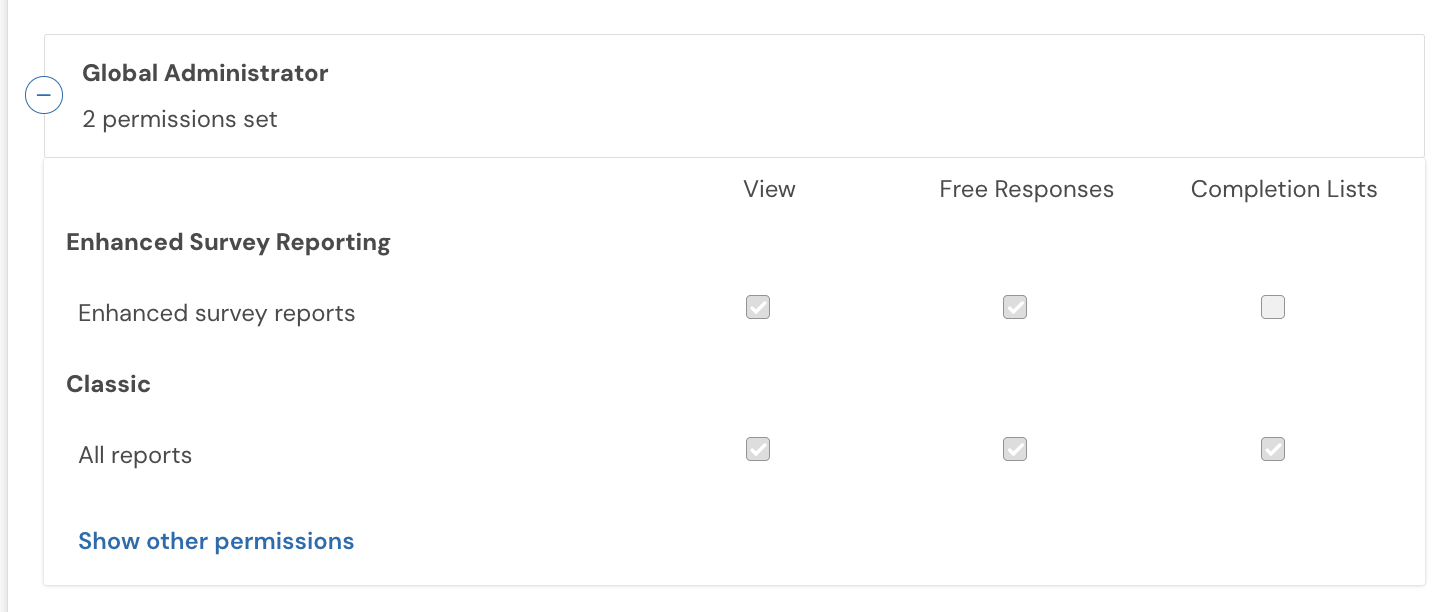 |
Permissions for Survey Reporting
Survey Reporting offers several key features to help your team make the most of your survey data:
Faster navigation to find the reports and answers you need
Advanced filtering to track trends by demographics and over time
Updated national benchmarks to provide more context for meaningful improvement
To ensure more educators and leaders can benefit from these updates, we recommend enabling Survey Reporting access for all key roles in your district.
How Survey Reporting visibility is determined
Survey Reporting access is based on a user's school assignment.
Educators can only see reports for the schools they are assigned to in User Management. For example, if a teacher is only assigned to Lincoln Middle School, they will only see reports for that school.
District-level reports are only visible to roles which have permission to view all schools within your district, such as Global or District Administrators.
Permissions carryover from Classic Survey Reporting
The permissions currently provided to users in classic reporting will carry over to survey reporting when applying this setting to a specific role.
For example, if the selected role has access to free response data for that permission set in Classic Survey Reporting, they will continue to have access in Survey Reporting.
Enabling access to Survey Reporting by role
Watch this video to learn how to bulk enable Survey Reporting permissions by role.
If you've been with Panorama for several years or have run a number of surveys, you may have a number of permission sets listed on the platform. You can bulk enable or disable access to Survey Reporting by role across all permission sets on the platform if you'd like.
This step ensures your team can view all prior survey reports directly within Survey Reporting, continuing your district’s data story without disruption.
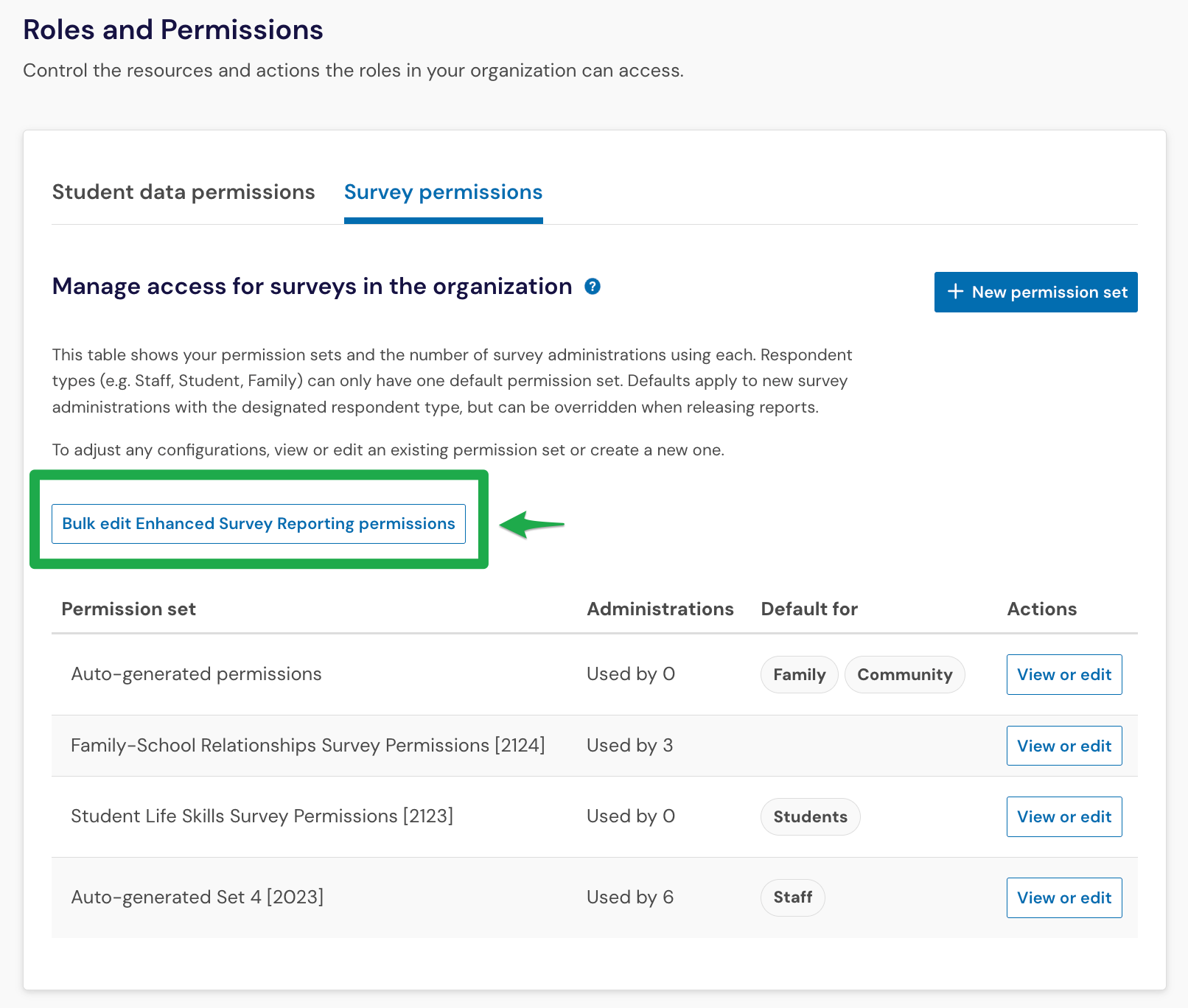
Select the Bulk edit Survey Reporting permissions button.
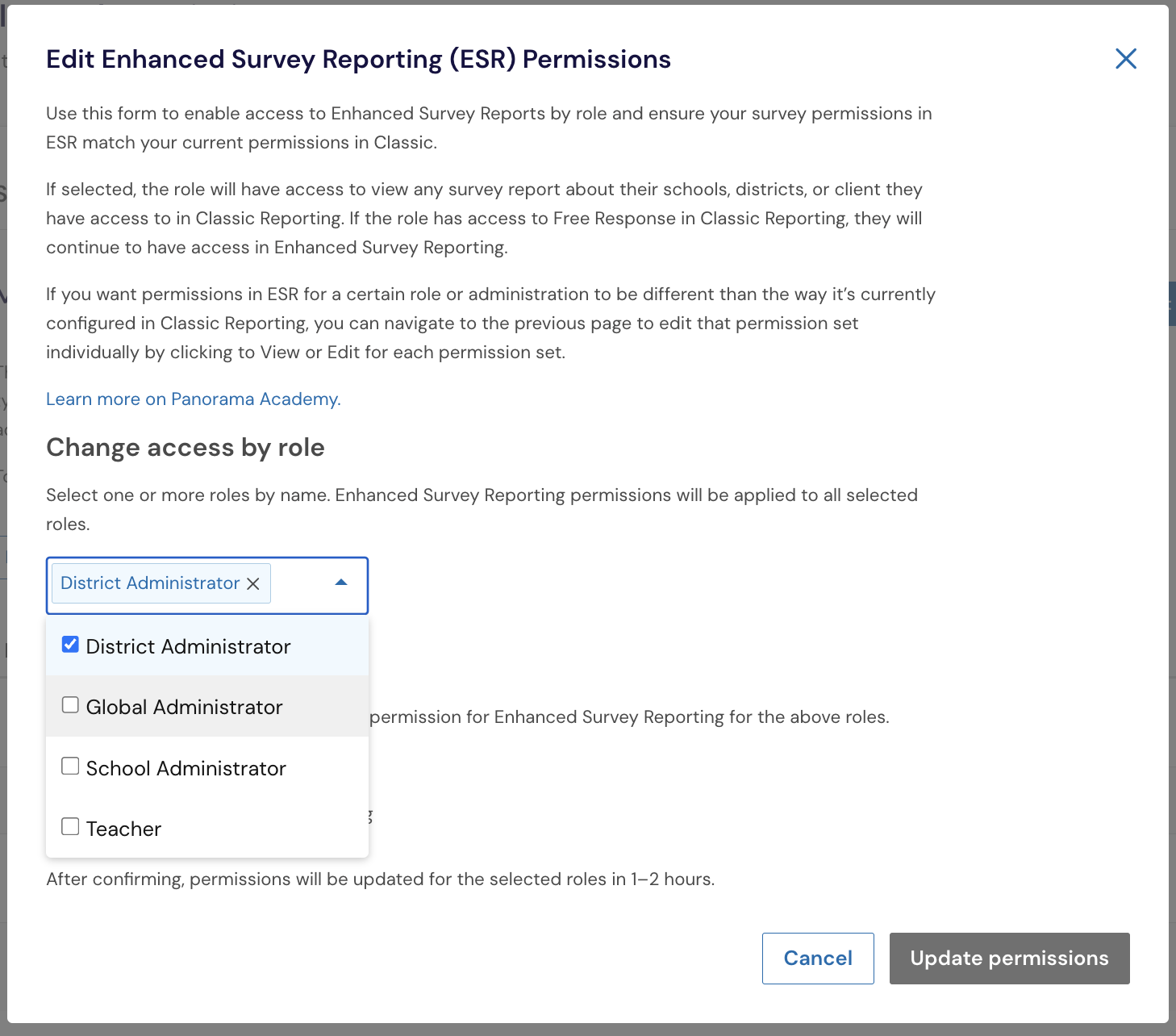
In the window that appears:
Select one or more roles for which you want to bulk update permissions.
Choose whether to Enable Survey Reporting or Disable Survey Reporting.
Click “Update permissions” to apply changes.
View and edit access within a permission set
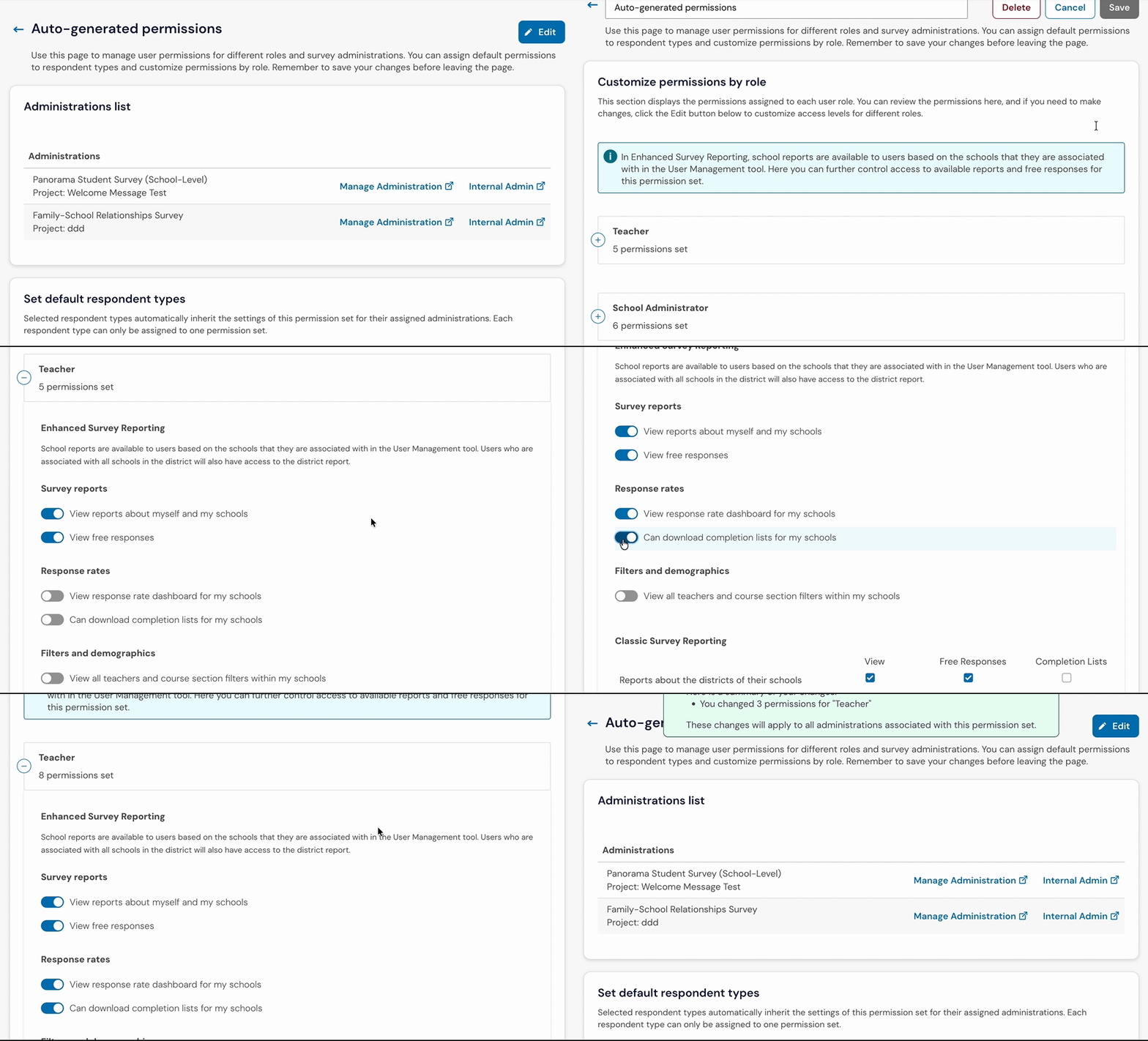
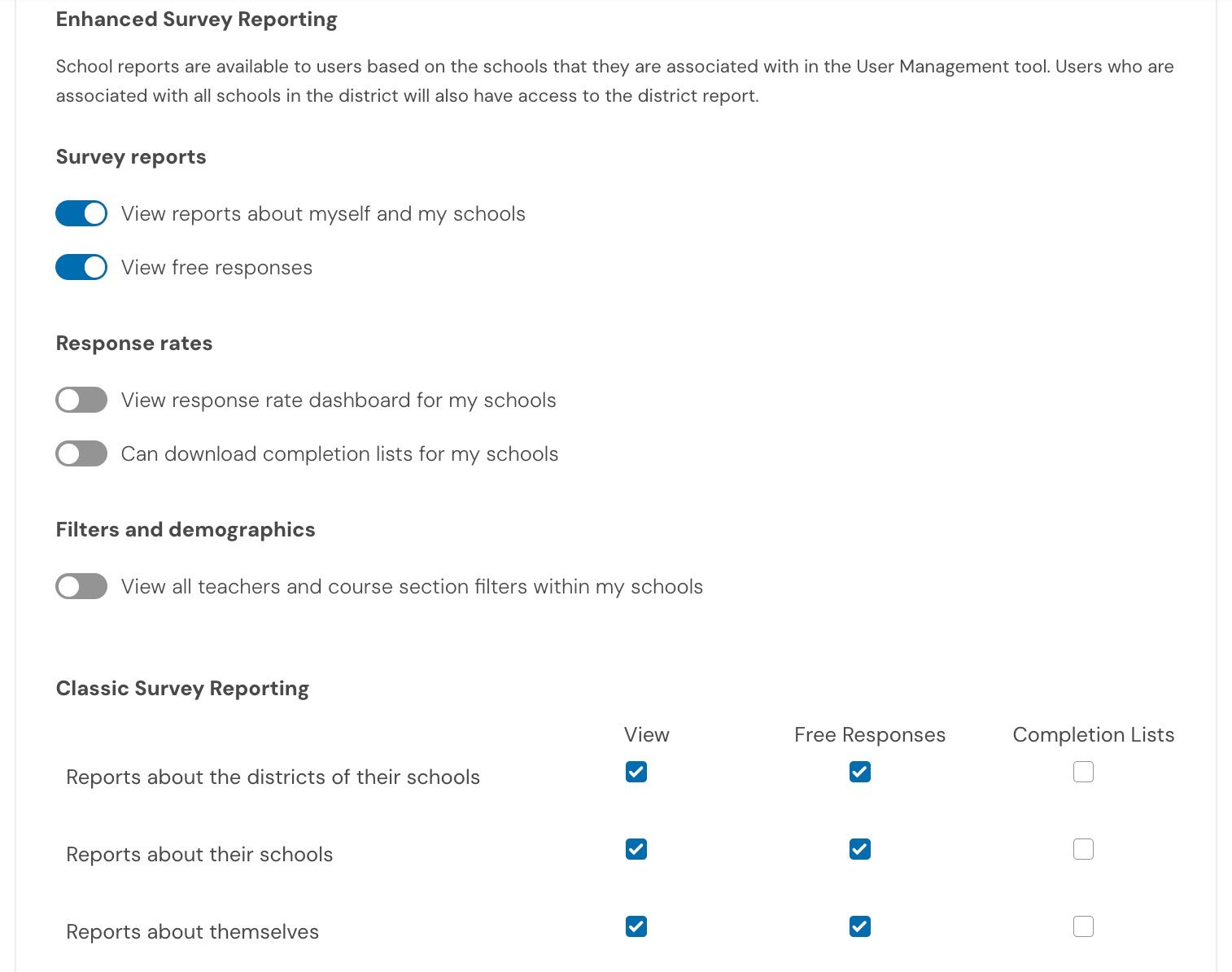
You may want to edit the survey report permissions for individual roles within a single permission set. You can adjust the permissions for Survey Reporting within a permission set by toggling on or off the following options:
Permissions for Survey Reports by role
Survey reports
View reports about myself and my schools
View free responses
Response rates
View response rate dashboard for my schools
Can download completion lists for my schools
Filters and demographics
View all teachers and course section filters within my schools
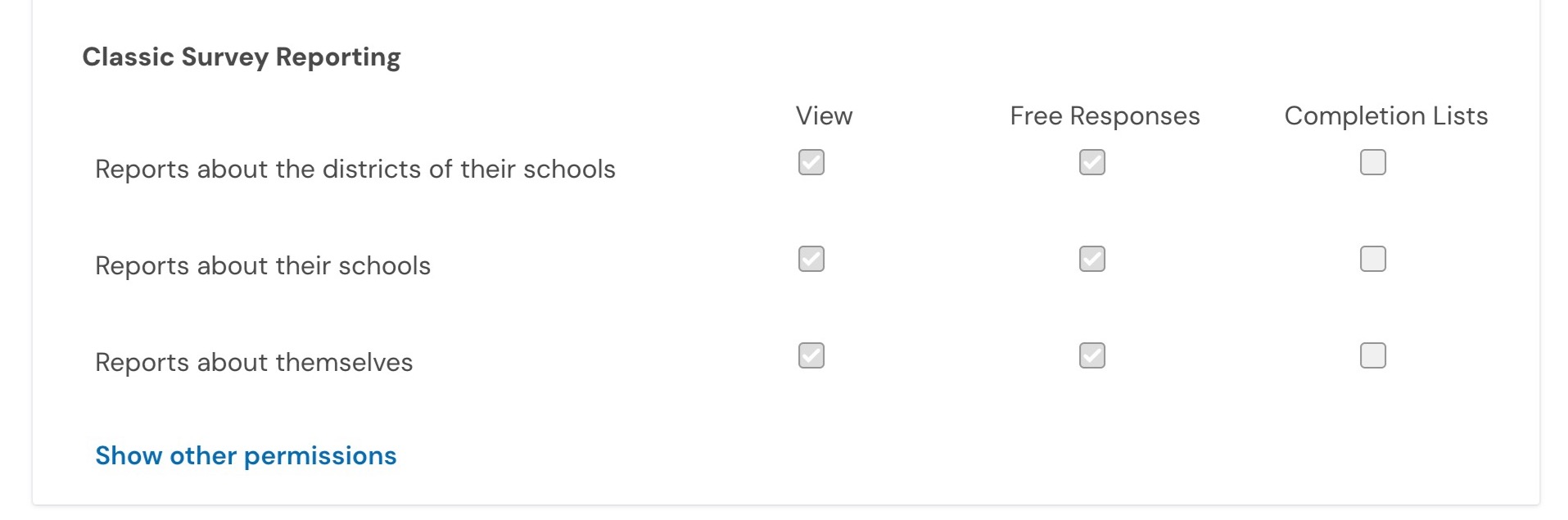
Permissions for Classic Survey Reports by role
You can enable Classic Survey Reporting for the administrations within a specific permission set by checking off one or more of these options:
View: to allow that role to access Survey Reporting reports for their assigned schools
Free Responses: to allow that role to access free response comments for their assigned schools
Completion Lists: to allow that role to download completion lists for their assigned schools
If you already bulk edited the Survey Reporting permissions, then you do not need to update all historical administrations.
Create a new permission set
If you'd like to add a new permission set to your list of sets, you can do so by following the steps below:
Click +New Permission Set button on the right side of the page.
Give your new set a name. We recommended creating a permission set for a specific type of survey so it can be easily reused.

Assign permissions for each role using the toggles and checkboxes.
Click Save at the top of the page.
Set default permission sets by survey audience
Assigning a default permission set ensures consistent access settings every time a new survey is run for a specific group—like students, staff, or families. Once you set a default permission set by audience, the platform will use that permission set whenever you run a survey of that type moving forward.
Here's how to set (or update) a default:
Find the permission set you want to use as a default from your list.
Click the View or Edit button
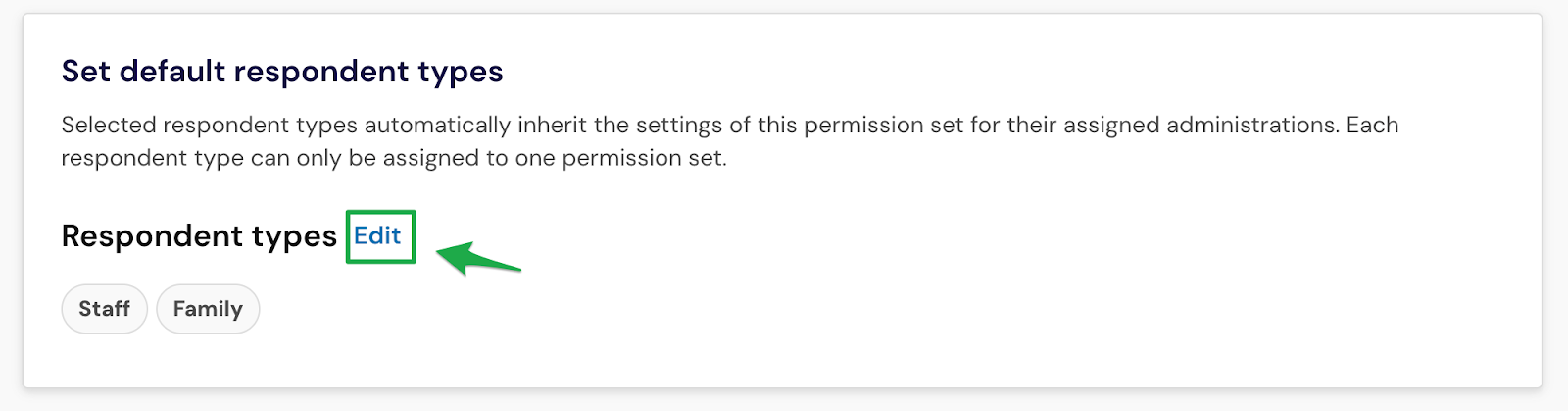
Then select Edit right next to “Respondent types”
Use the dropdown under “Change to” to edit the default permission set for each respondent group—Students, Staff, Family.
Save your changes.
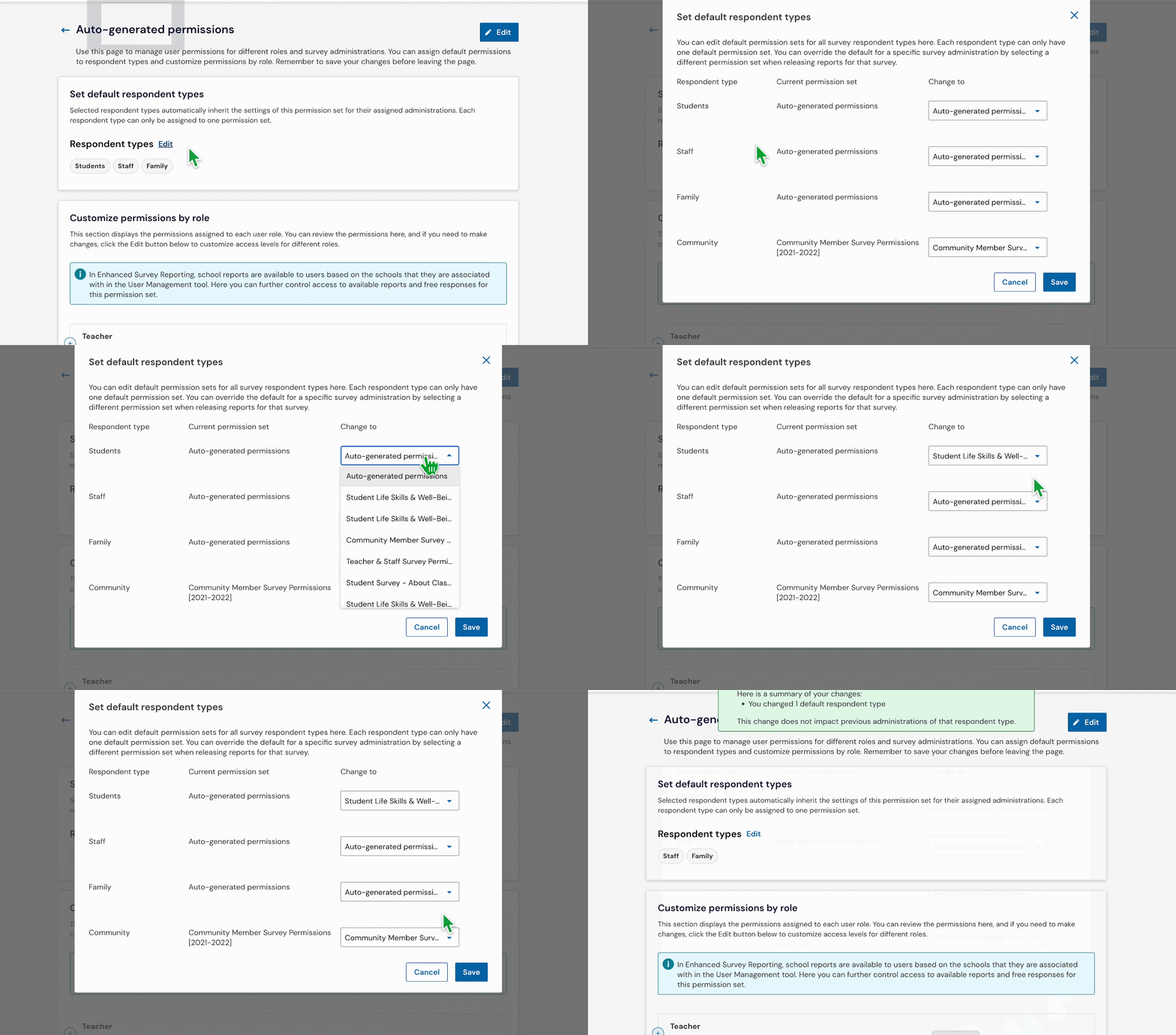
Note: If you need to change an existing default, simply follow the same steps and select a new permission set for that audience. Your update will automatically apply to future surveys of that type.
Delete a permission set
You can delete a permission set from the Survey Permissions Management page if it’s no longer needed. This is especially useful for clearing out unused or outdated configurations, keeping your list of permission sets clean and manageable.
Locate the permission set you want to delete.
Click View or Edit, then select Edit in the top right corner.
Select Delete.

In the confirmation modal, click Confirm Delete.
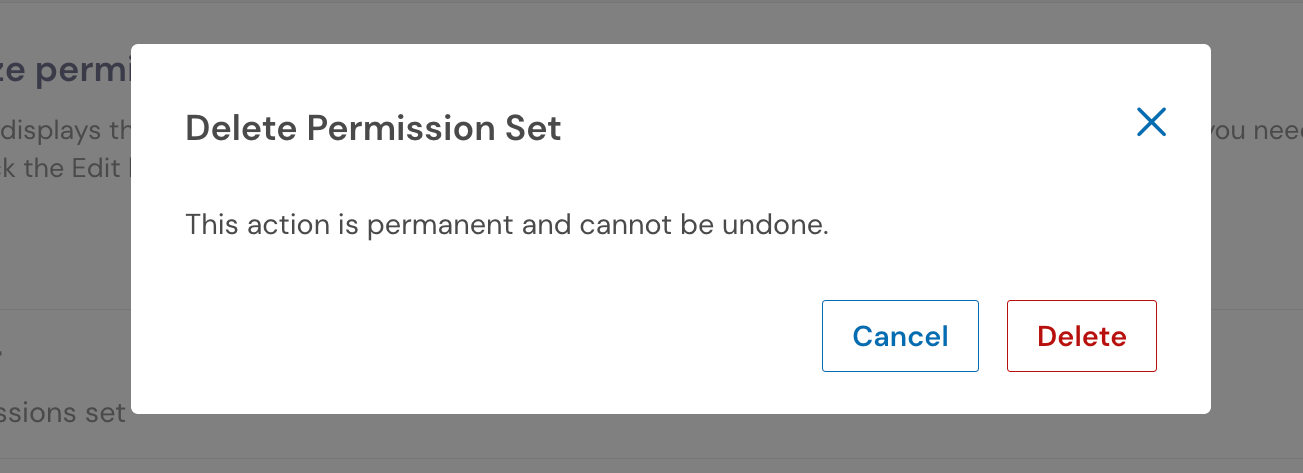
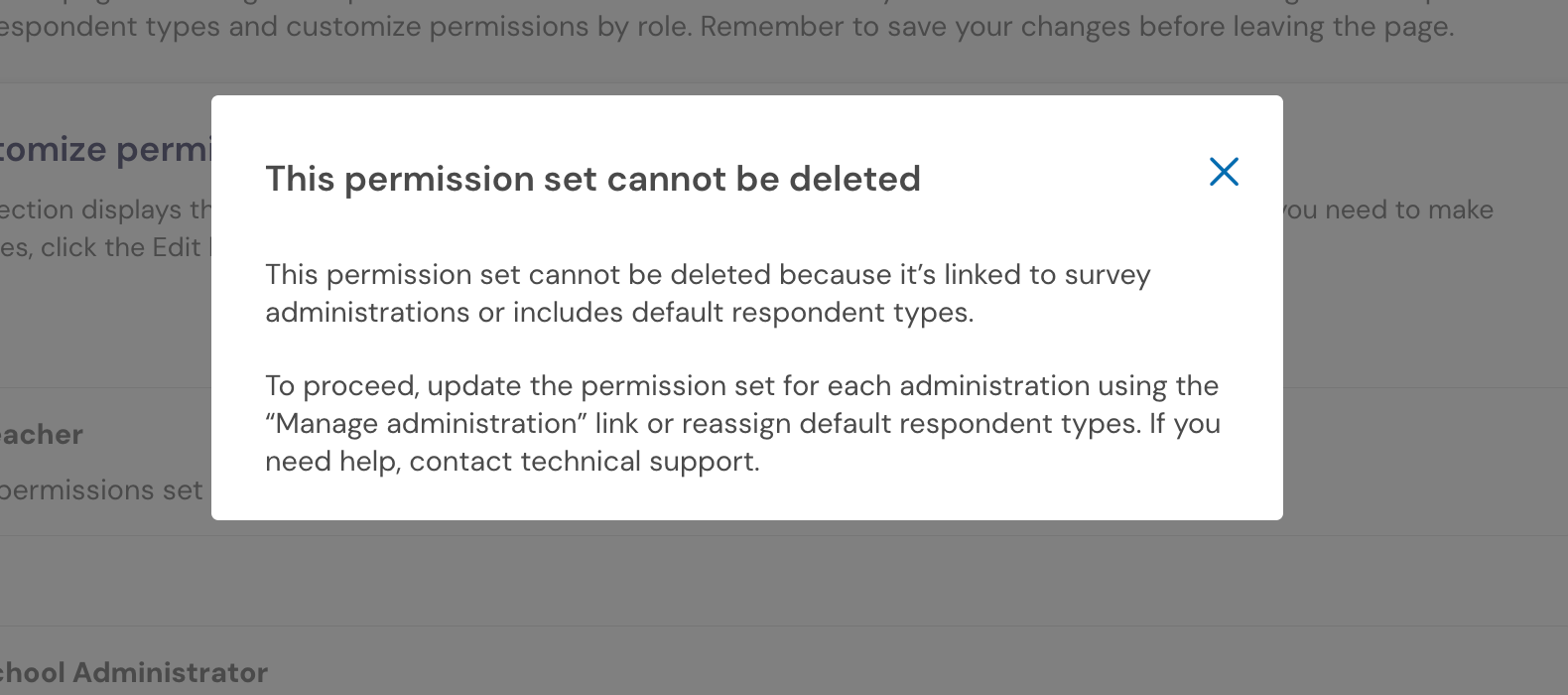
Note: Deletion is only allowed if the permission set is not linked to any survey administrations. If you attempt to delete a permission set that is associated with an existing survey, a warning modal will appear.
Confirm permissions before releasing reports
Taking time to review permission sets isn’t just a final checklist item—it’s a critical step to ensure data is shared responsibly and intentionally. Whether you're verifying free response visibility or confirming access for a new custom role, these checks help protect student privacy and uphold your district’s data-sharing values.
When you’re ready to release results for an individual survey, head to the Survey tab within the setup process. Before results can be shared, you’ll be prompted to assign a permission set using the dropdown on that page. Learn more about releasing survey results to each role here.
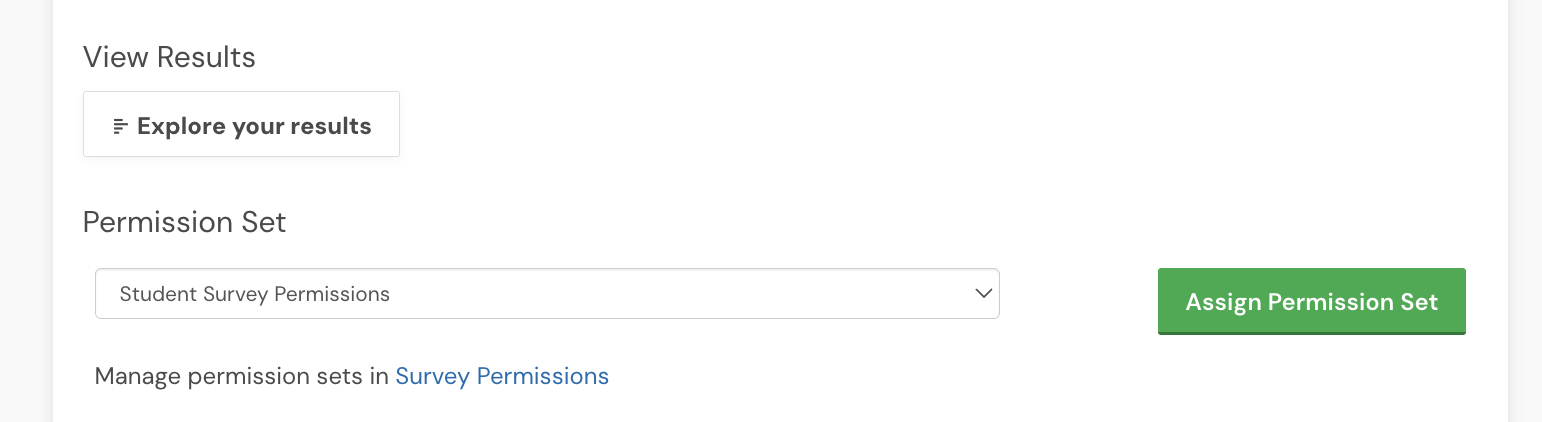
Note: Some Global Administrators might not see the Assign Permission Set option during report release. If this setting is missing, please reach out to your Panorama project team or support@panoramaed.com for assistance.
Troubleshooting
I'm not able to see the toggles for enabling the Response Rate Dashboard and Completion lists for Survey Reporting on the permissions page.
You may need to do a hard refresh of your browser before these become visible.
For Mac users on Chrome, Firefox, Edge, or Safari: Press Command (⌘) + Shift + R.
For Windows users on Chrome, Firefox, or Edge: Press Ctrl + F5 or Ctrl + Shift + R.