Personalized Graduation Plans (PGPs)
Last updated: October 8, 2026
The Personalized Graduation Plan (PGP) is an AI-assisted workflow inside Panorama Pathways that helps educators create, edit, finalize, and review personalized graduation plans in one place. It combines career goals, post-secondary plans, graduation progress, CTE pathway progress, distinctions, college and scholarship recommendations, and next steps into a living planning document.
The PGP is designed to help educators spend less time gathering context from multiple systems and more time using the plan as a real advising tool. It also gives school and district leaders visibility into who has a plan, what students are targeting, and which plans are complete.
This article explains what PGPs do, who can use them, and how to create, edit, finalize, and review a PGP. It also covers meeting agendas, family letters, and reporting.
Who this is for
Recommended roles: Counselors, career specialists, student support staff, school administrators, and district administrators.
Families and students benefit from the output, but PGPs are educator-led and are not a student-facing planning tool.
Access requirements: Your district must have graduation plans and CTEs configured. PGPs must also be enabled through AI Feature Management.
Users need the View PGPs permission to view existing PGPs or the Create/Edit PGPs permission to create, edit, finalize, and delete them. For more information, see How can I enable AI features?
How the PGP works
Counselors start in a student profile, open the PGP tab, and create a new PGP. They enter the PGP name, required Career Goal and Post-secondary Plan, any additional fields configured for their district, and an optional prior PGP reference. Panorama Pathways then generates an editable draft using available student data, graduation progress, CTE progress, distinction progress, and recommendation logic.
Depending on your district's configuration, the PGP creation form may include additional fields such as Career Cluster, Major, Academy, Selected CTE, and Selected Distinction. These fields may be required or optional and can also appear in PGP reporting and exports when enabled.
Selected CTE and Selected Distinction represent the pathway or distinction the student intends to pursue. Reporting can show both the student's selection and their current progress or status toward that selection.
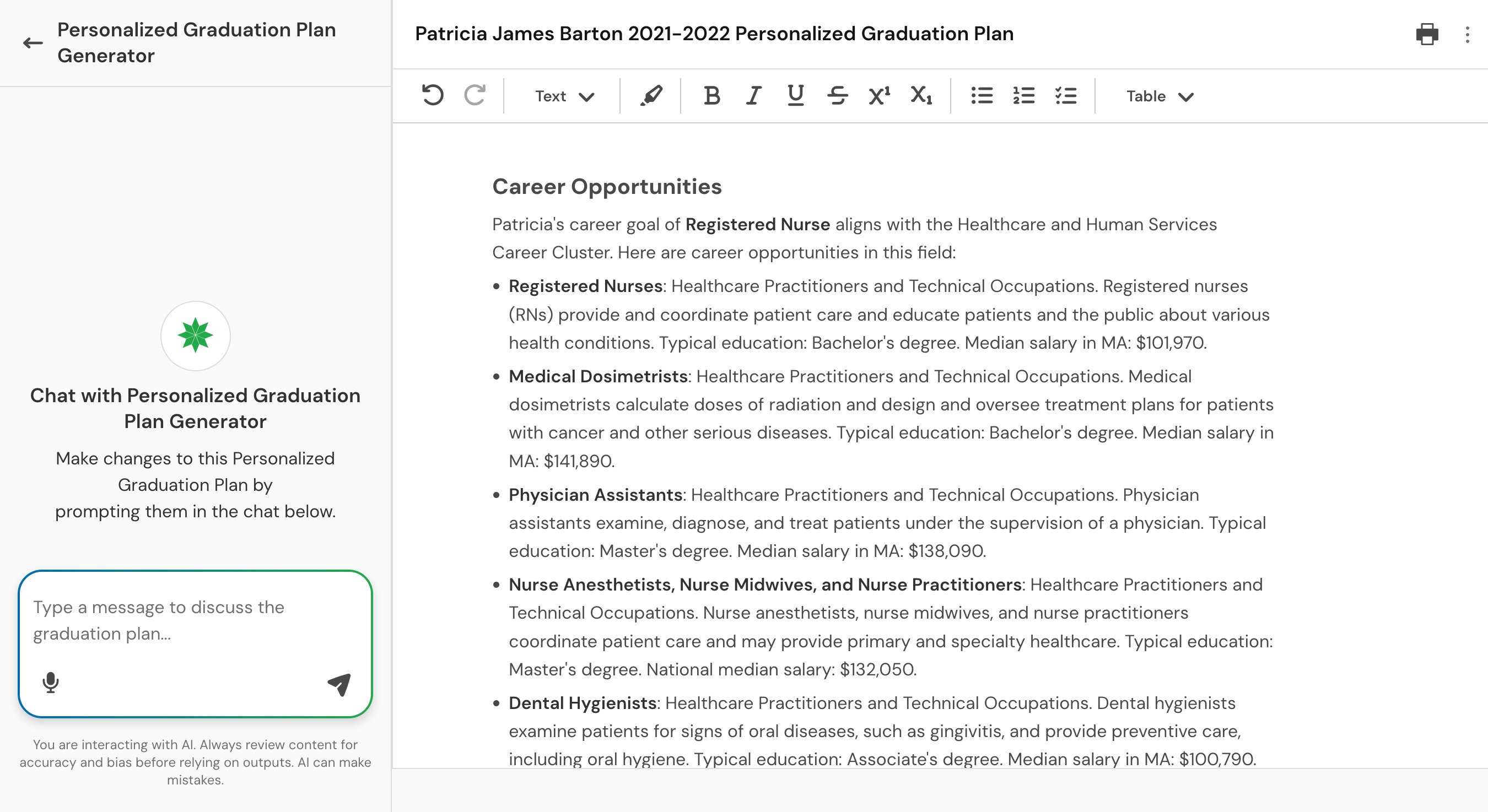
Educators with the Create/Edit PGPs permission can reopen and revise saved or finalized PGPs directly in the document editor. They may also request changes through chat. The system preserves any manual edits done to the plan.
PGPs can also use state- or district-specific generation instructions that guide the content or format of generated documents. For example, instructions can request additional sections, changes to section order, or printable signature sections.
How to create a PGP
Open a student profile in Panorama Pathways.
Go to the Graduation Tab, then to the PGP tab.
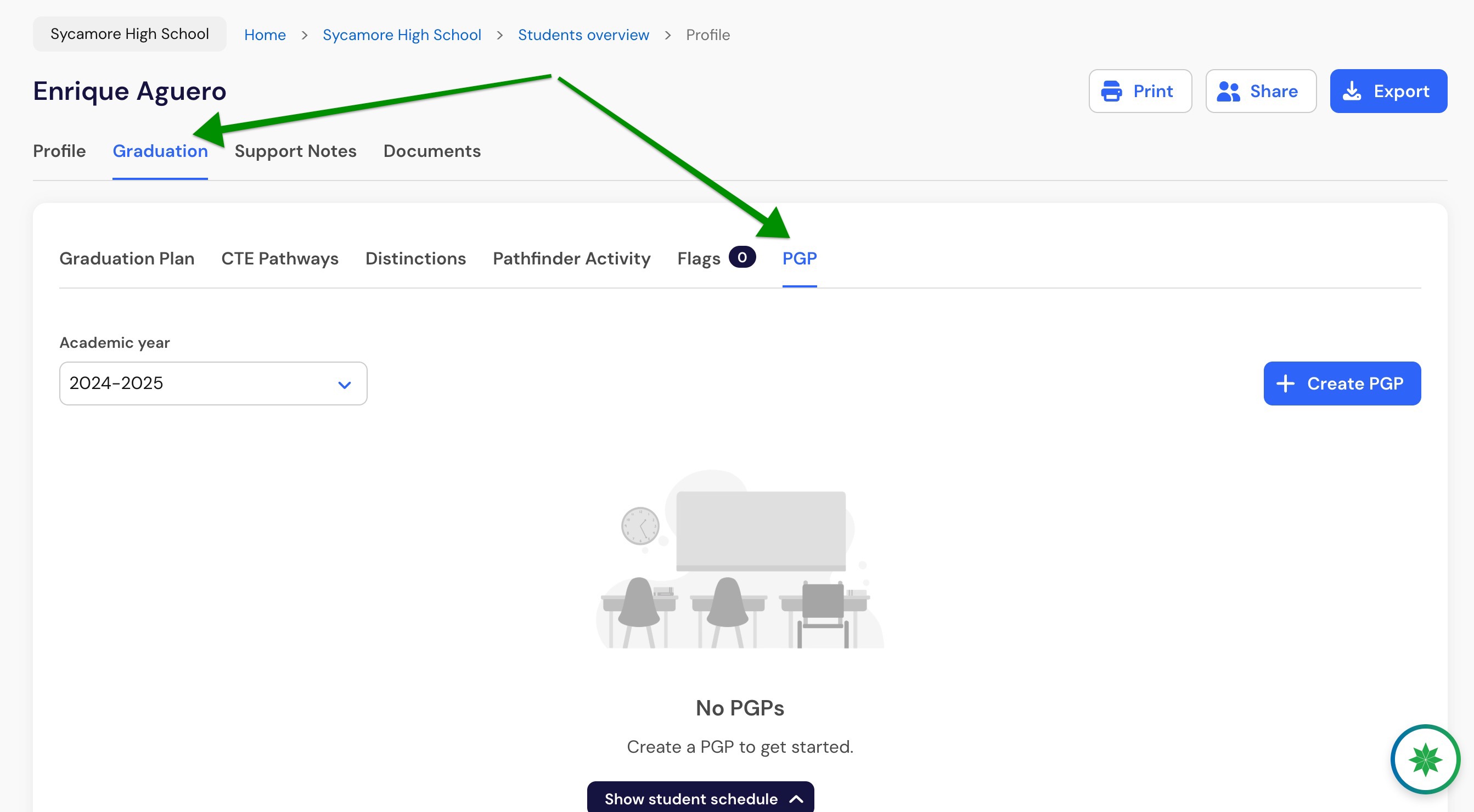
Select Create Personalized Graduation Plan.
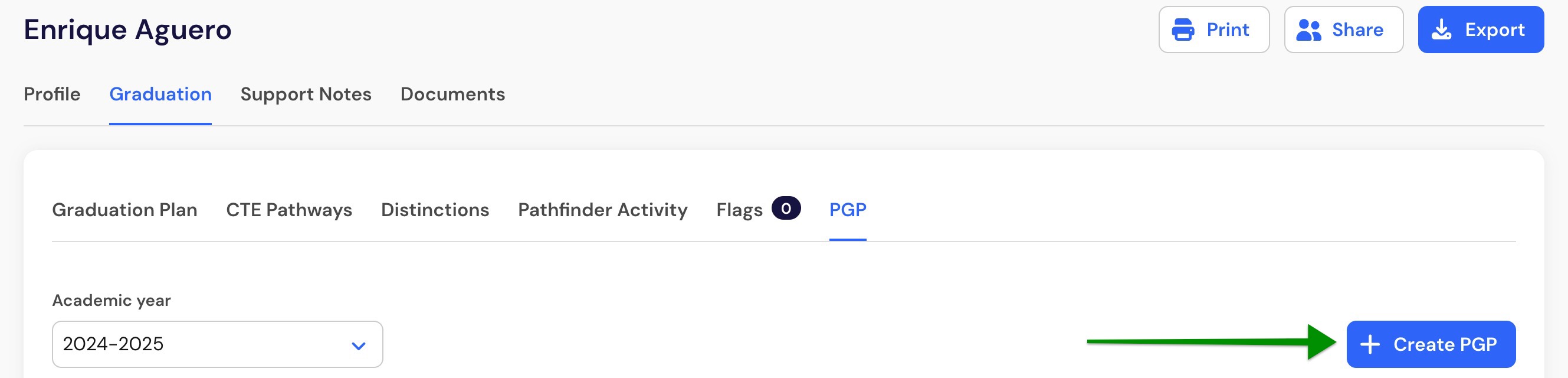
Enter the PGP name.
Add a prior PGP reference if needed.
Select or enter the required career goal.
Select the required post-secondary plan.
Complete any additional fields shown for your district. Depending on your district's configuration, these may include Career Cluster, Major, Academy, Selected CTE, and Selected Distinction.
Additional fields may be required or optional based on your district's PGP configuration.
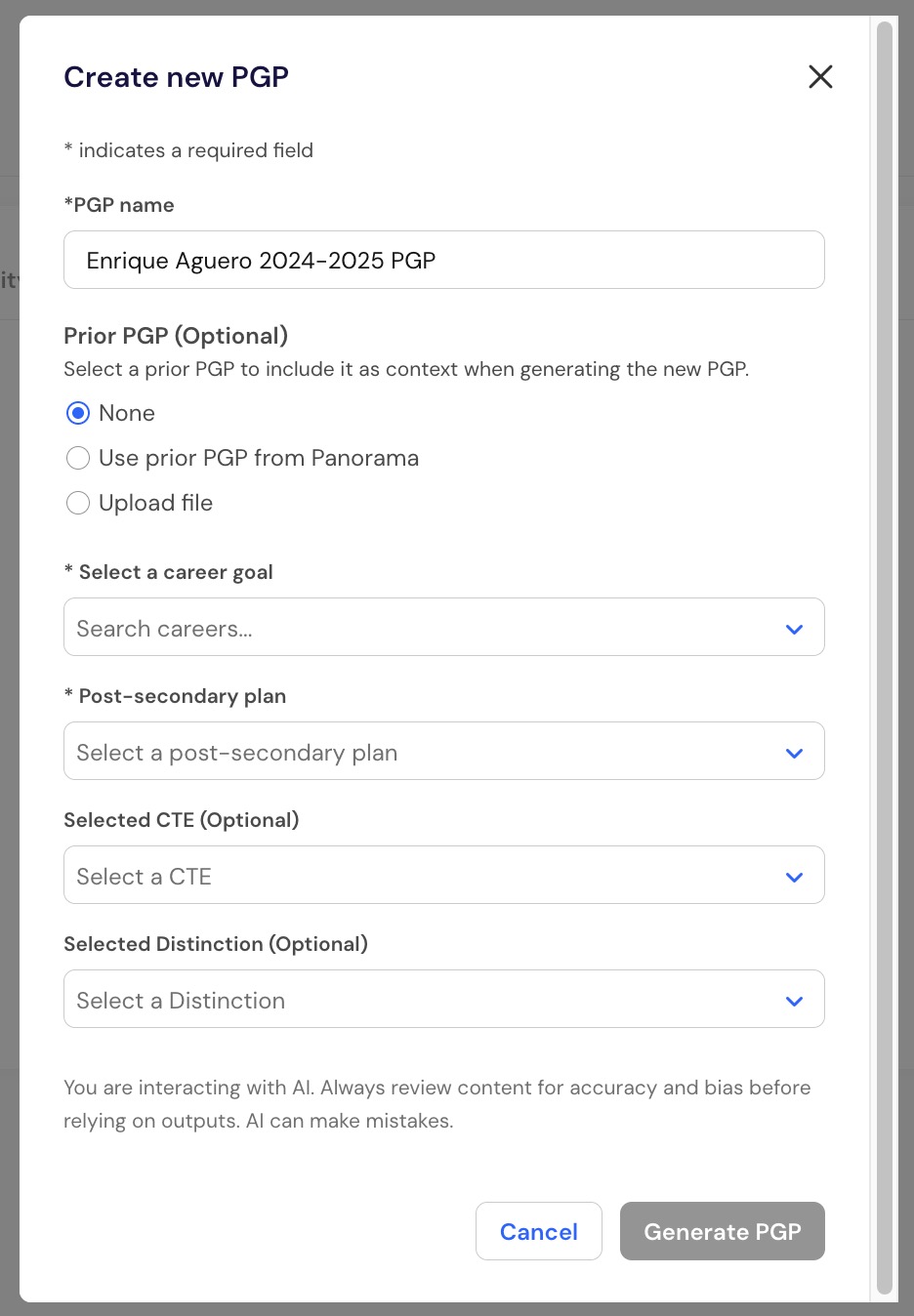
Select Generate PGP.
After generation, review the draft carefully before sharing it or relying on it. The PGP uses AI-generated content, so educator review is always required.
What the generated PGP includes
When relevant data is available, the generated PGP can include the following. The exact structure, terminology, and sections may vary based on the PGP settings configured for your state or district:
Header and student context
Career opportunities
Recommended career cluster and CTE pathway
Academic progress and graduation requirements
CTE progress
Distinction progress
Post-secondary recommendations
Scholarship and financial aid opportunities
Action steps
If scholarship data is limited, the PGP will report this on the plan. If local or state data is unavailable, recommendations will be generated from national data.
How to edit a PGP
Open a saved or finalized PGP from the student profile and make edits directly in the document editor.
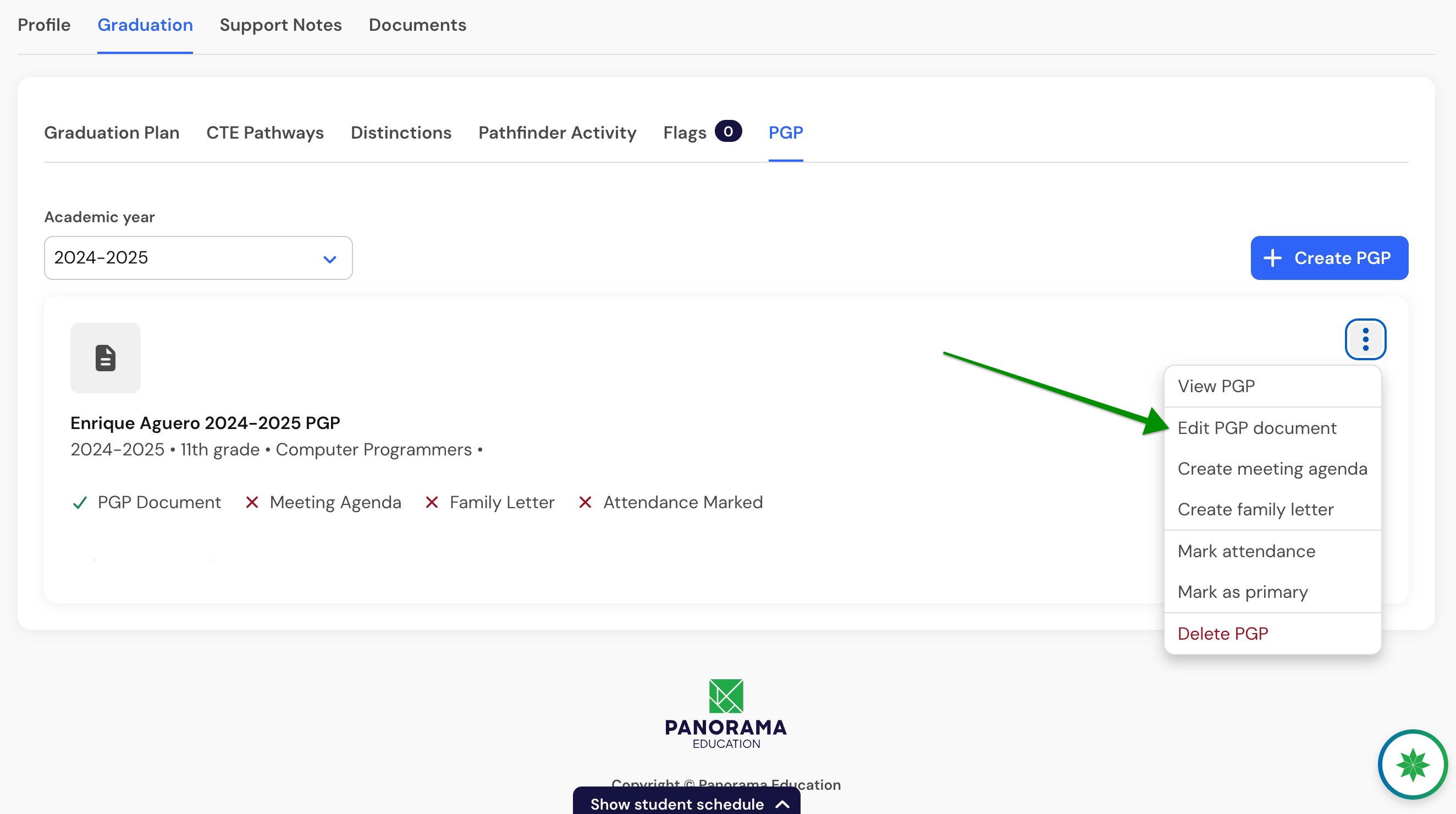
You can also ask the chat to revise specific parts of the document, such as updating a career goal or making next steps more specific. The updated PGP autosaves when updates are made so no progress is lost.
You can use the document editor for direct changes when you know exactly what needs to change. Use the chat window when you want targeted revisions while keeping the rest of the plan intact.
How to create a meeting agenda
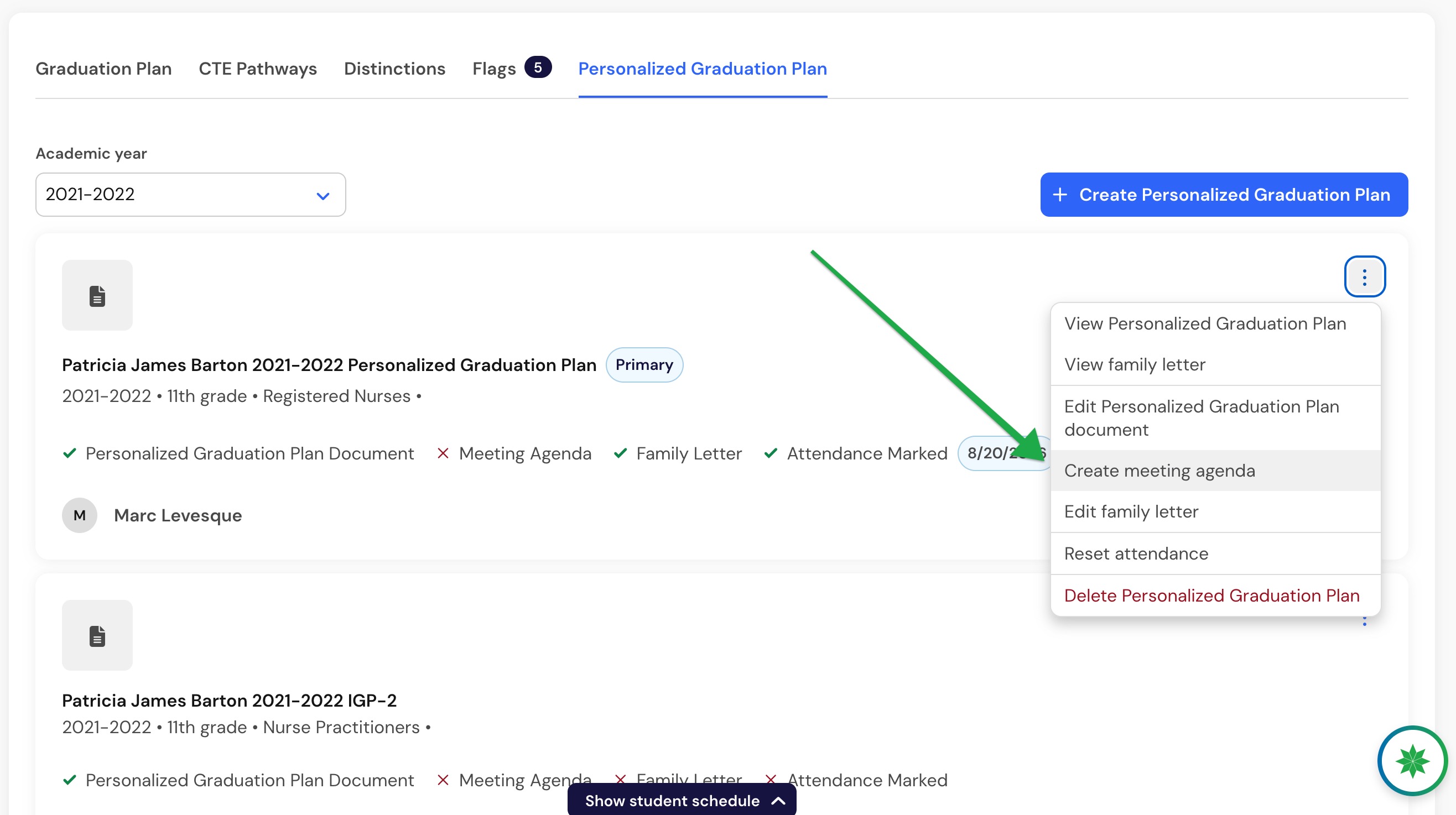
From a saved PGP, select Create meeting agenda.
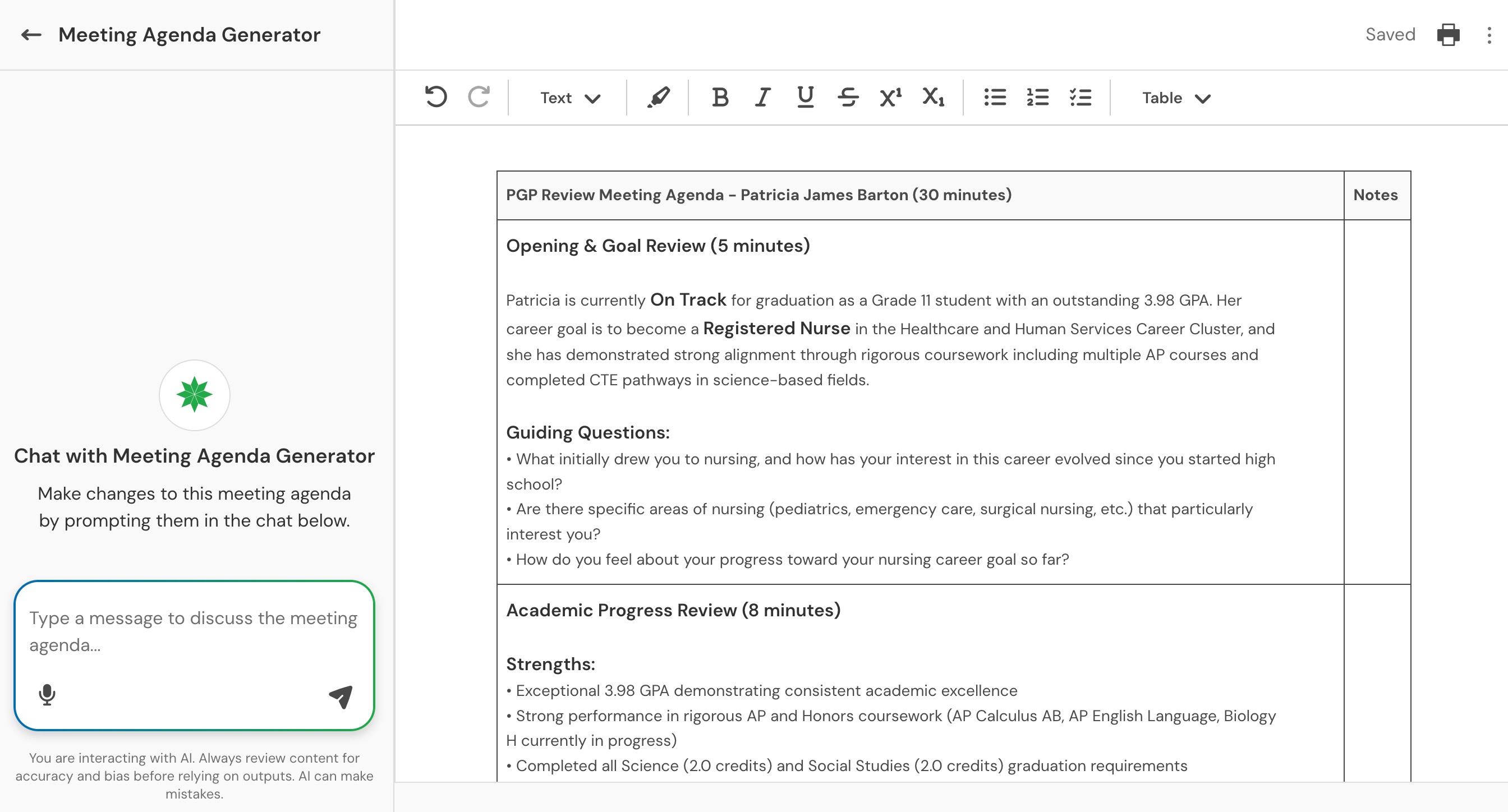
The agenda is based on the selected PGP and should include opening and goal review, academic progress review, CTE or pathway planning, distinctions and certifications, and next steps and action items. It is editable, printable, and exportable.
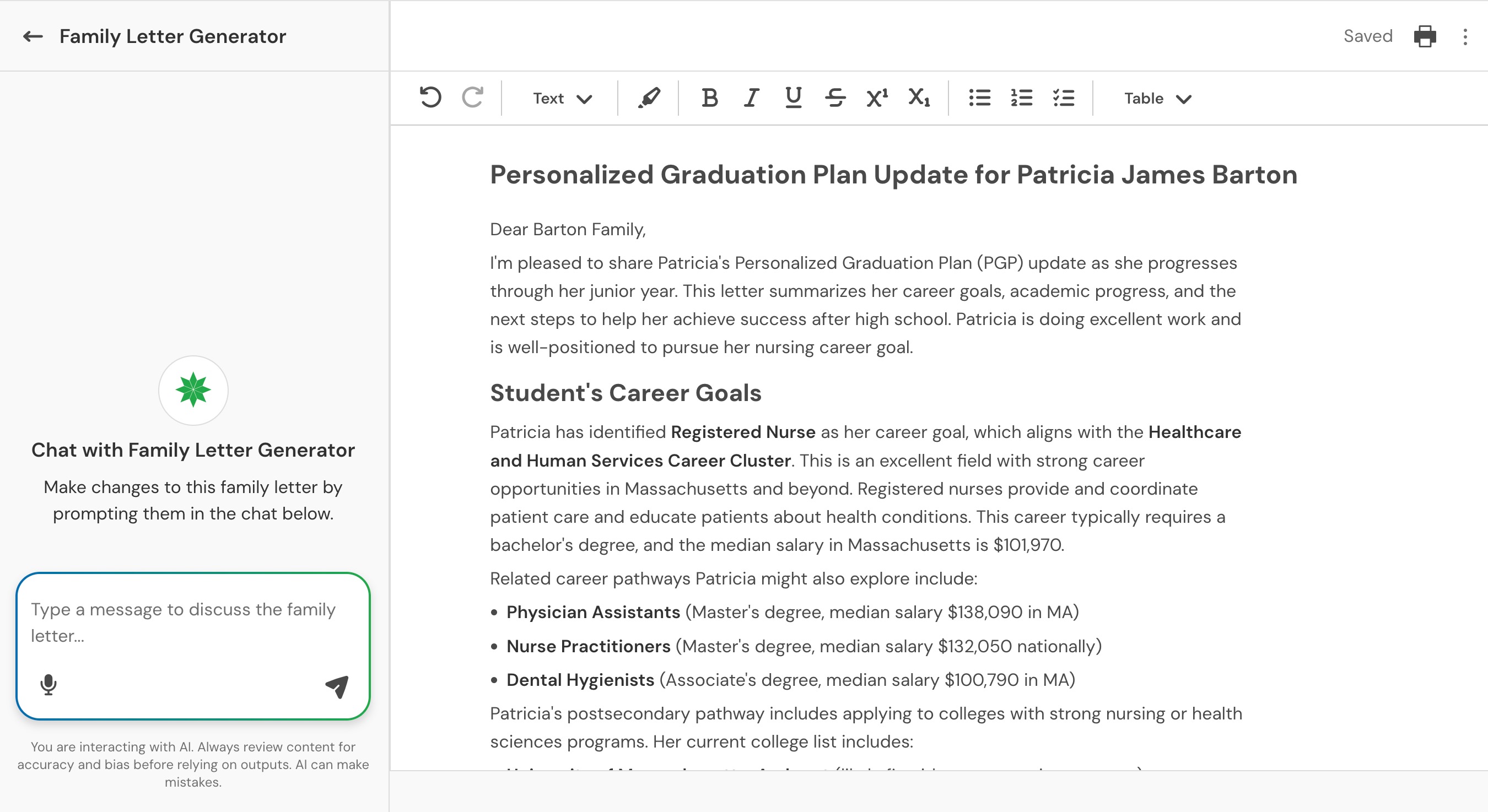
How to create a family letter
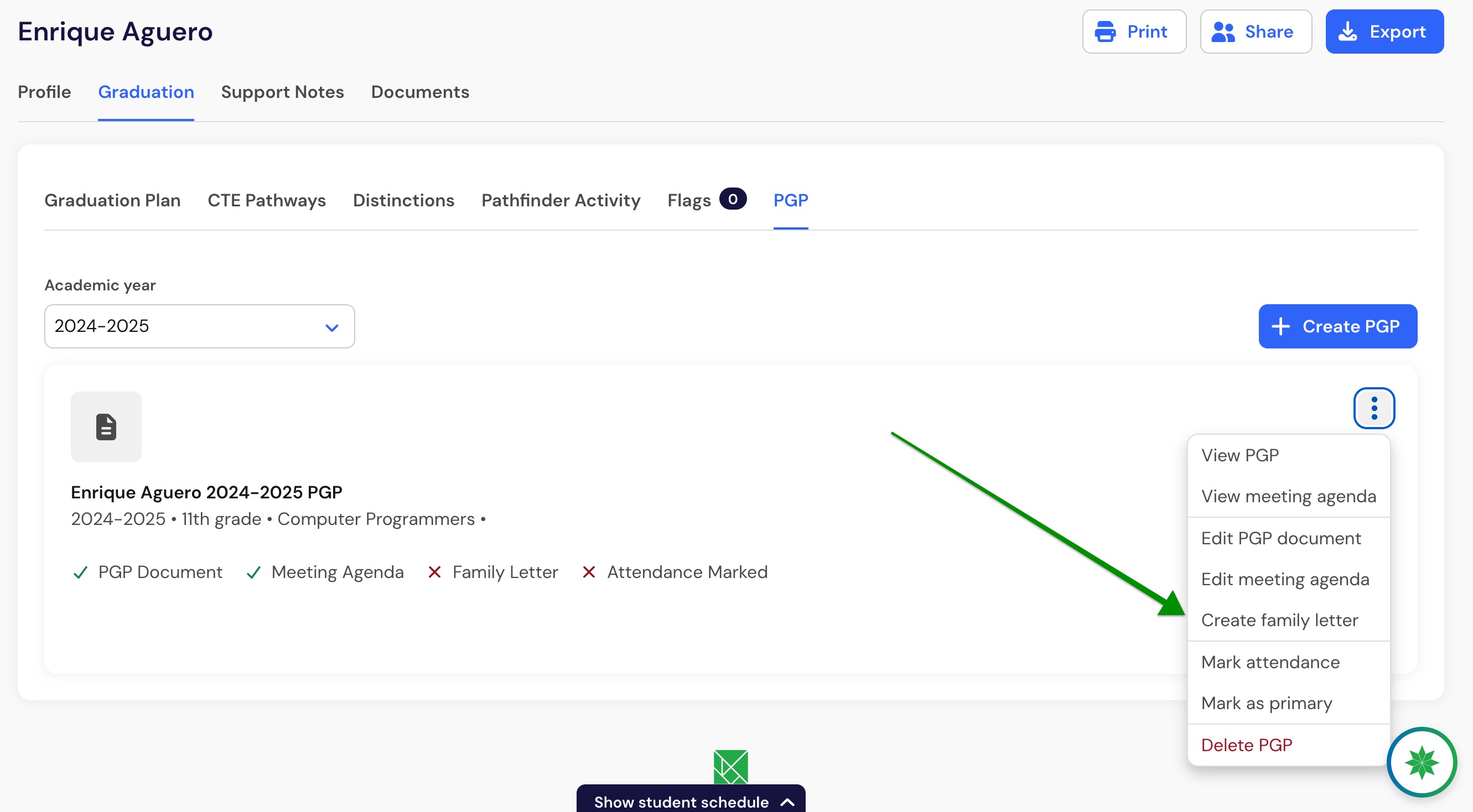
From a saved PGP, select Create family letter.
The letter generated will be drafted in plain language, will be family-friendly, explain the student’s goals and progress, and include concrete ways the family can support the plan. It is editable, printable, and exportable.
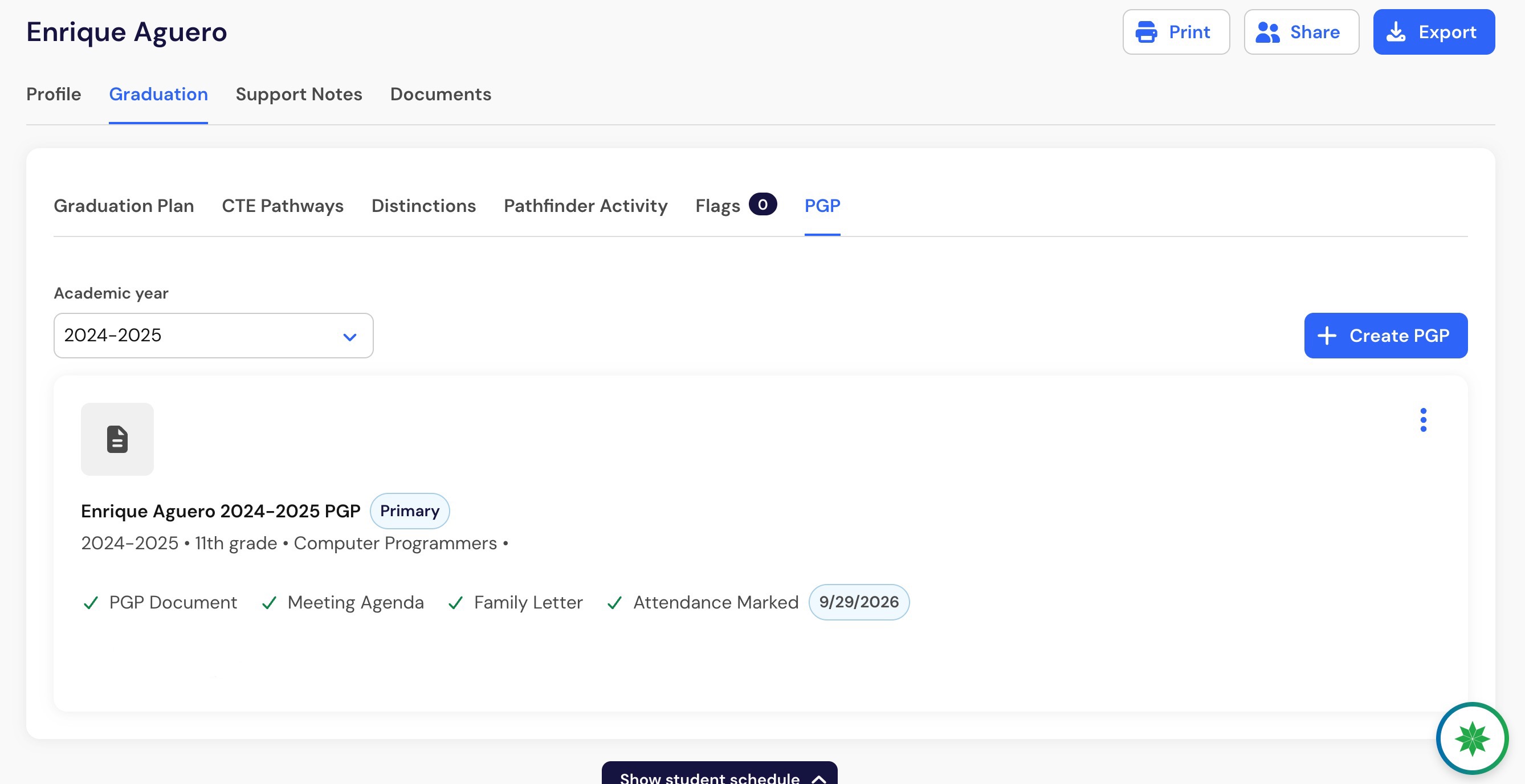
Finalizing a PGP
Counselors can finalize a PGP once required finalization information is present.
Finalization requires attendance type, attendee type, and a saved PGP document. Only one finalized PGP per student per school year is allowed. If a finalized PGP already exists, the system should make that status change clear before proceeding.
Finalizing a PGP does not lock the plan. Users with the Create/Edit PGPs permission can continue to edit a finalized PGP. The same permission also allows users to delete PGPs.
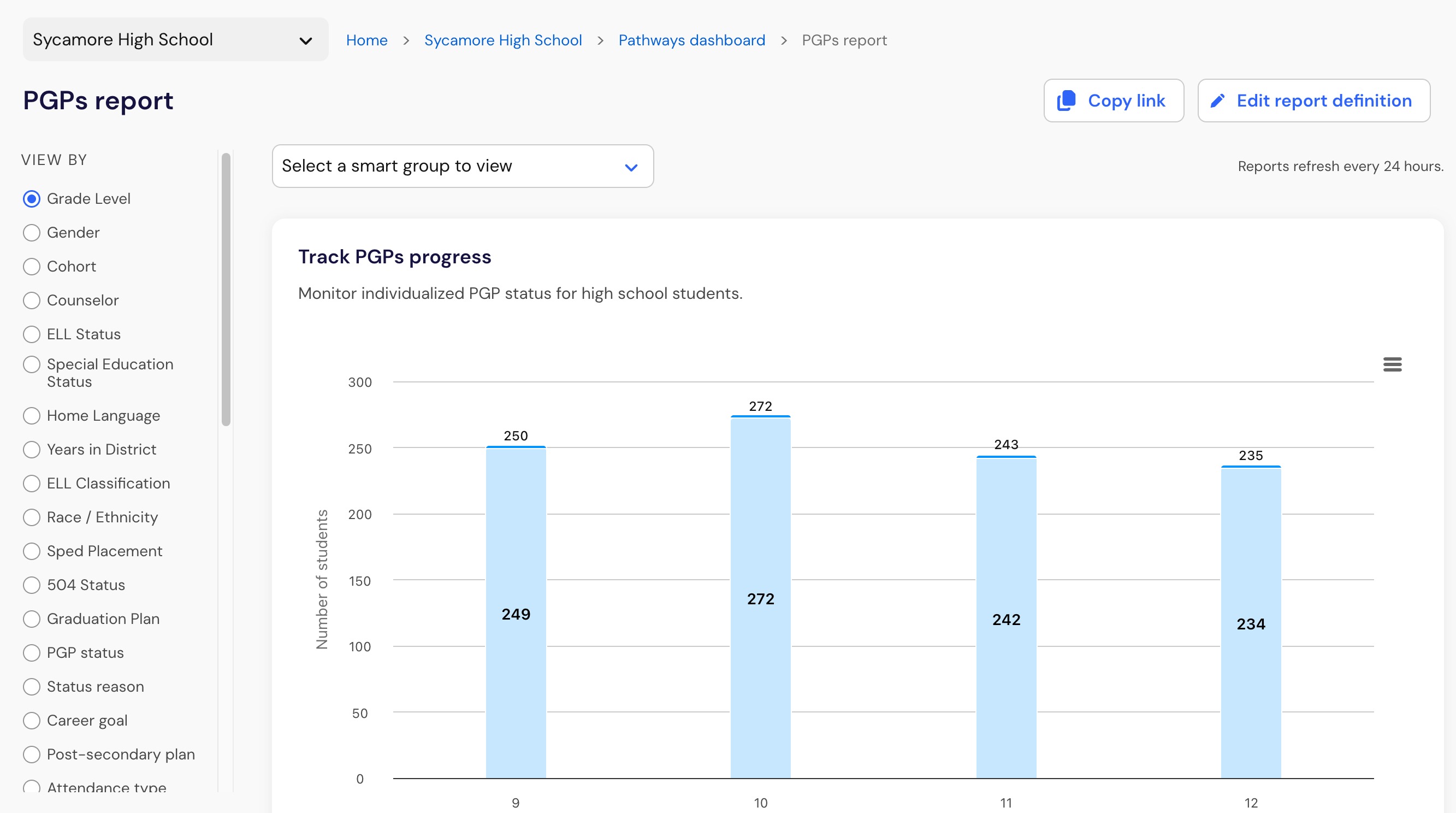
PGP reporting
School and district users can review PGP reporting at the district, school, and student levels.
Reporting includes PGP status and configured PGP fields such as Career Goal, Career Cluster, Major, Academy, Selected CTE, and Selected Distinction. Additional reporting fields can include Assigned Graduation Plan and its status, Meeting Date, and current CTE and distinction progress or status when those fields are enabled.
Selected CTE and distinction completion dates are not included in the current GA release.
The PGP student report provides student-level PGP information and view-by options.
The existing school-level by-student report remains available from the school-level dashboard and updates in real time. The new district-level by-student report is available from district-level dashboards and the sidebar navigation. It provides visibility across schools and updates after overnight processing.
Configured fields flow into the PGP student report and CSV export based on the effective district configuration.
Frequently asked questions
Can students edit the PGP themselves?
No. PGPs are educator-led, and students do not edit the PGP directly. Students benefit from the resulting plan and follow-up communication.
Can I start from a prior PGP?
Yes. You can start from no prior reference, a prior Panorama PGP, or an uploaded prior PGP document. Current Panorama Pathways data remains authoritative for current progress and student attributes.
Do I need graduation plans and CTE tracking enabled?
Yes. Graduation plans and CTEs need to be configured for PGPs to be generated and for users to have access to PGPs. PGPs also need to be enabled through AI Feature Management.