Configure assessment comparison views in Student Success
Last updated: October 2, 2026
An assessment comparison view is a district-configured set of assessment results that educators can review side by side in Student Success. Create a shared view to give schools a consistent set of academic evidence for student review and local MTSS decision-making.
Who this is for: Global administrators with access to assessment comparison in Platform Admin.
Create an assessment comparison view
Open Platform Admin.
Select Assessment Comparisons within the Student Success tile.
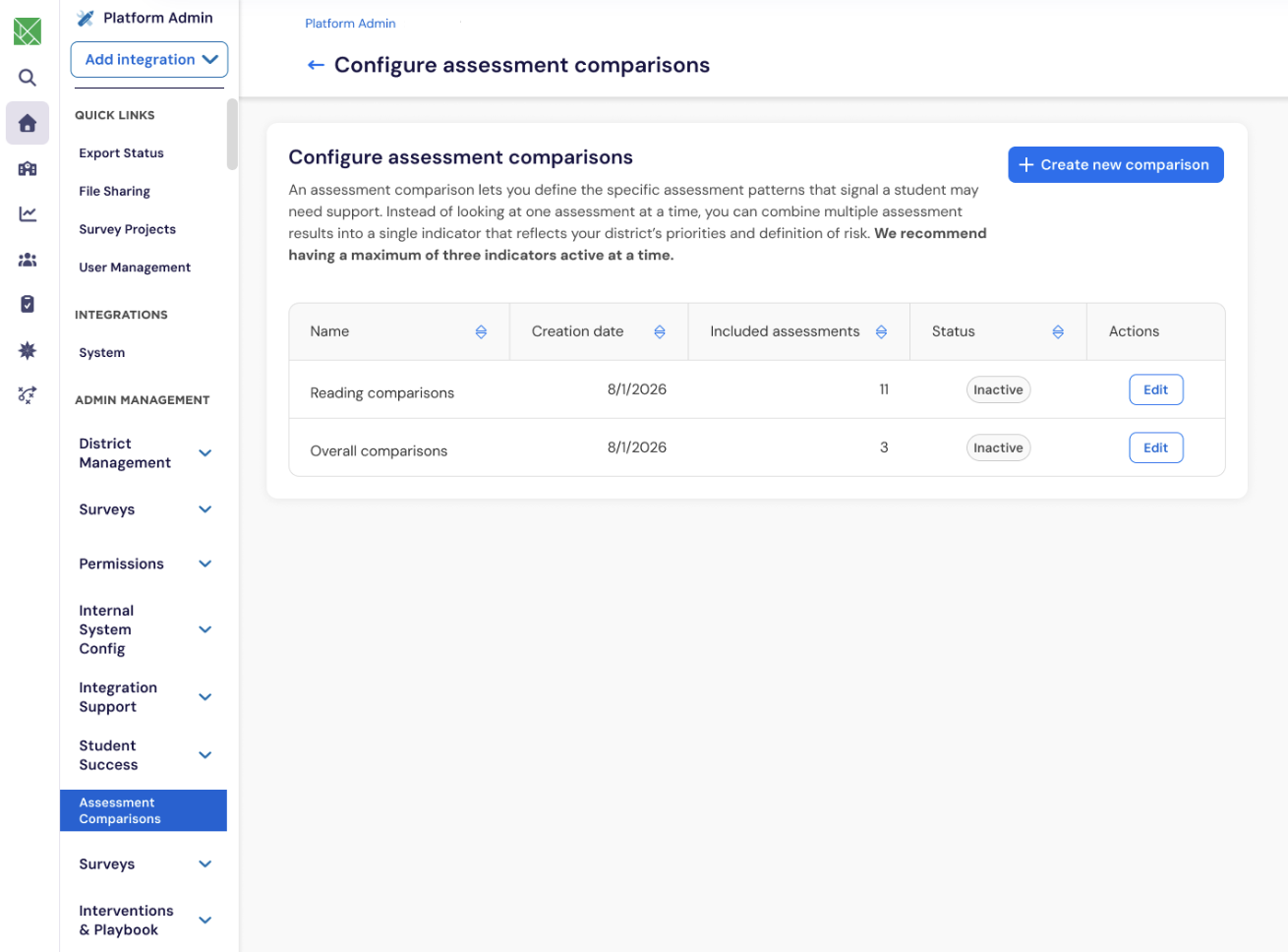
Select Create new comparison button
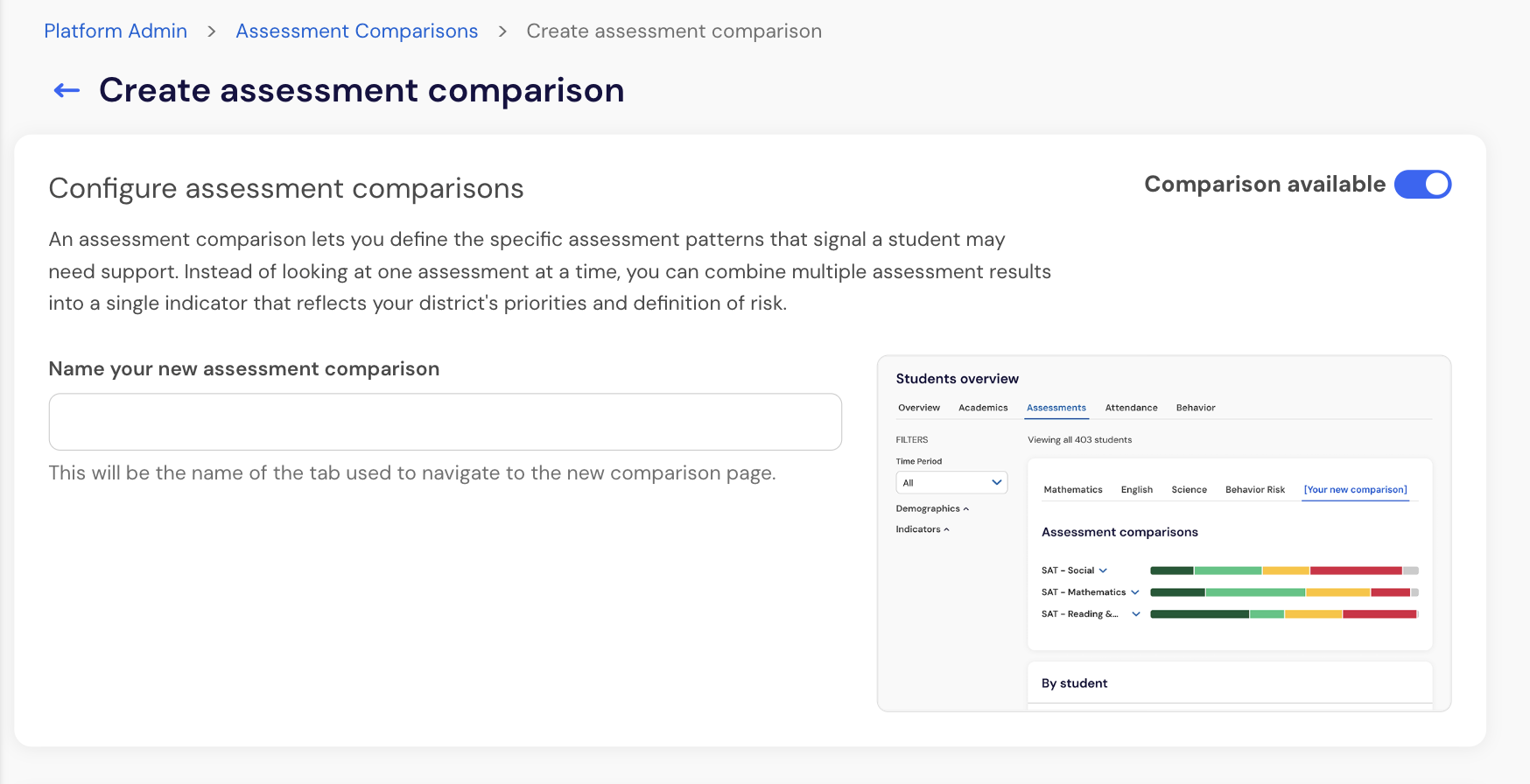
Enter a name that helps educators understand the purpose of the view.
For example, a district reviewing multiple early literacy measures could name the view Early Literacy Review.
Select the assessments educators should review together.
You can select assessment records available to your district, including supported benchmark and progress-monitoring assessments.
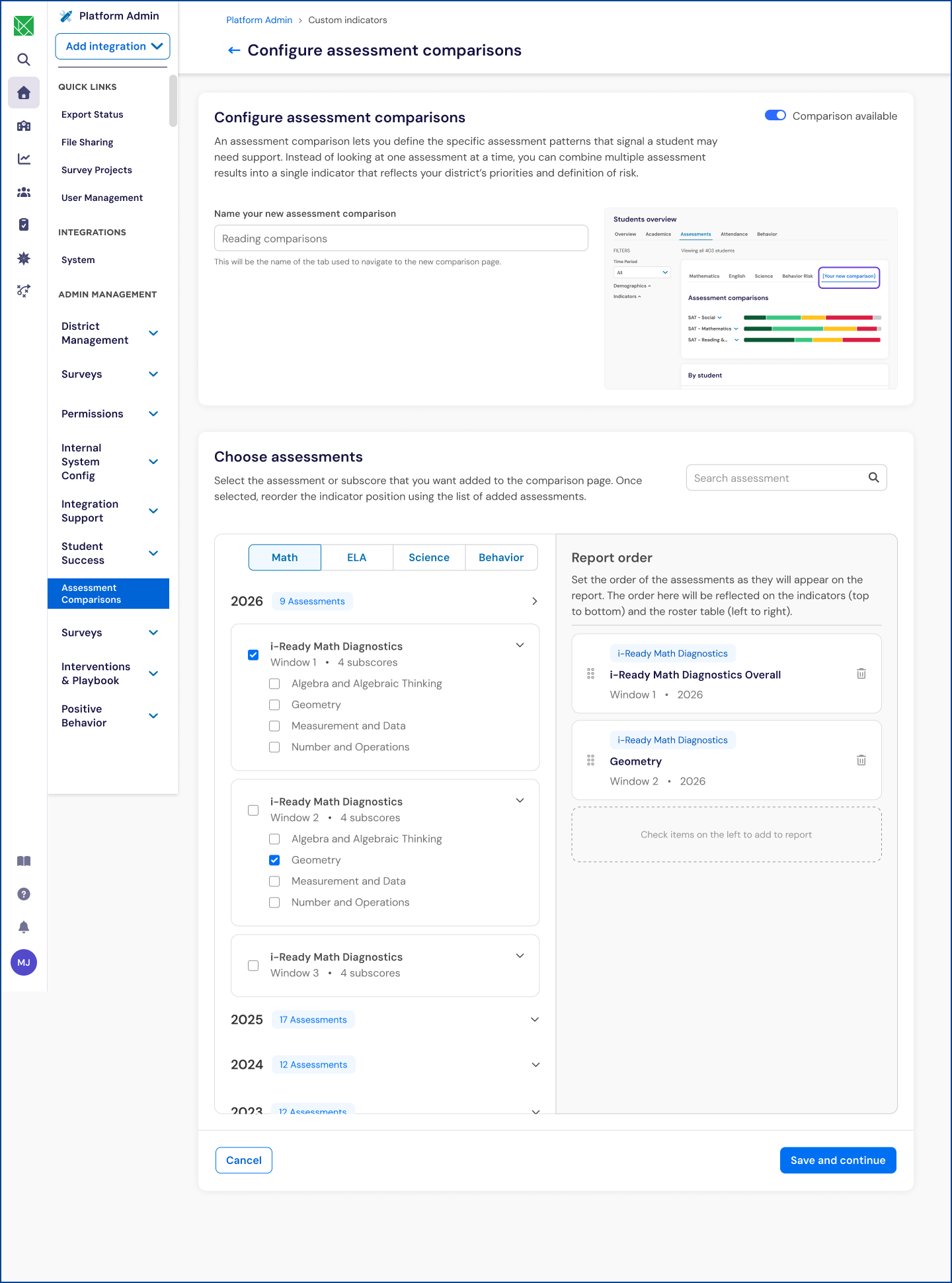
In Report order, arrange the selected assessments in the order you want educators to review them.
Confirm that the comparison will be available to educators.
Select Save and continue.
Verify the assessment comparison view
After creating the view, confirm that educators can access the expected assessment information.
Open a school in Student Success.
Go to Students & Supports.
Open Assessments.
Select the district-configured assessment view.
Confirm that the selected assessment results appear as adjacent columns for the same students.
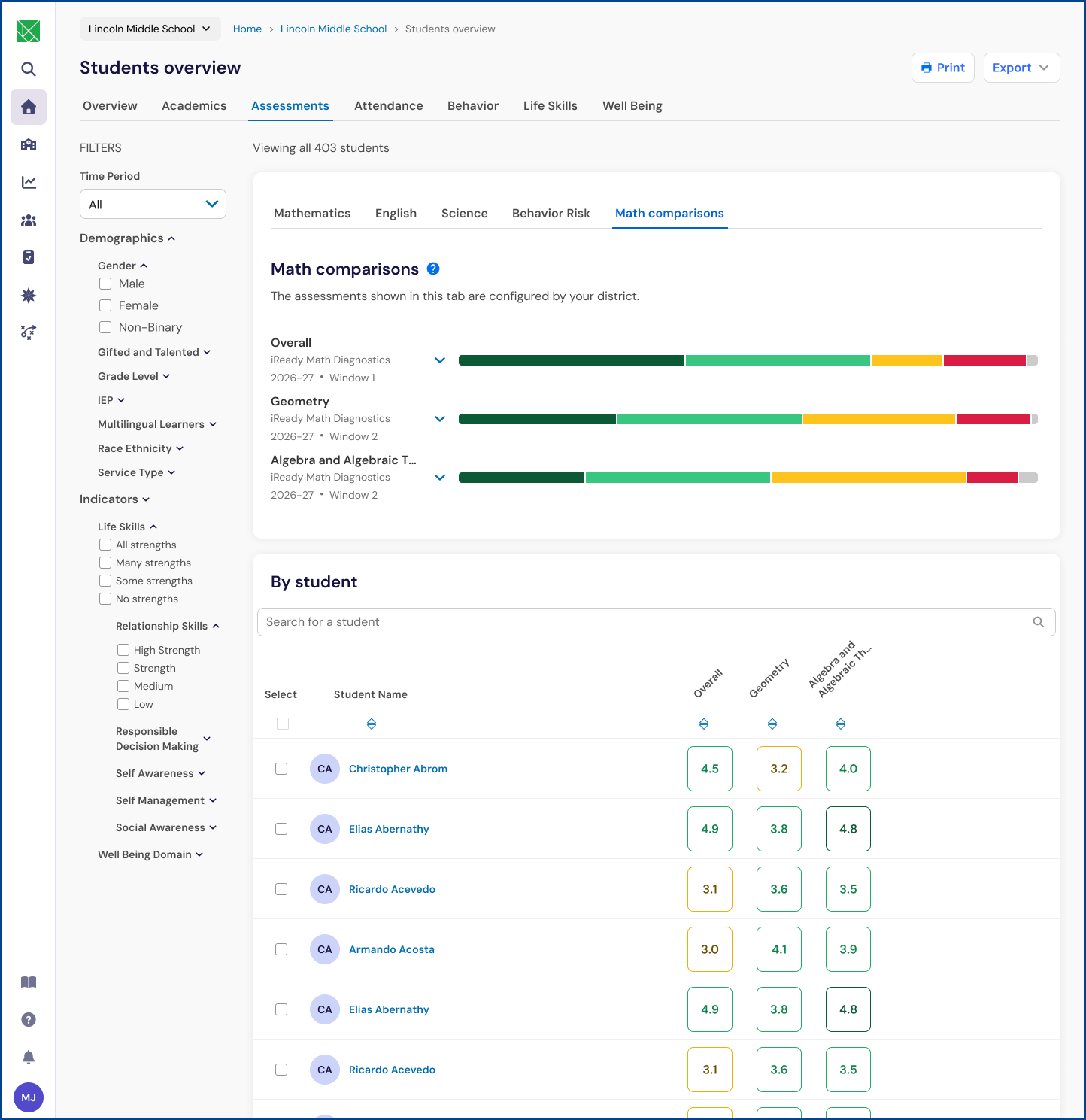
Educators can use the available student-list filters to focus their review on permitted student groups and assessment results.
Important: Assessment comparison views bring multiple academic signals together. They do not automatically assign MTSS tiers, create student groups, or assign interventions.
Manage an assessment comparison view
District assessment needs may change over time. You can update an existing comparison view to keep the shared experience aligned with your district's review process.
Open Platform Admin.
Open the Assessment Comparisons configuration.
Select the view you want to update.
Update the assessments included in the view.
Change the view to Active or Inactive, when needed.
Save your changes.
Active views are available to applicable schools. Inactive views are not available for educators to select.
Frequently asked questions
Can school-level users change the assessments in a view?
No. In the initial release, assessment selection is managed at the district level. School-level users can filter the resulting student list but cannot change the district-selected assessment set.
Why don't I see the assessment comparison view at a school?
Confirm that the comparison view is active. The view appears at a school when students at that school have data that applies to the configured assessments.
Will every comparison view appear at every school?
No. A view appears for a school when students at that school have data that applies to the configured assessment view.
Can I include progress-monitoring assessments?
Yes. The current product documentation supports assessment records available to the district, including progress-monitoring assessments.
Can I include survey or other non-assessment data?
No. The initial release uses assessment records available in Student Success. Survey topics and other non-assessment data are not included.
Does the comparison view assign MTSS tiers?
No. The comparison view brings assessment evidence together so educators can apply their district's MTSS process. Educators continue to make tiering and intervention decisions.
How soon will the report show up?
After a district administrator saves an active assessment comparison view, the view is available in the Assessments experience for applicable schools. A school will see the view when students at that school have data that applies to the configured assessment view.