District Overview in Student Success
Last updated: October 22, 2026
The District Overview in Panorama Student Success brings together student performance across academics, attendance, behavior, and life skills to inform your district’s Tier 1 planning: the practices and supports available to all students. Use this district-wide view to guide conversations about which practices to continue, where to make adjustments, and how to focus resources.
Who this is for: District administrators, district MTSS leaders, and other district staff with access to the District Overview. If you don't see this page, contact your school or district Panorama administrator to review your access.
Explore student performance across your district
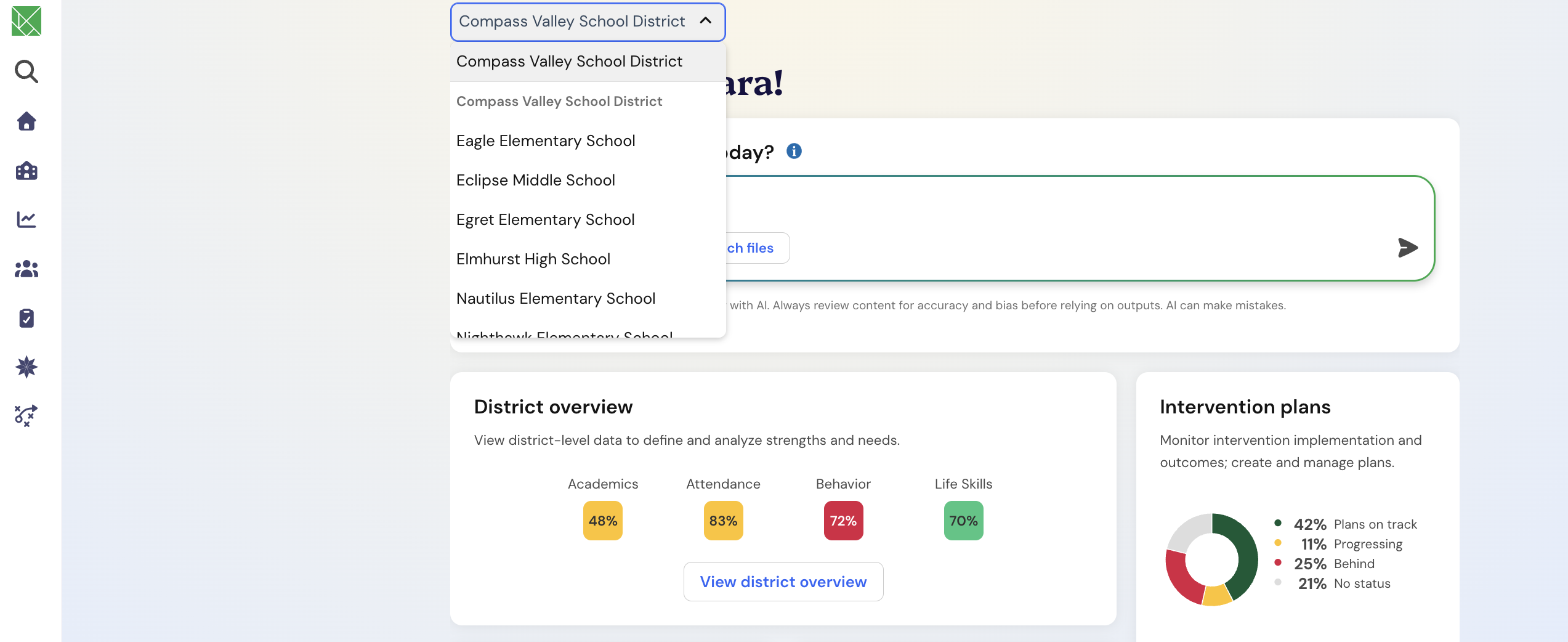
From your Student Success homepage, select View District Overview.
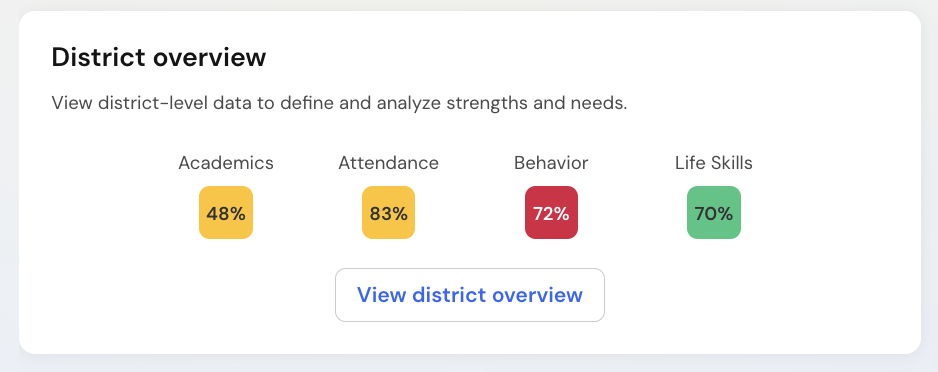
The District Overview brings together information across schools to help you understand how students are doing in four key areas:
Academics: Student performance in academic areas.
Attendance: Student attendance performance.
Behavior: Student behavior indicators.
Life Skills: Student development and progress in life skills.
Each indicator displays the percentage of students currently on track. Together, these percentages provide a starting point for understanding district-wide patterns and reflecting on your universal, or Tier 1, supports.
Tier 1 supports are the school-wide practices and strategies designed to support all students.
Understand percentages and performance colors
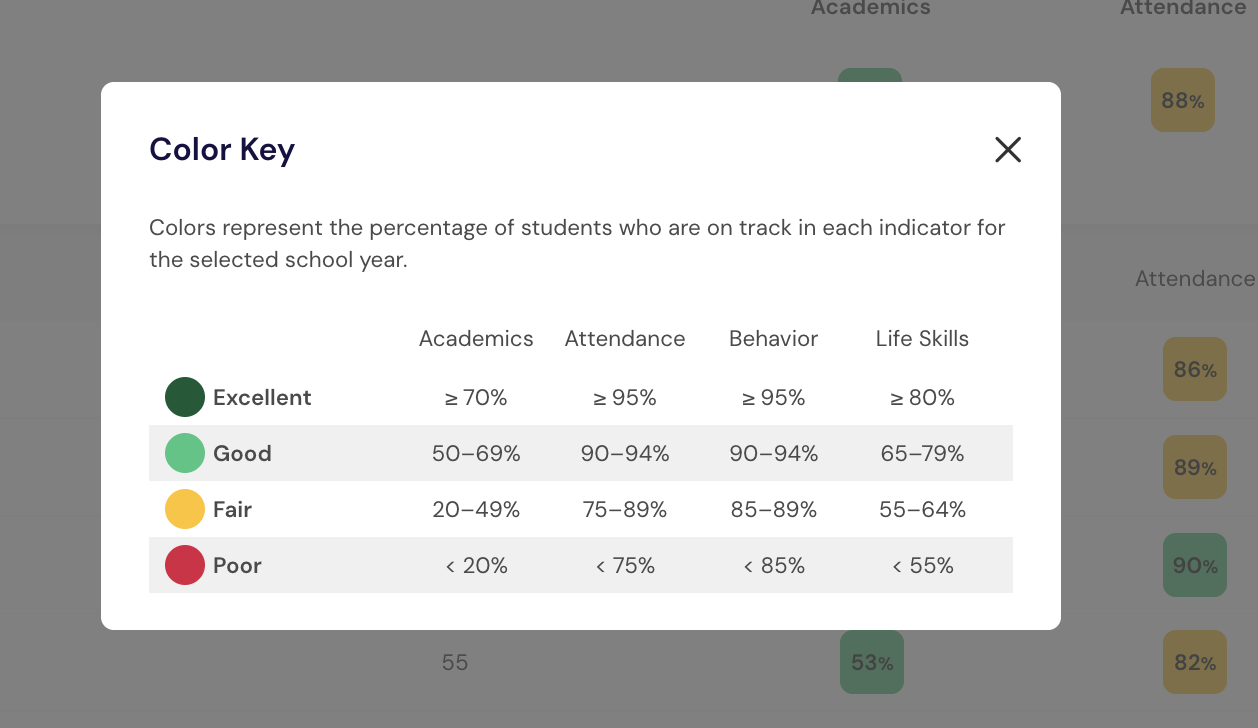
Each indicator displays a percentage and a corresponding color to help you interpret student performance.
Dark green: Excellent performance. This indicator reflects an area of strength.
Light green: Good performance. Most students are on track, with opportunities to build on their success.
Yellow: Fair performance. Consider opportunities to strengthen existing supports.
Red: An area that may need additional attention and further deep dive.
To understand the ranges used for each indicator, select Color key near the top of the District Overview page.
The color ranges help you recognize patterns without reviewing each percentage individually. The ranges can differ from district to district, always reference your own color key on the page for the most accurate explanation.
Note: The colors provide a high-level interpretation of student performance. They do not explain why an outcome occurred or determine which support a student needs.
Use indicator results to identify priorities
Imagine your district's Behavior indicator falls within the red performance range, while Life Skills falls within the light green range.
These results can help you recognize two opportunities:
Explore behavior patterns to identify opportunities to strengthen school-wide supports.
Identify practices that support students’ life skills development and consider how to build on them across schools.
Reviewing all four indicators together can help your team identify where universal supports are showing strengths and where further exploration may be valuable.
Compare student performance across schools
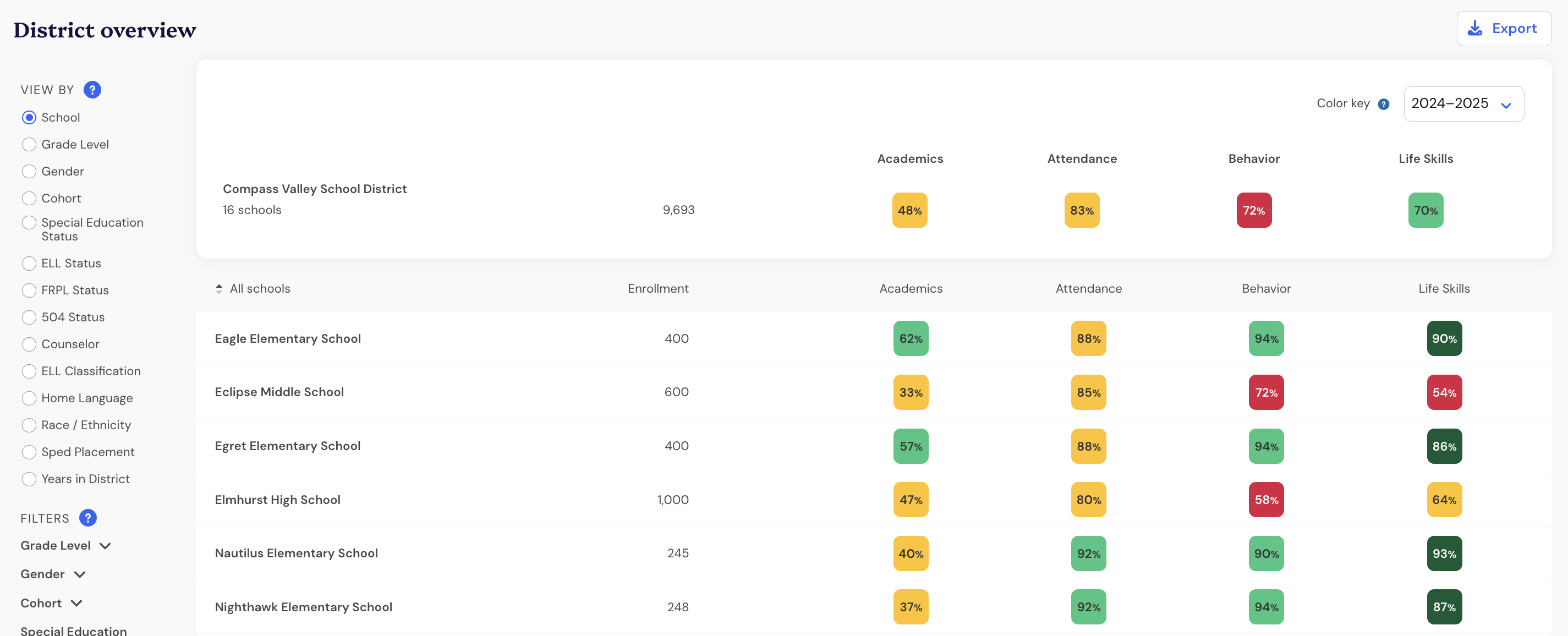
The View By feature lets you organize district data into different groups for comparison.
For example, selecting View By School displays results for individual schools, allowing you to compare their performance across academics, attendance, behavior, and life skills.
This can help district leaders:
Identify schools demonstrating strengths in specific areas.
Recognize patterns that may benefit from additional attention.
Explore opportunities for schools to share successful strategies.
Prioritize discussions about district-wide supports.
Explore patterns across grade levels
You can also select View By Grade Level to compare results across grades throughout the district.
For example, if attendance results vary across grades, exploring these differences can help your team identify where further investigation may be useful.
Grade-level comparisons can also support conversations about student transitions and the effectiveness of universal practices across schools.
Focus on specific student groups with filters
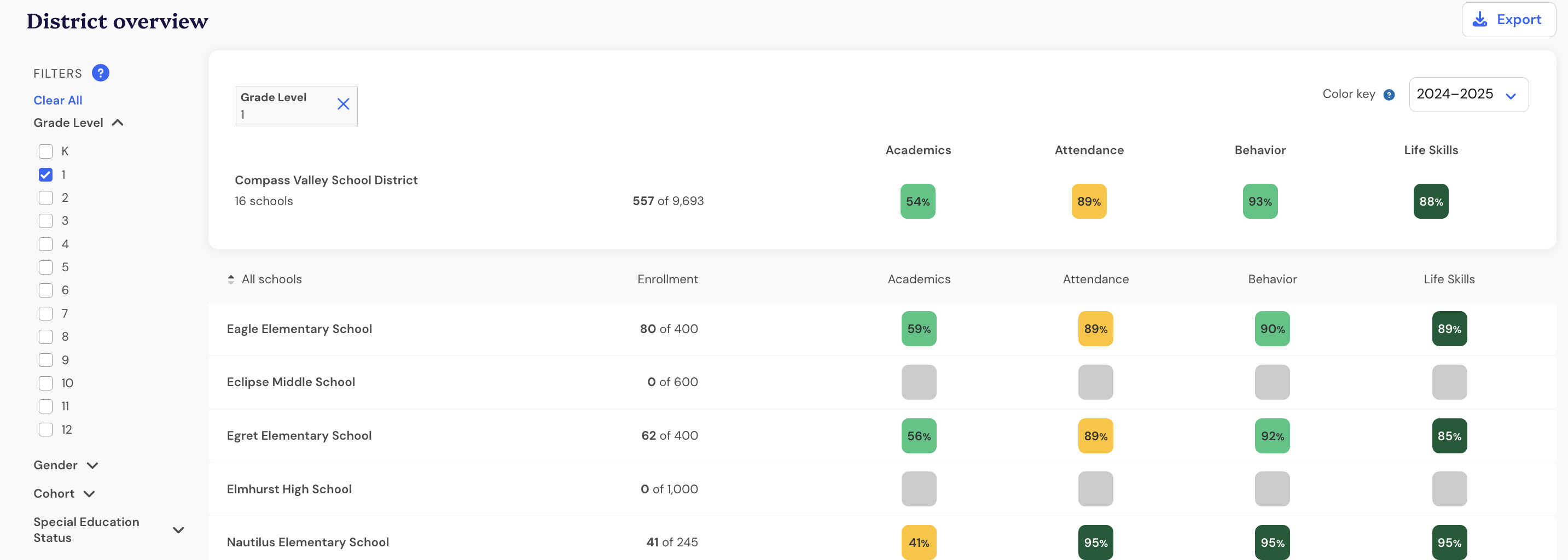
While View By organizes your data for comparison, Filters narrow the results to students who meet selected criteria.
For example, you can explore results for a specific grade level or apply available demographic filters.
You can also combine filters to focus on a more specific student group. The dashboard updates to display results for students who meet the selected criteria.
Using View By and Filters together allows you to compare outcomes while focusing on a specific population.
Note: Available filter options depend on the information configured for your district. If you have any questions, please reach out to your district team.
Connect district-wide insights to support planning
The District Overview can help your team move from reviewing data to planning meaningful next steps.
For example, if behavior results suggest an opportunity for improvement, consider exploring these questions:
Is this pattern present across the district or concentrated in certain schools?
Are specific grade levels showing different outcomes?
What universal practices are already supporting positive results?
Which schools could benefit from collaboration or additional resources?
These conversations can help teams reflect on Tier 1 practices and determine where more targeted Tier 2 or Tier 3 planning may be appropriate.
District Overview data is a starting point for investigation. Pair it with school-level information and educator observations before making support decisions.
Explore results for an individual school
When you're ready to investigate a specific school's performance, return to your Student Success homepage.
Use the school dropdown to select the school you want to explore, then select View School Overview.
The School Overview provides additional context about student performance within that school and supports more focused conversations with school leaders.
Frequently asked questions
What do the District Overview percentages represent?
Each indicator displays the percentage of students currently on track in that area. These percentages help district leaders recognize performance patterns across schools and student groups.
Can I compare different student groups?
Yes. Use View By to organize results into groups and Filters to narrow the students included in your analysis.
Do the colors tell me which interventions to use?
No. The colors highlight areas of strength or possible need. Review additional information and collaborate with school teams to determine appropriate next steps.