Troubleshoot 404 and 500 errors
Last updated: September 23, 2026
If your Panorama screen displays a 404 or 500 error, try the troubleshooting steps below. These steps can help you return to Panorama or identify the information Support needs to investigate the issue.
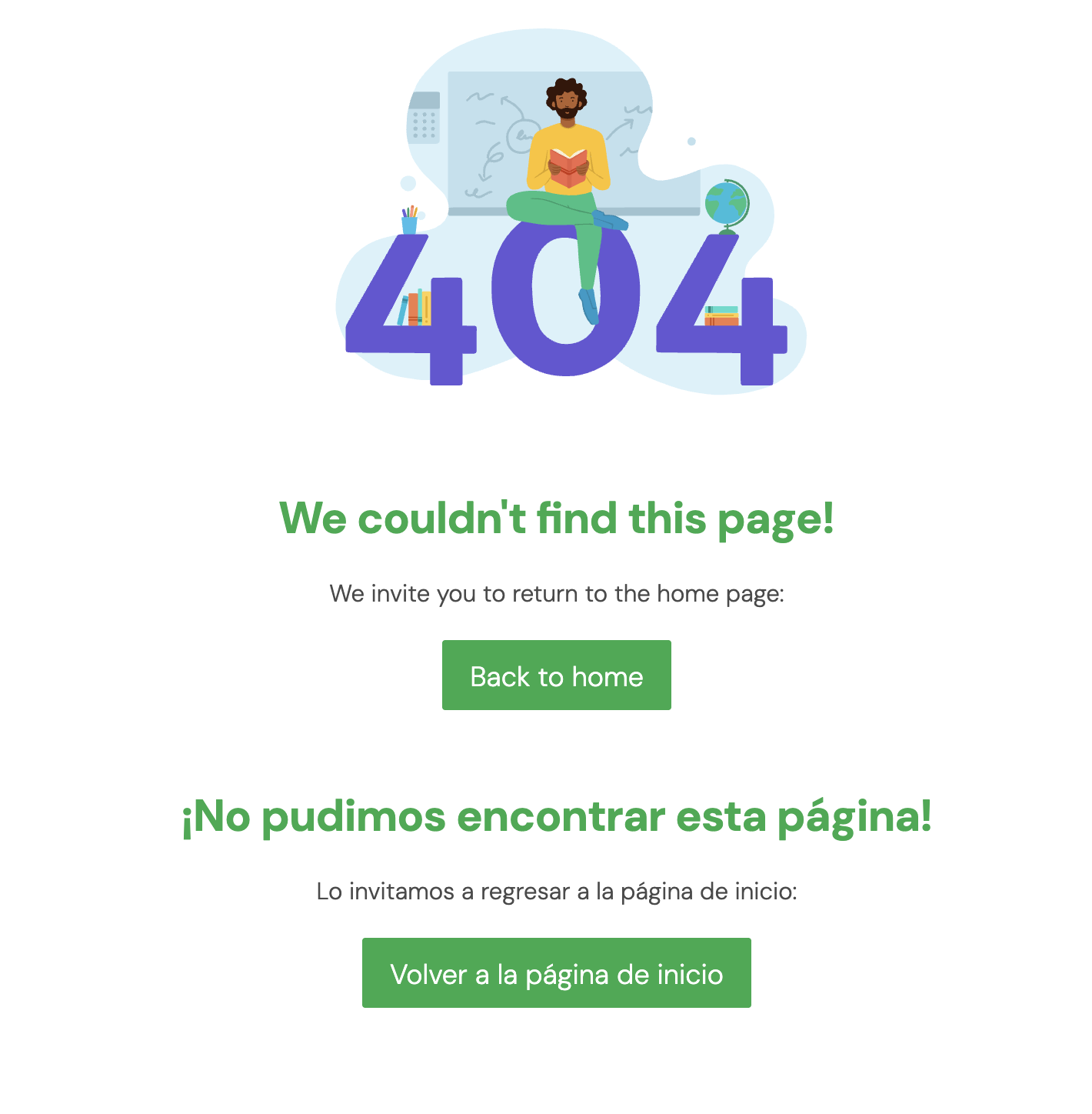
What does a 404 error mean?
A 404 error means Panorama could not find the page at the web address you opened.
This can happen when:
The link is outdated or incorrect
The page is no longer available
Your session expired
You opened a page directly instead of through your organization’s usual login link
What does a 500 error mean?
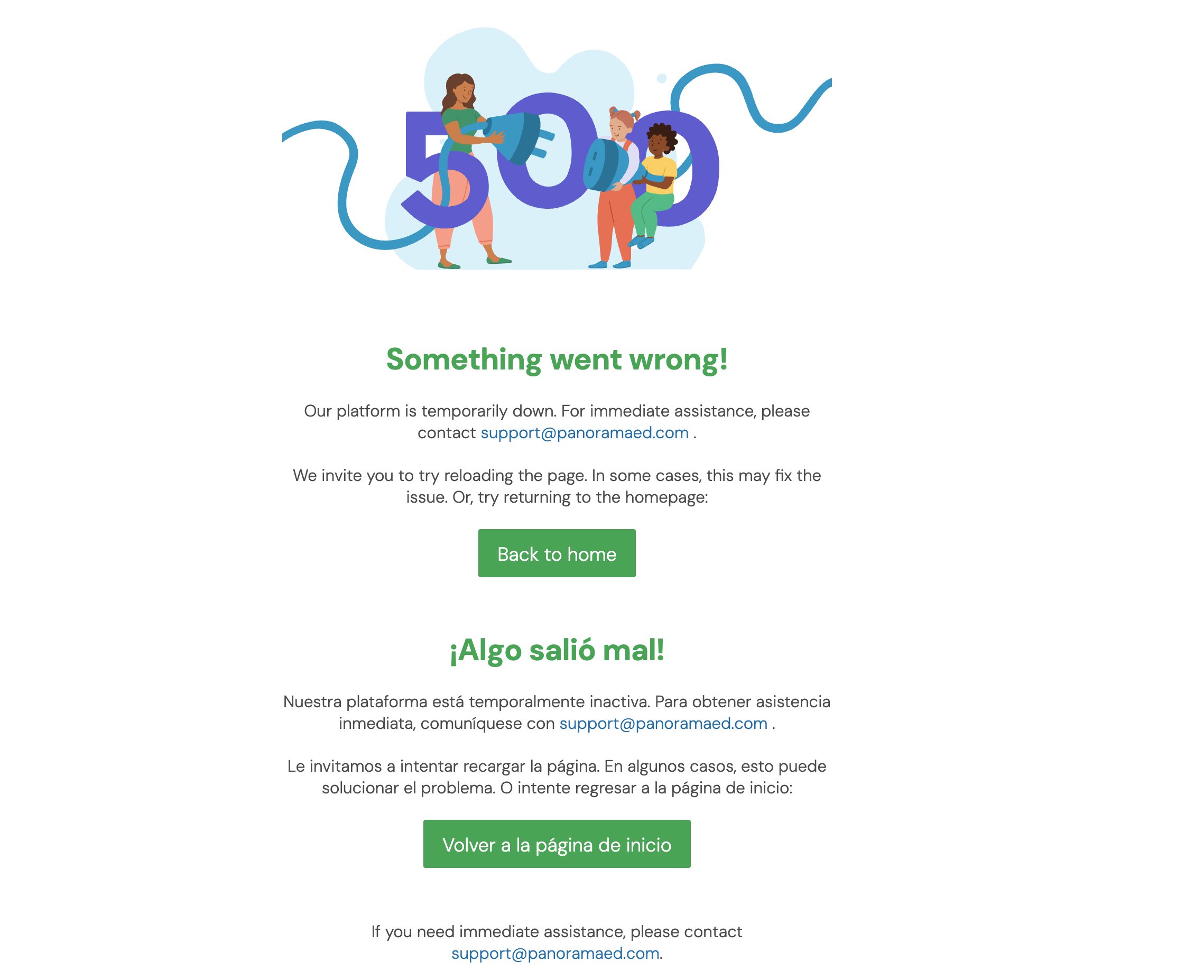
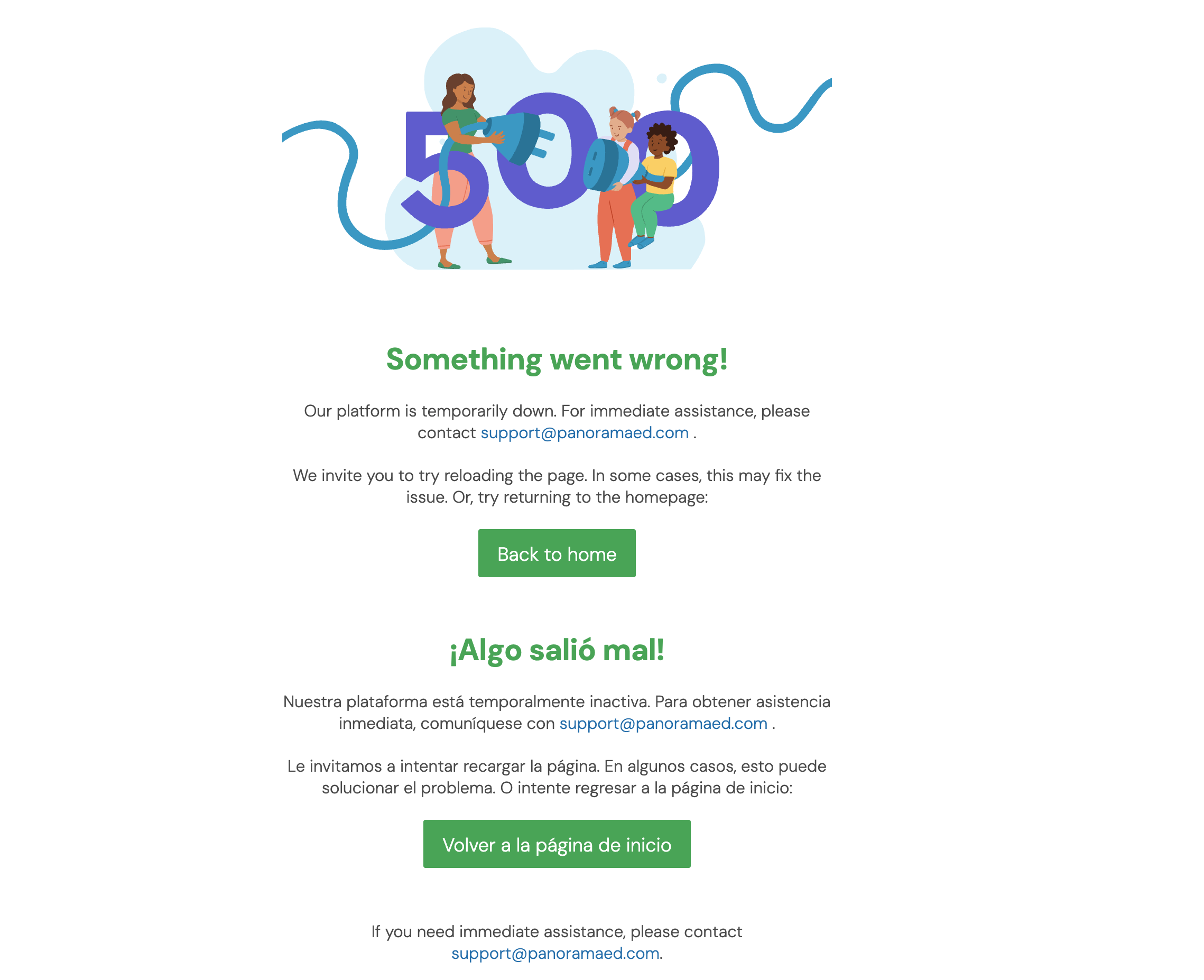
A 500 error means Panorama could not complete the request. The issue may be temporary or related to saved browser data.
Try these steps first
Refresh the page.
Select Back to home if the error page includes that option.
Open Panorama from your school or district’s usual login link.
Sign out of Panorama and sign back in.
Try opening Panorama in an updated browser.
If you are using a phone or tablet, try again on a desktop or laptop.
If you still see a 500 error, clear Panorama’s site data using the instructions below.
Important: Clearing site data may sign you out of Panorama and remove saved site preferences. Save any work before continuing.
Clearing cookies in your browser
As a next step, clear cookies for all websites in your browser. This may sign you out of other websites, so make sure you know how to sign back in before continuing.
Clear all cookies in Chrome
Select the three-dot menu in the upper-right corner.
Select Delete browsing data.
Select a time range, such as All time.
Select Cookies and other site data.
Clear any other selected options if you do not want to remove them.
Select Delete data.
Reopen Panorama and sign in again.
Clear all cookies in Safari
Select Safari in the menu bar.
Select Settings, then select Privacy.
Select Manage Website Data.
Select Remove All.
Select Done.
Reopen Panorama and sign in again.
Clear all cookies in Firefox
Select the menu button in the upper-right corner.
Select Settings.
Select Privacy & Security.
Under Cookies and Site Data, select Clear Data.
Select Cookies and site data.
Select Clear.
Reopen Panorama and sign in again.
If the error appears while signing in
Open Panorama from your school or district’s usual login link.
If your organization uses single sign-on, Google, or another district login system, use the login option provided by your organization. Avoid using an old bookmarked link if it opens a 404 error.
If you do not use single sign-on and the error appears during password reset or account setup, contact Panorama Support via the chat widget for help.
Contact Panorama Support
If errors are still not resolved after trying the above steps, please reach out to Panorama techincal support team. Please include the following information for quicker support:
A screenshot of the error
The page or link you were trying to open
The browser and device you are using
How you typically sign in to Panorama
If applicable, whether other users at your organization are seeing the same issue
This information helps Support investigate the issue more quickly.