View student records in the Panorama Pathways student profile
Last updated: October 14, 2026
Use the student records drawer to review a student’s courses, assessment results, and achievements while you review progress in Panorama Pathways.
Who this is for: Counselors and other educators with access to a student’s Panorama Pathways profile. Access follows your existing student visibility and Panorama Pathways permissions.
Open the student records drawer
Open a student’s Panorama Pathways profile.
In the integrated Success + Pathways experience, go to Graduation.

At the bottom of the page, select Show student records.
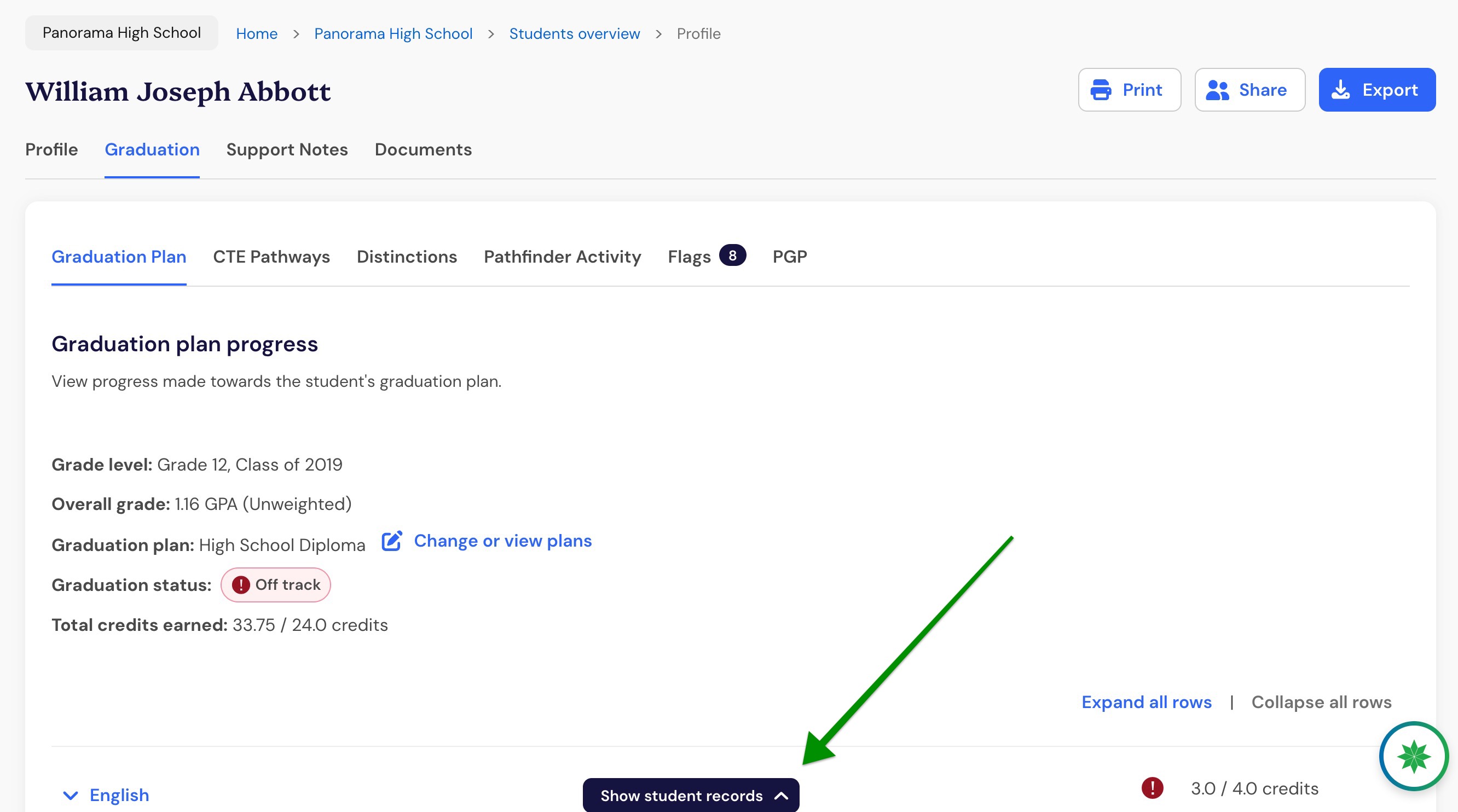
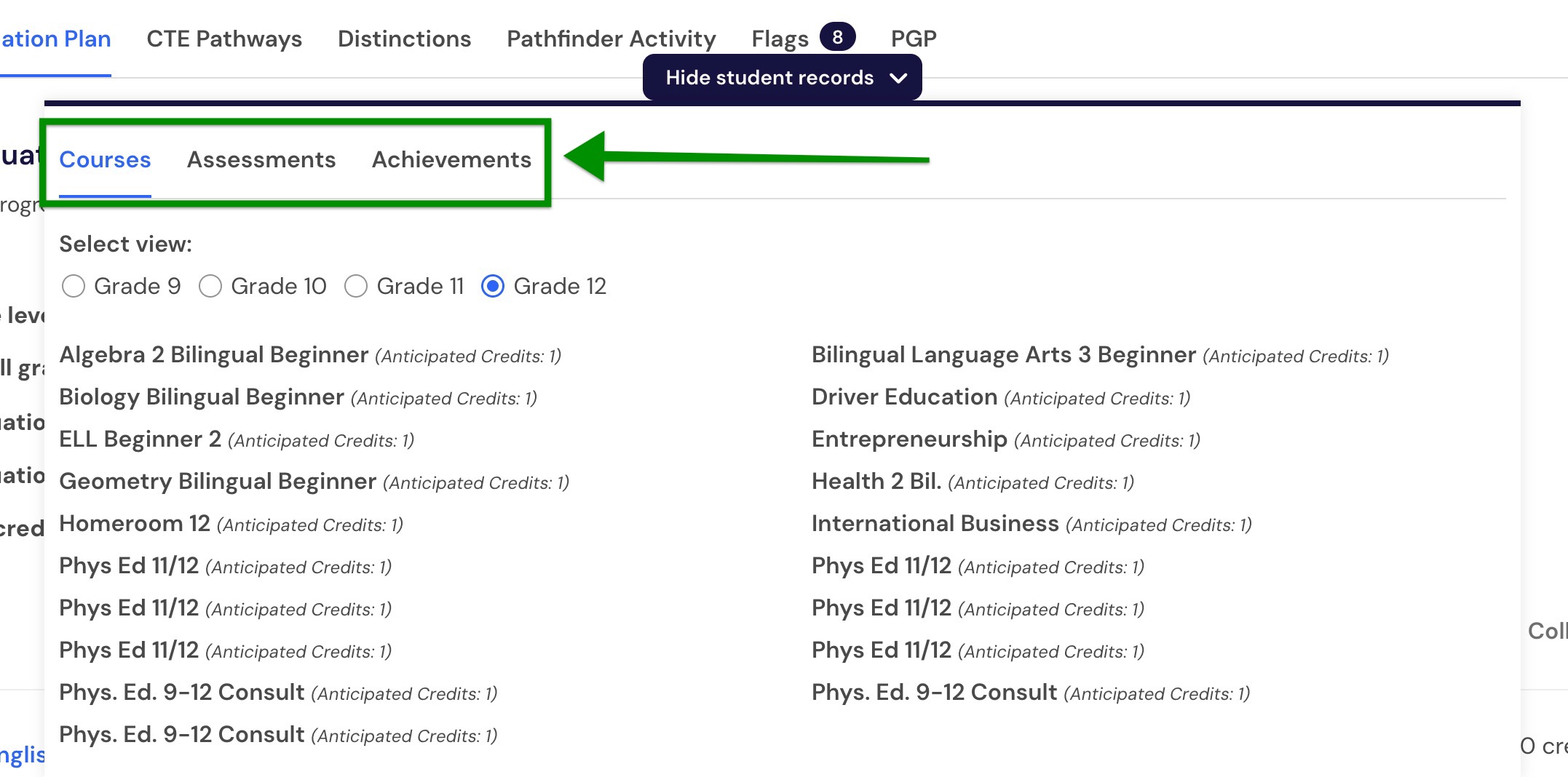
Select Courses, Assessments, or Achievements to review the available records.
Keep the drawer open while you move between views within the Graduation area.
Select Hide student records to collapse the drawer.
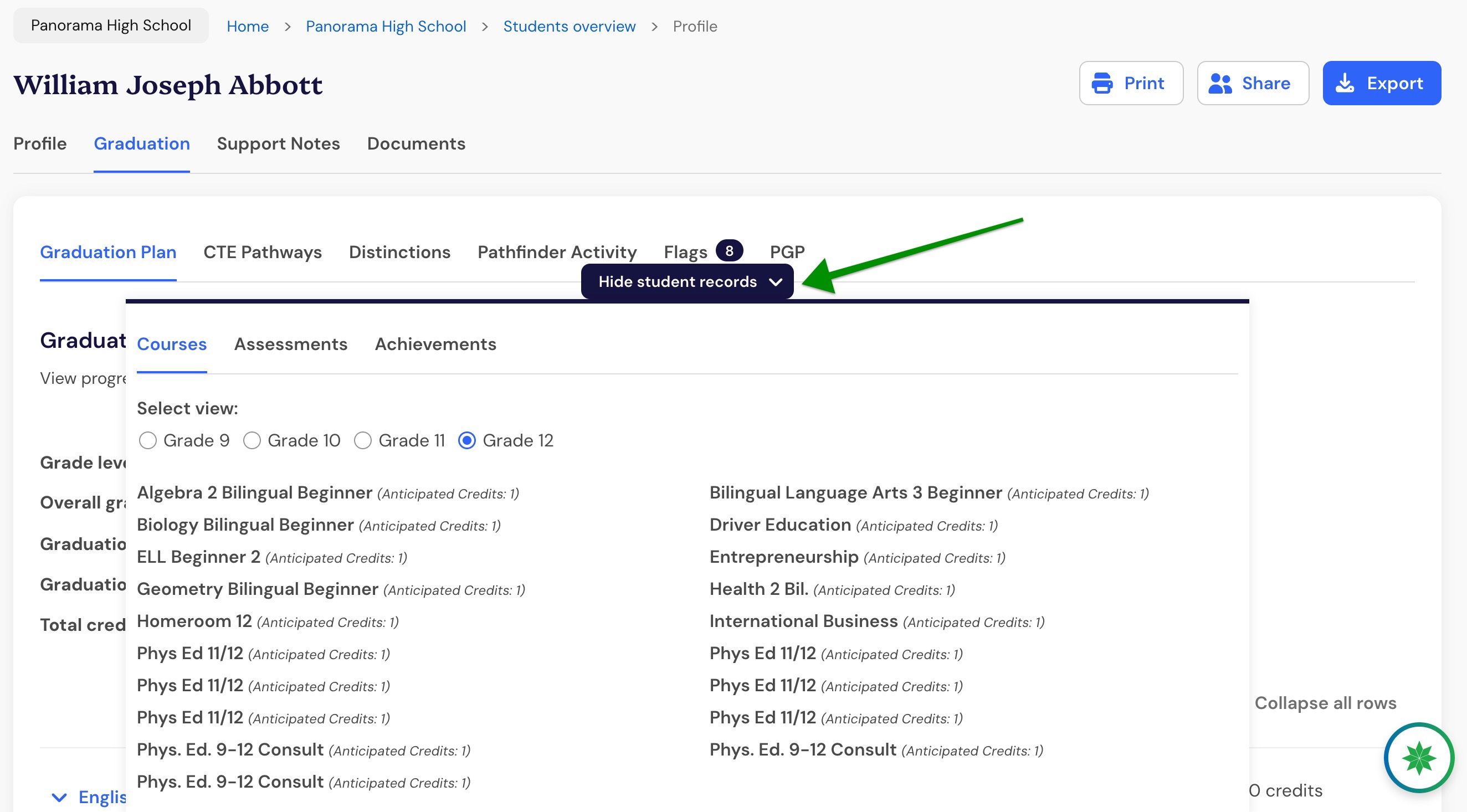
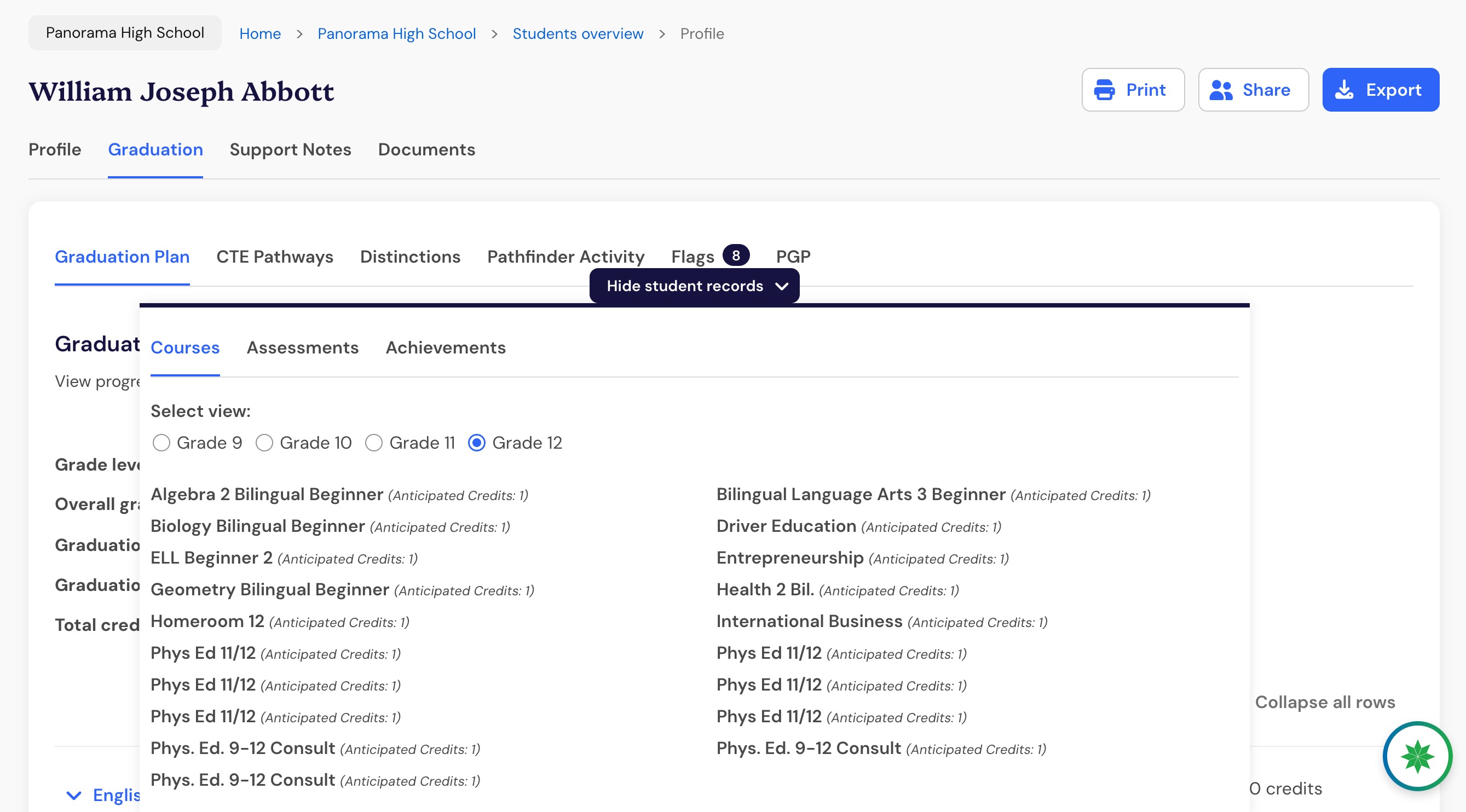
The student records drawer remains available while you move between views within the Graduation area, so you can reference student records without leaving the page.
Review courses by grade level
The Courses tab shows the student’s course and credit information organized by grade level.
Select Courses in the student records drawer.
Select a grade level to view the student’s associated courses.
Review the course and credit information for that grade level.
Completed courses show Credits. In-progress courses show Anticipated Credits.
The available grade levels depend on the student’s course data. Grades 9–12 are examples and are not a fixed limit.
Use the course and credit information to compare the student’s coursework with Panorama Pathways requirements.
Review assessment results
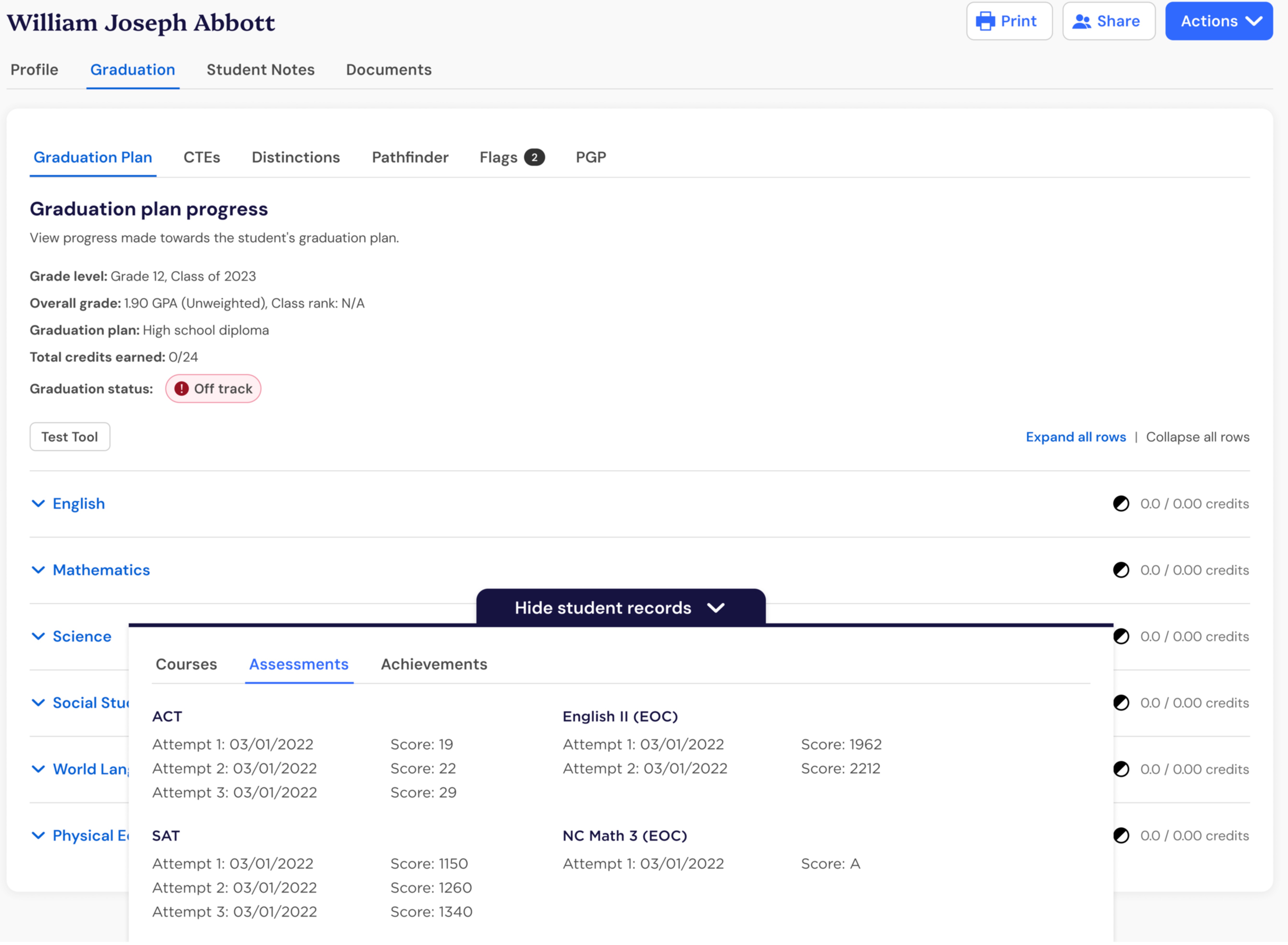
The Assessments tab shows available non-progress-monitoring assessment results for the student.
Select Assessments in the student records drawer.
Find an assessment by name.
Review the available attempts, including the attempt label, date, and score.
Multiple attempts for the same assessment are shown together. Scores can appear as numbers or categories, depending on the assessment.
The Assessments tab includes non-progress-monitoring assessments, such as benchmark, college and career readiness, and state assessments. Progress-monitoring assessments are not included.
If no assessment results are available, the Assessments tab remains visible and displays a message indicating there are no assessments to show.
Review student achievements
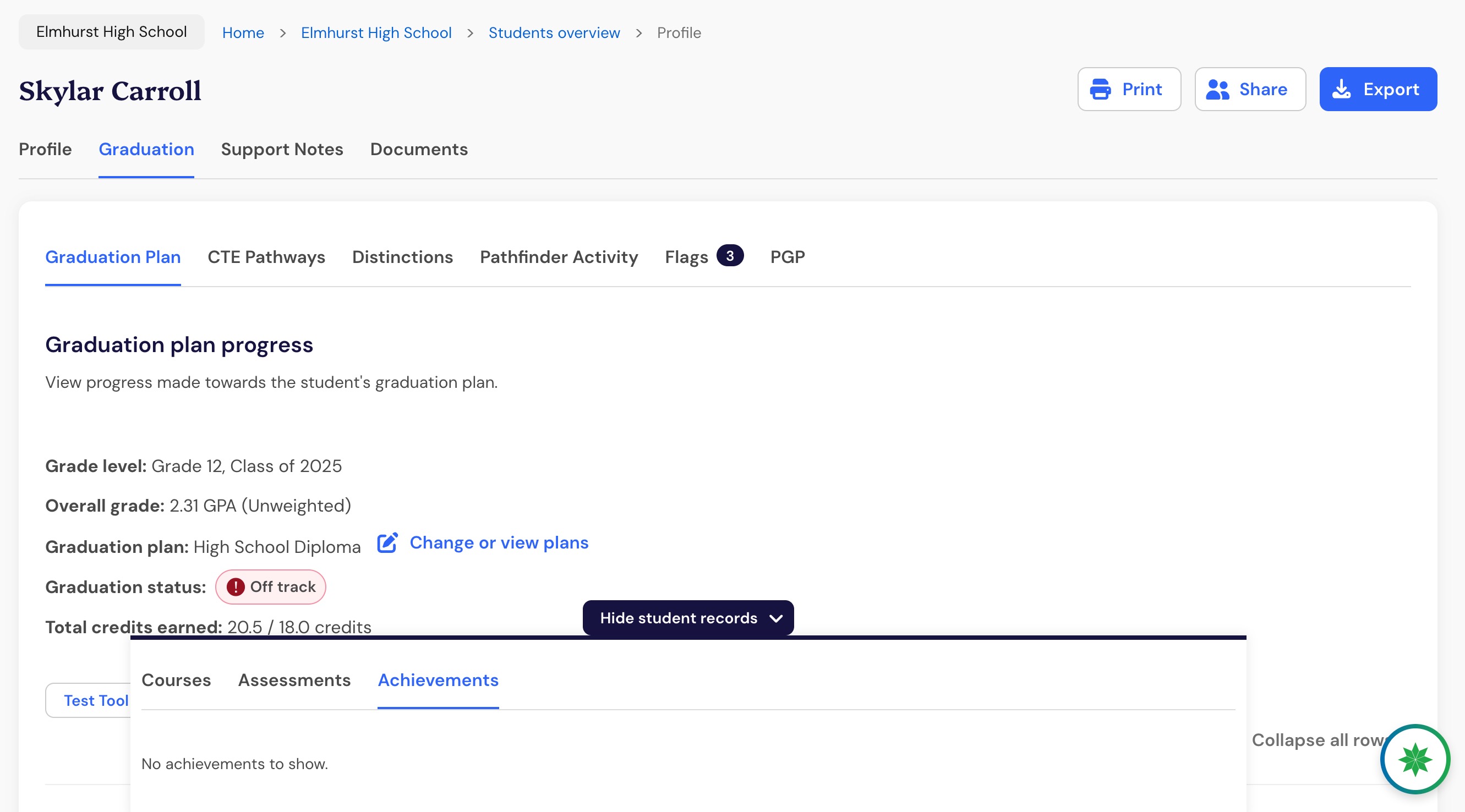
The Achievements tab shows completion-based achievement records associated with the school whose student profile you’re viewing.
Select Achievements in the student records drawer.
Review the achievement name and completion date for each available record.
Examples of achievements include FAFSA completion, CPR/AED certification, and work-based learning.
Achievement records from another school do not appear in this view when a student moves between schools.
If no achievement records are available, the Achievements tab remains visible and displays a message indicating there are no achievements to show.
Note: A record appearing in the student records drawer means the record is available in Panorama. It does not necessarily mean the record satisfies a graduation, CTE, or Distinction requirement.
Understand what the student records drawer shows
The student records drawer helps you distinguish between a record that is unavailable and a record that is available but does not satisfy the requirement you are reviewing.
The drawer does not change how Panorama imports records or evaluates requirements.
The student records drawer is for viewing information. You cannot edit courses, assessment results, or achievements from the drawer.