How to Complete Assignments in Class Companion (For Students)
Last updated: September 2, 2026
When you complete an assignment in Class Companion, you’ll move through a guided experience that helps you understand your assignment, submit your work, and review results when they’re available.
Your teacher can choose when you see feedback and scores. Depending on the assignment settings, results may appear right away or become available later.
Who this is for: Students completing regular assignments in Class Companion.
Overview: What You’ll Do
You will take the following steps:
Log in through your school's system.
Select one of your classes from your homepage.
Open the assignment you're working on.
Read your teacher's instructions.
Review the rubric, if it's available.
Write and submit your response.
Review feedback or scores when they're available.
Revise and resubmit your work if multiple attempts are allowed.
Review your progress and available results.
Step-by-Step: What You’ll See and Do
1. Logging In
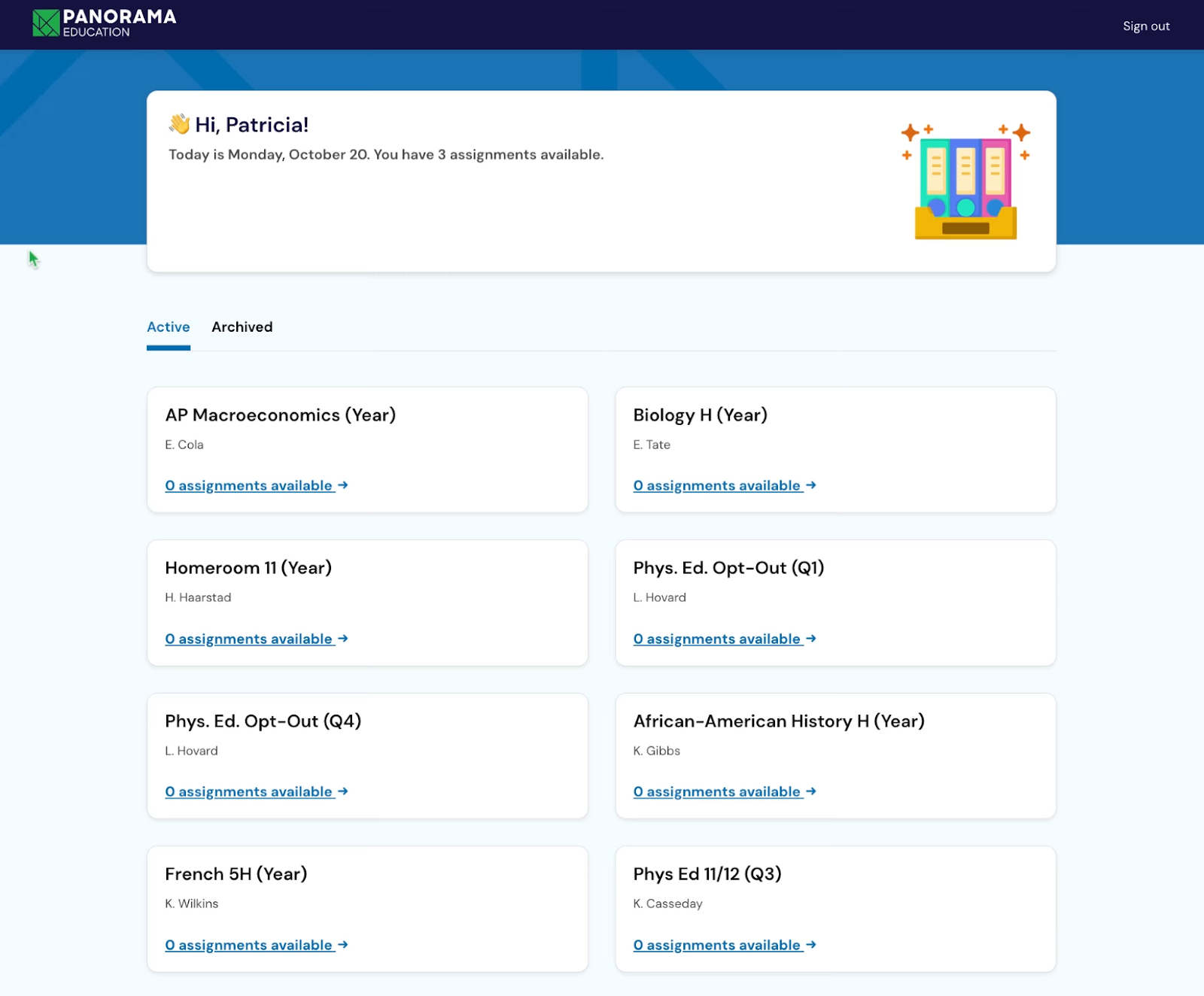
After logging in through your school’s system, you’ll land on your Class Companion homepage.
Here, you’ll see:
A welcome message at the top.
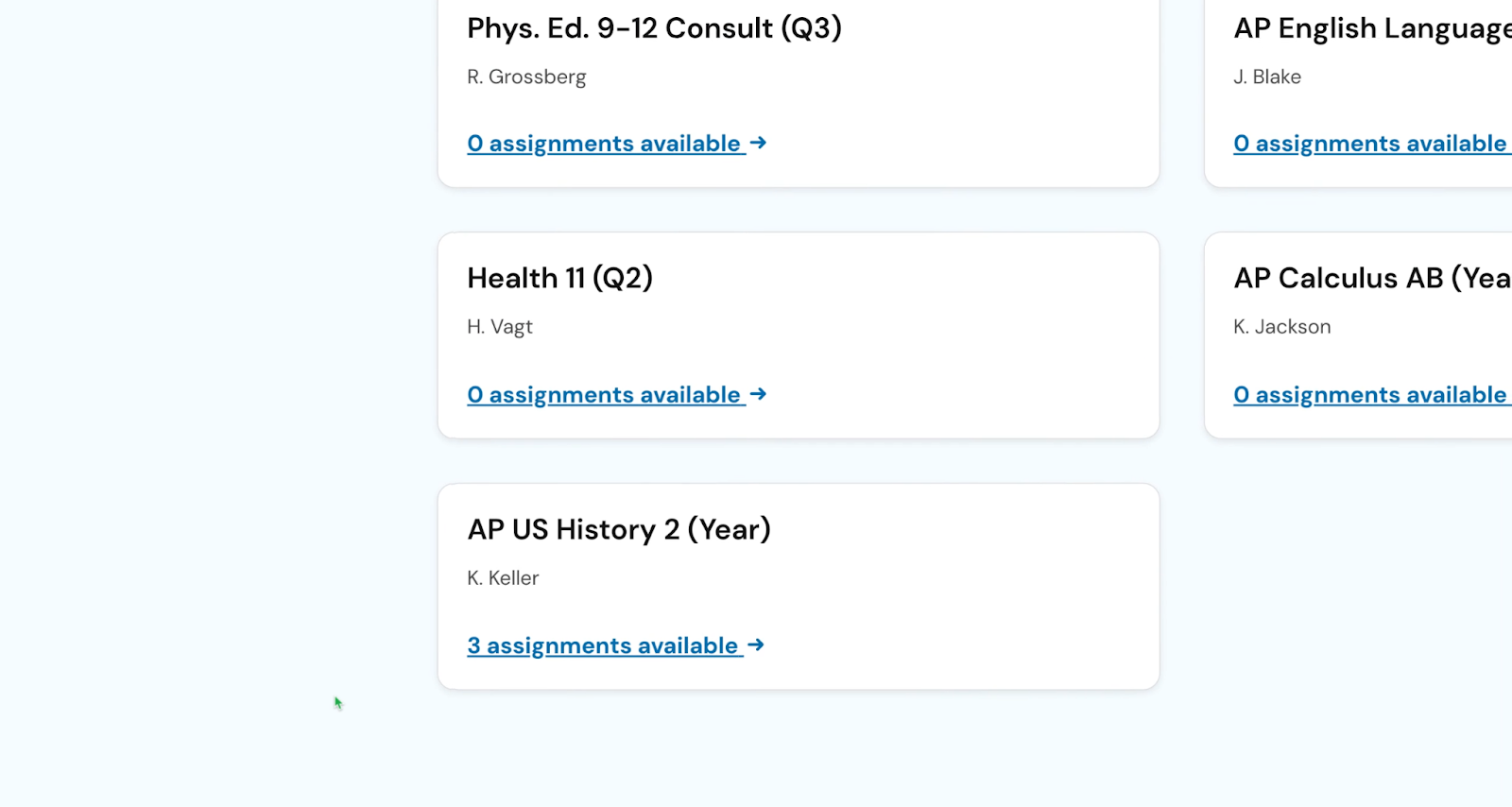
All of the classes you’re currently enrolled in.
A note showing how many assignments are available in each class.
To get started, click the class you’re working in.
2. Opening the Assignment
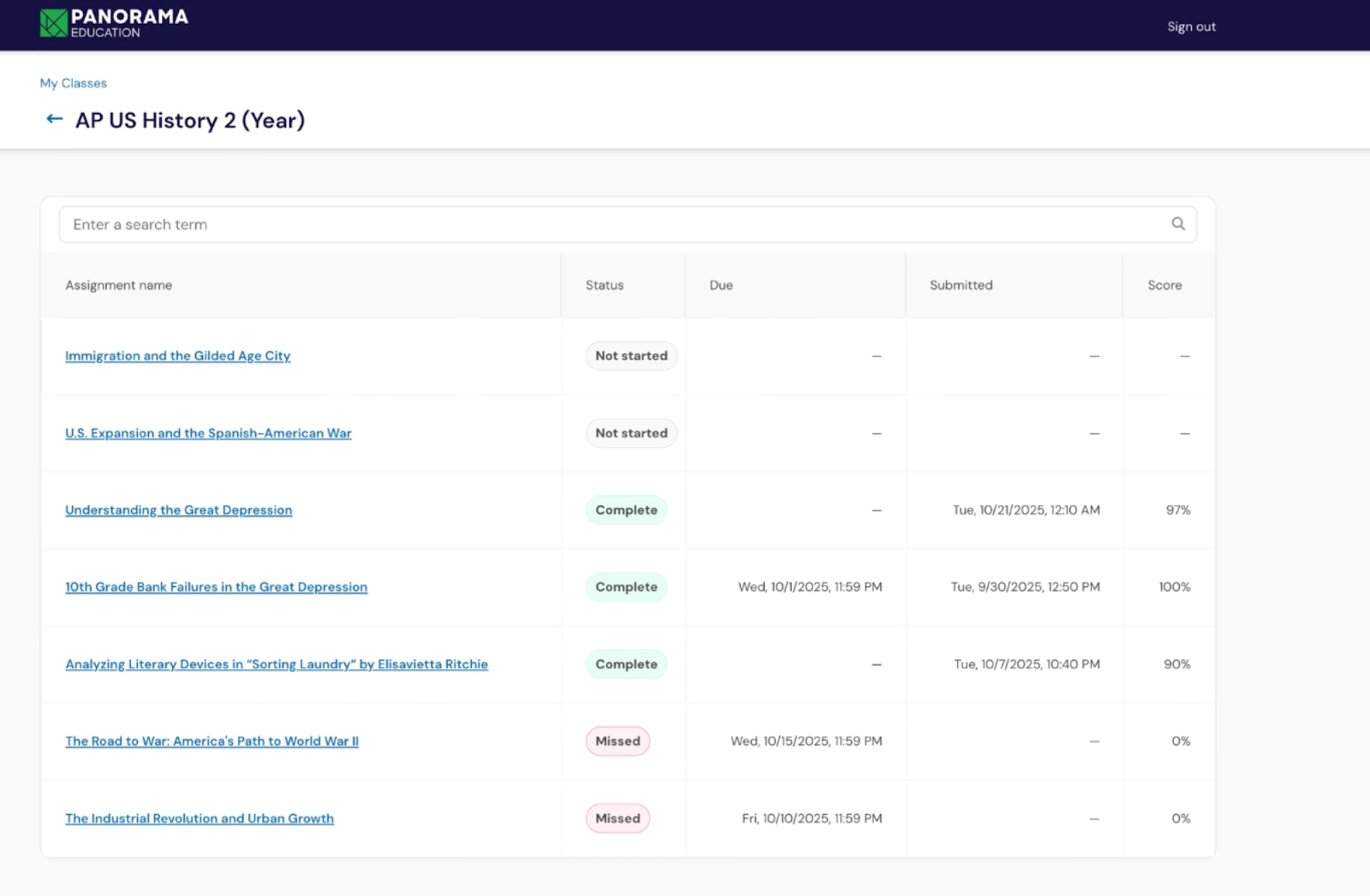
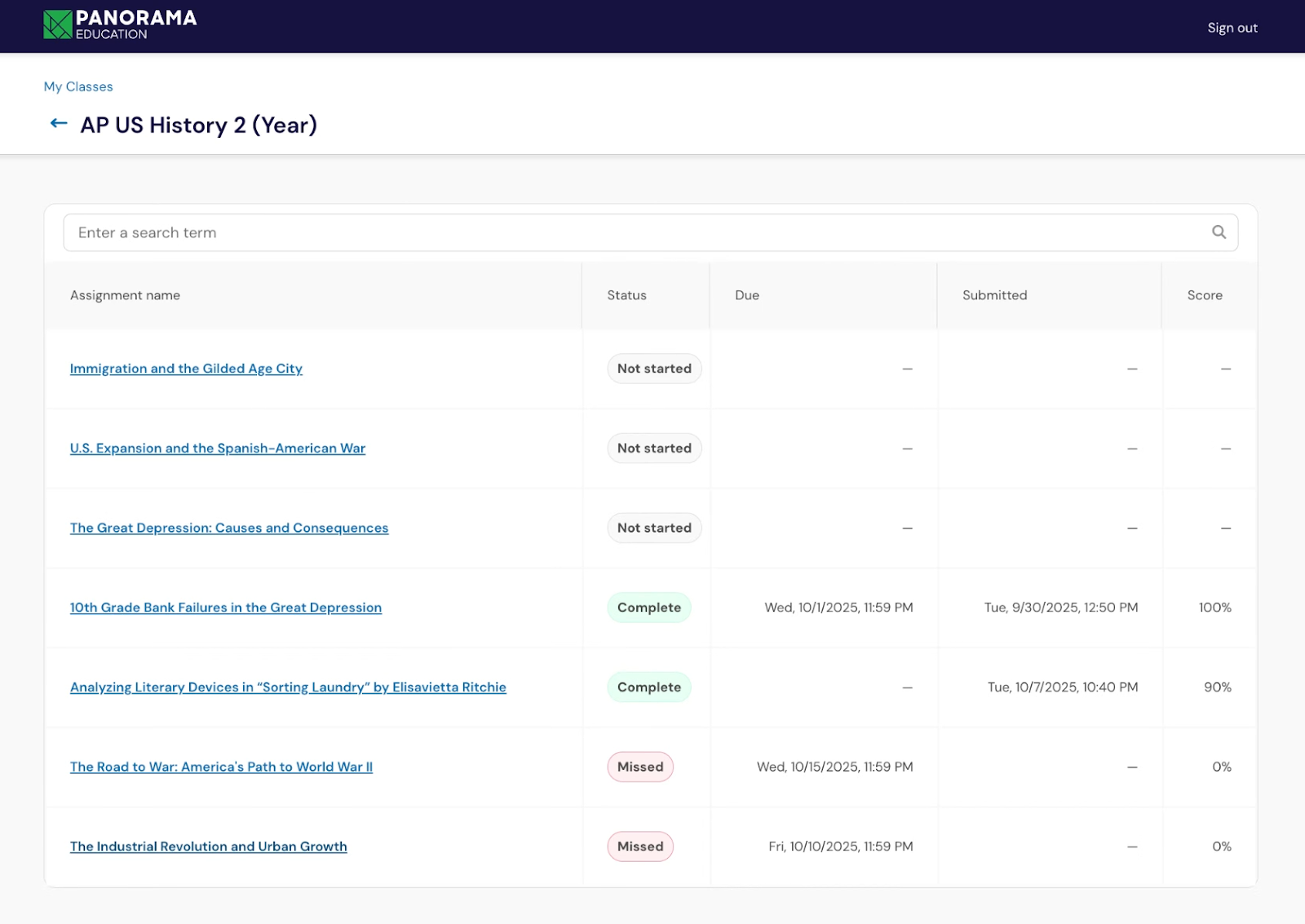
Once you open a class, you’ll see a list of assignments for that course.
For each assignment, you can see:
The assignment name.
Its status (not started, in progress, complete, or missed).
Due dates and scores, if available.
Click the assignment title to open it and begin working.
3. Getting Oriented on the Assignment Page
When the assignment opens, you’ll see everything you need to get started in one place.
At the top of the page, you’ll find:
The assignment title.
An introduction explaining what you’re expected to learn or demonstrate.
Any reading excerpts, images, or reference materials your teacher included.
Below that, you’ll see each question you need to respond to.

4. Review Rubric
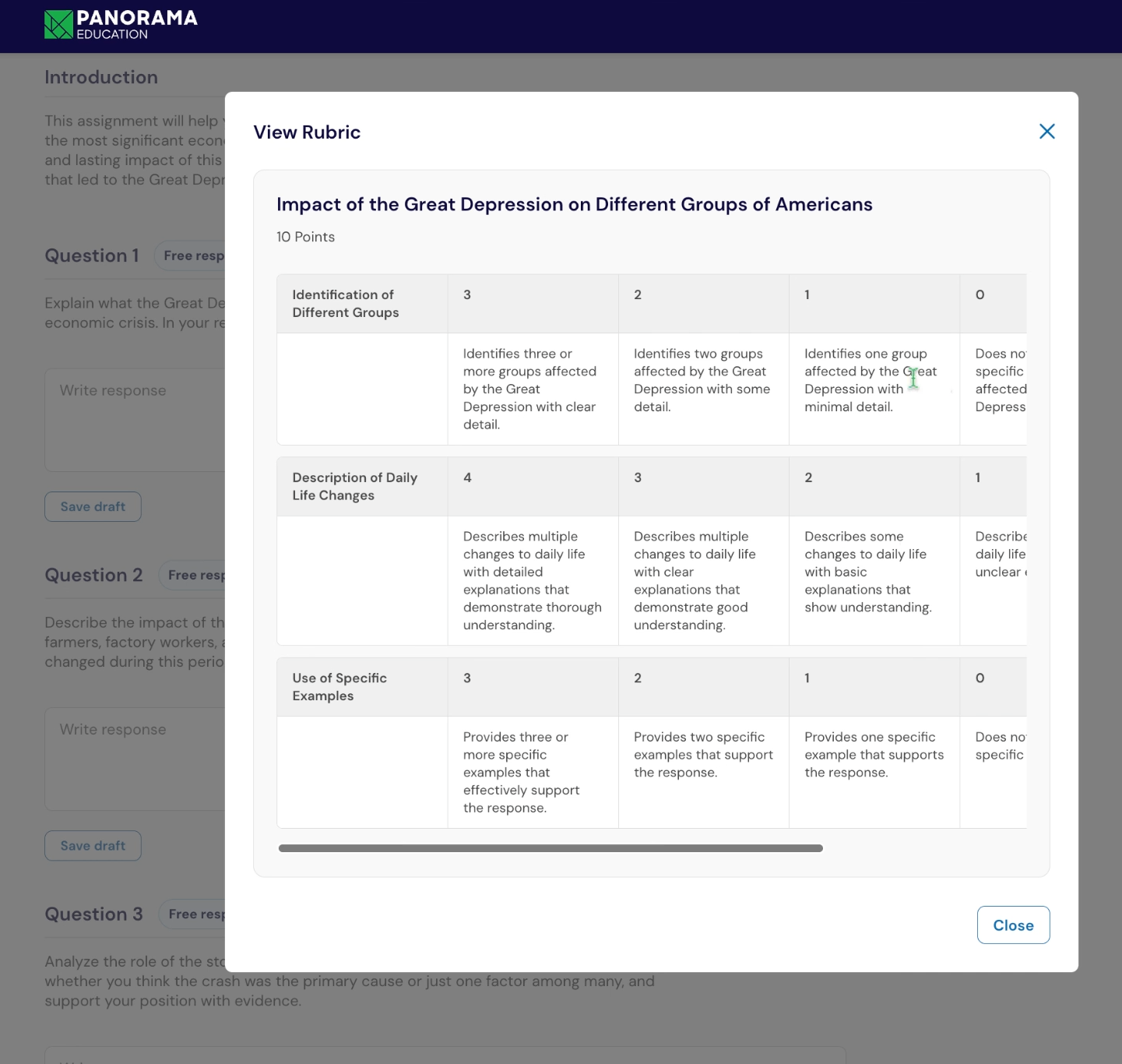
If your teacher has made the rubric available, select View rubric next to a question before you begin writing.
The rubric can show:
What your teacher is looking for in your response.
How points are earned for different parts of the question.
What stronger responses may include.
Reviewing the rubric can help you understand what to focus on as you write.
If View rubric isn't available, your teacher may have chosen to hide rubric criteria while you complete the assignment.

5. Writing Your Response
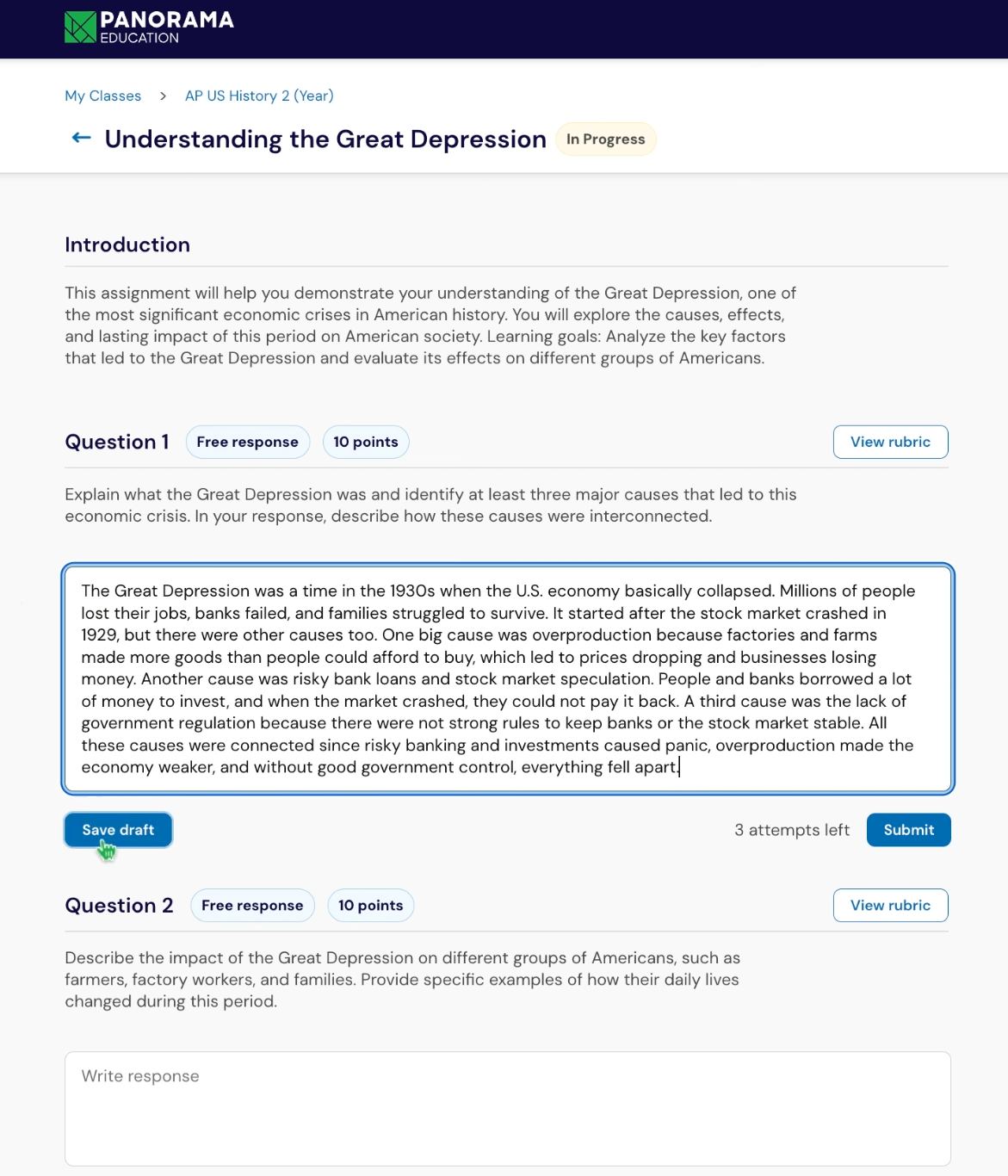
Under each question, you'll see a response box where you can type your answer.
As you work, you can:
Select Save draft to keep your work without submitting.
Continue editing until you're ready.
See how many attempts you have remaining.
When you're ready to submit your response, select Submit.
What happens next depends on the settings your teacher selected. Feedback may become available after you submit, or you may continue to the next question without seeing feedback yet.
If your assignment uses immediate feedback, you may see a brief loading screen while Class Companion generates your results.
6. Receive Instant Feedback for Review
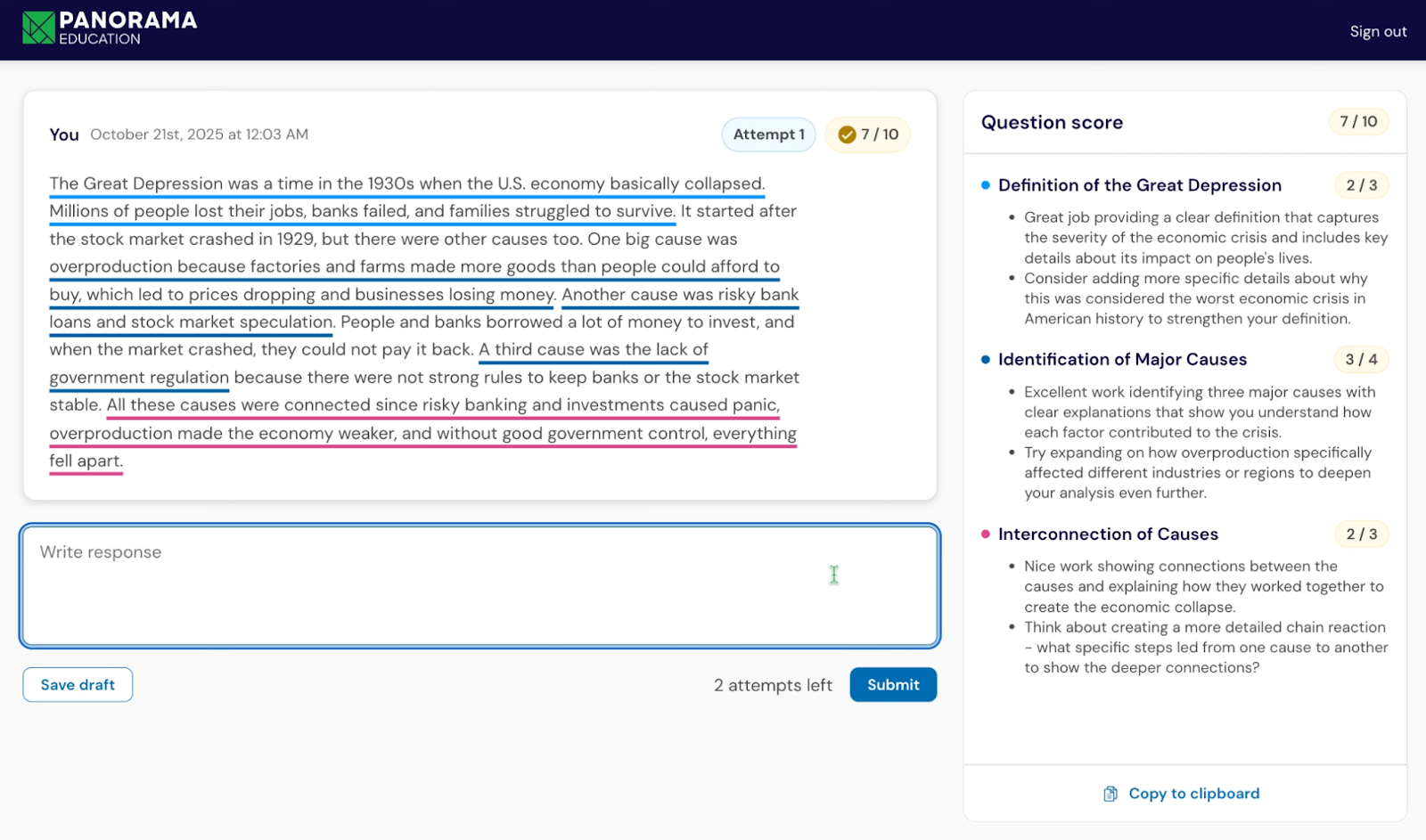
Your teacher controls when feedback becomes available. Depending on the assignment, you may receive feedback:
After you submit each question.
After you've submitted at least one attempt for every question.
After the assignment closes.
When your teacher chooses to release it.
Your teacher can also control what information appears. You may see:
Written feedback.
A score.
Both written feedback and a score.
Neither until your teacher releases additional results.
When written feedback is available, it may include comments about strengths in your response and suggestions for what you could consider next.
If scores or written feedback aren't available after you submit, you don't need to resubmit to make them appear. Continue following your teacher's directions for the assignment.
Note: Class Companion doesn't notify you when your teacher releases feedback or scores. Your teacher may let you know when results are ready to review.
7. Revising and Trying Again
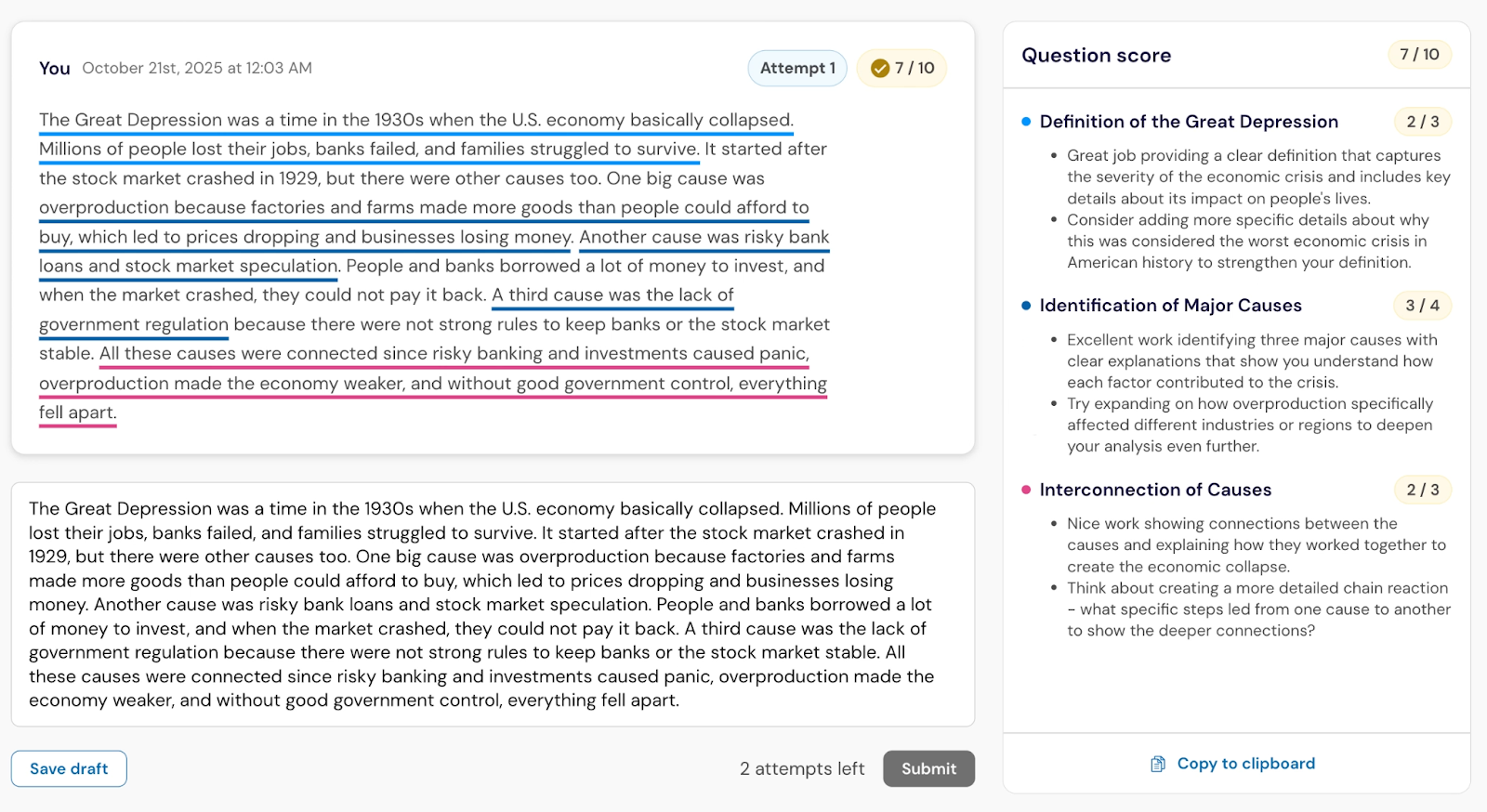
If your teacher allows multiple attempts, you can revise and resubmit your response.
If feedback is available, you can:
Review feedback from your previous attempt.
Edit your response in the text box.
Submit another attempt.
If feedback hasn't been released yet, you can still use any remaining attempts available for the question.
Each attempt gives you another opportunity to strengthen your response.
8. Disputing Feedback (Optional)
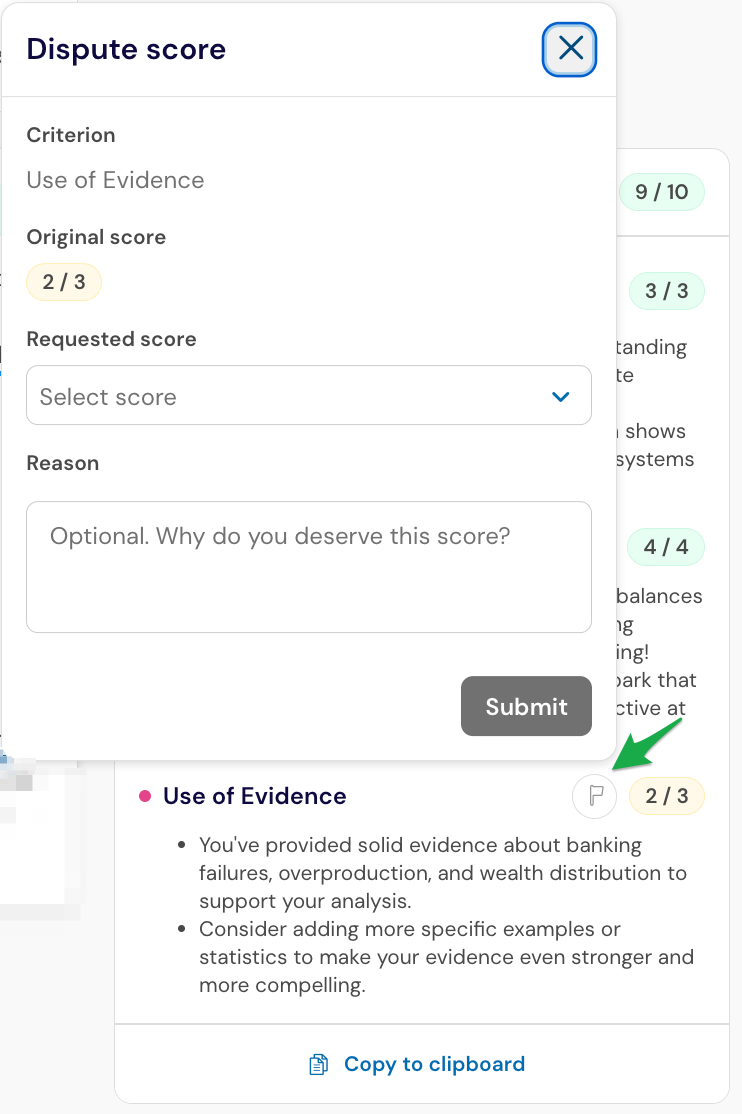
After your score and feedback are available, you can select the flag icon and choose Dispute score if you want your teacher to review your work more closely.
This allows you to:
Explain your thinking in a short reflection.
Clarify what you were trying to show in your response.
Ask your teacher to review your work more closely.
The system keeps your highest score unless your teacher chooses to update it.
9. Viewing Your Progress
After completing an assignment, you may be able to return to review the information your teacher has made available, including:
Feedback from your attempts.
Your score history.
Comments your teacher added.
What you can review depends on the assignment settings. Your teacher can control whether assignment content, written feedback, and scores remain available to students.
You'll only see your own work and progress.