Graduation Plan Page Overview (For Student)
Last updated: June 23, 2026
The Graduation Plan tab is where you’ll find everything you need to understand your progress toward graduation. This page shows your progress on your graduation plan and the requirements you need to complete it.
Here’s a step-by-step guide to help you understand what you’re looking at.
1. Your Graduation Summary (at the top of the page)
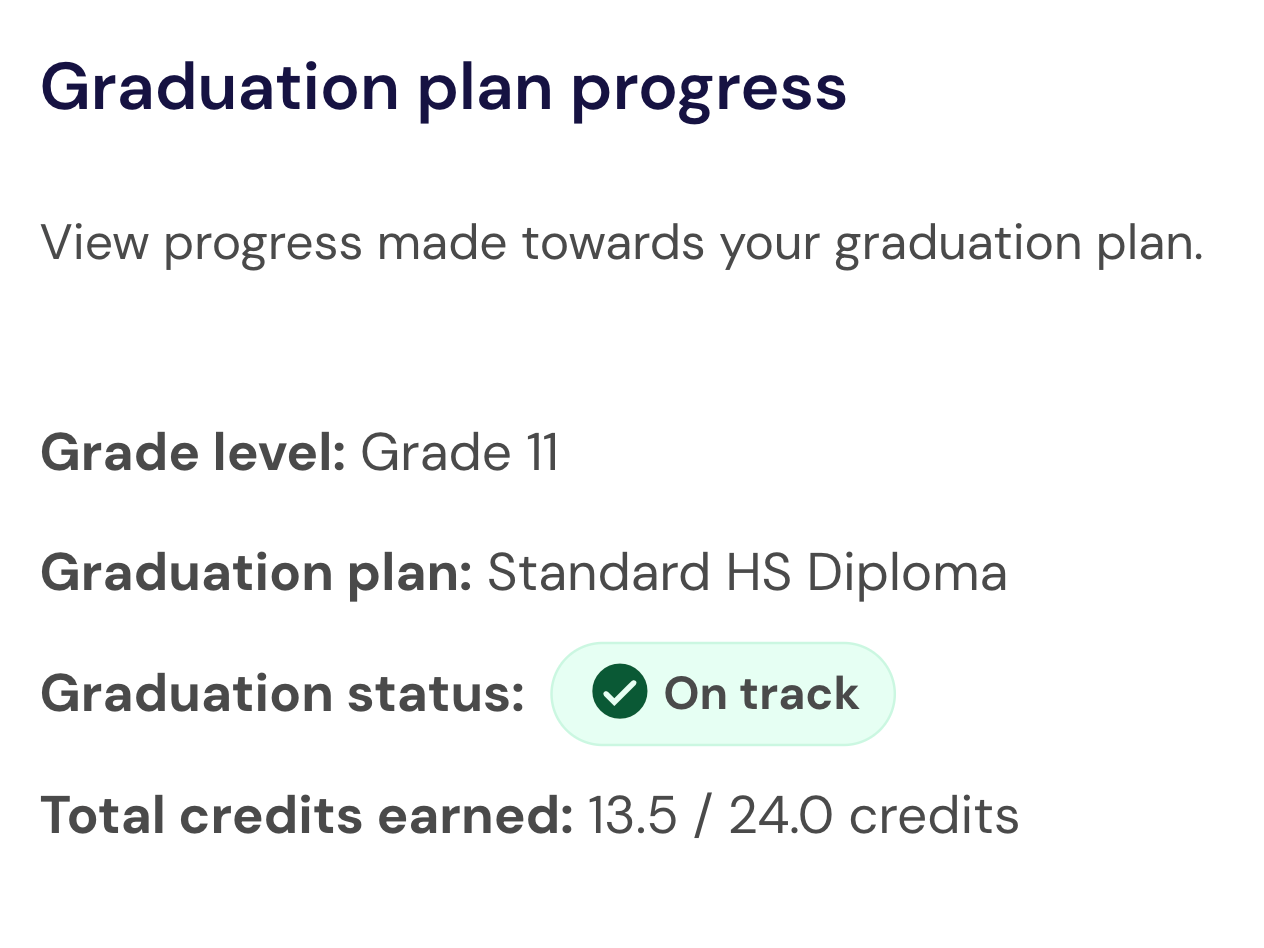
At the very top of the page, you will see a short summary about you. It includes:
Grade level
Graduation plan (for example: Standard HS Diploma)
Graduation status (On Track or Off Track)
Total credits earned so far
This gives you a quick snapshot of how you’re doing overall.
2. Your List of Graduation Requirements
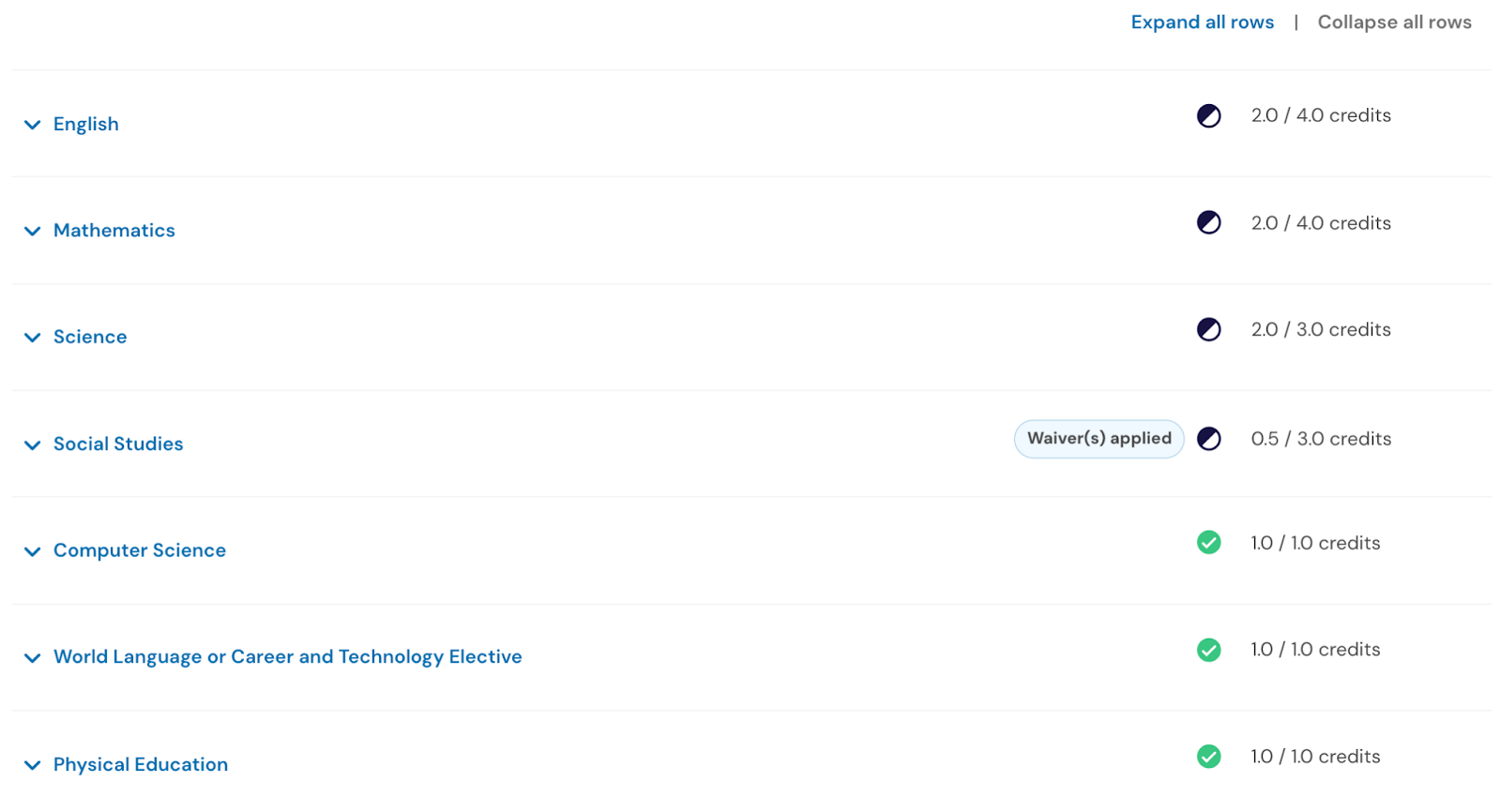
Below your summary, you’ll see the subjects that count toward your graduation plan. Your list may look different based on your school’s requirements, but here are some common examples:
English
Mathematics
Science
Social Studies
Computer Science
World Language or CTE Elective
Physical Education
Electives
Next to each subject, you will see how many credits you’ve earned out of the total required
(Example: 2.0 / 4.0 credits).
3. Expand and Collapse Sections
Every subject has an arrow on the left.
You can:
Click the arrow to expand the section and see more detail
Click again to collapse when you’re done
Expanding a section helps you understand what you’ve finished, what you’re taking right now, and what you’ll work on later.
4. What Each Section Shows You
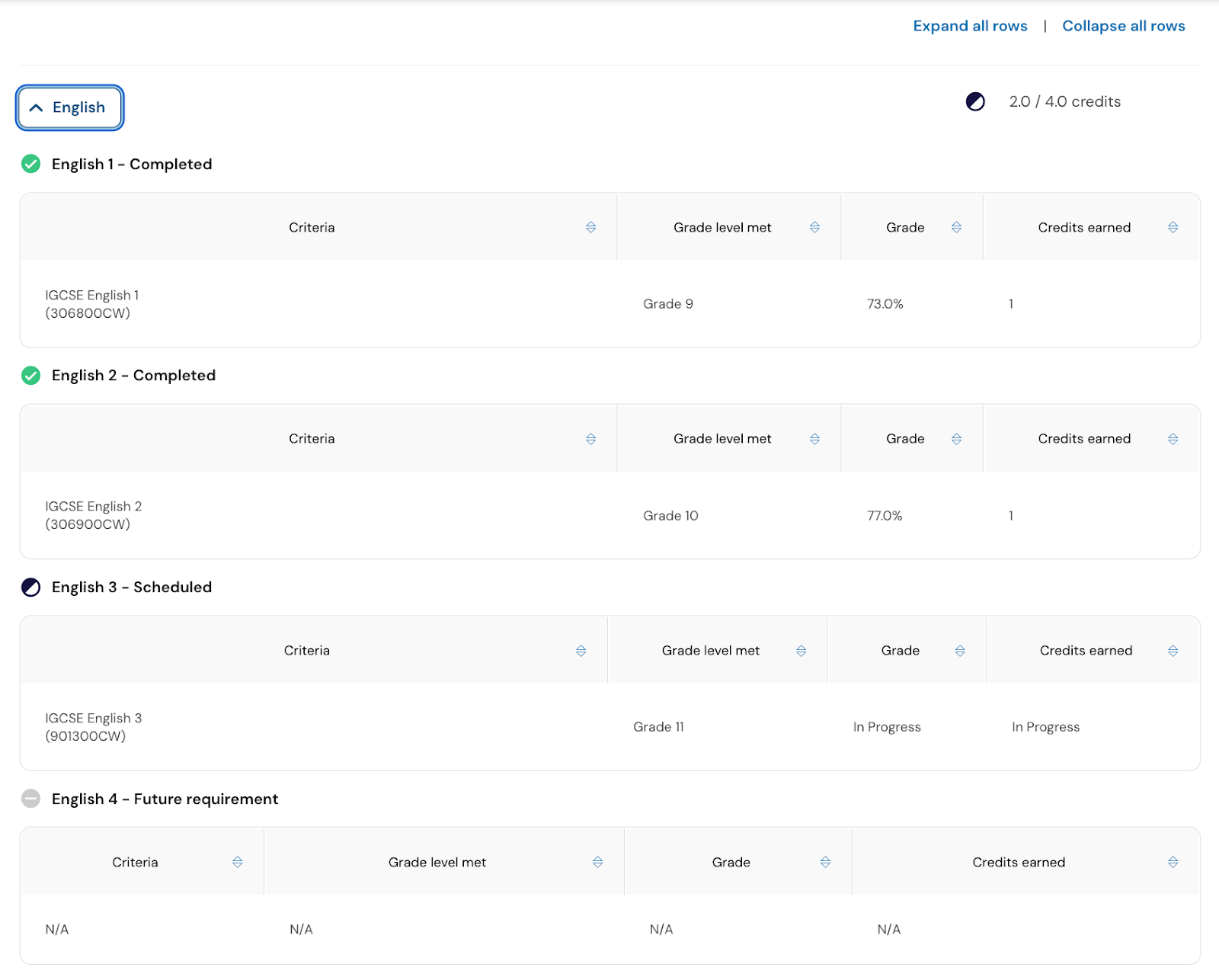
When you expand a subject (like English, Math, or Science), you’ll see rows that show:
Criteria: The specific class
Grade level met: Your grade level when you took the class
Grade: Your grade in that class (if it’s finished) or you will see In Progress, or N/A not applicable
Credits earned: How many credits you earned from that course
This helps you understand exactly where you are in each required subject area.
5. Understanding the Icons
As you explore your graduation requirements, you may see a few different icons. The table below explains what each icon represents.
Icon | Definition | Meaning |
 Checkmark | Student has completed this requirement. | You finished this requirement and earned the needed credit. |
 Half-Filled Circle | Student is scheduled to complete this requirement. | You’re already scheduled for the class or requirement that will complete this. |
 Minus Sign | Student is not yet scheduled to complete this requirement, but is still on track. | You haven’t taken or scheduled this requirement yet, but that’s okay for your grade.
|
 Empty Circle | Student status is currently unknown. | Panorama Pathways doesn’t have enough info yet, and your status will update soon.
|
 Exclamation Mark | Student is off track with meeting this requirement. | You haven’t met this requirement yet. Expand the section to see which courses you still need. |
Icon | Meaning |
 On Track Label | You’re on pace to meet your graduation requirements based on your current progress. |
 Waiver(s) Applied Label | A requirement has been officially waived for you by your school. |
 Unknown Label | Your overall status can’t be determined yet because some information is missing. |
Review your current and past schedules
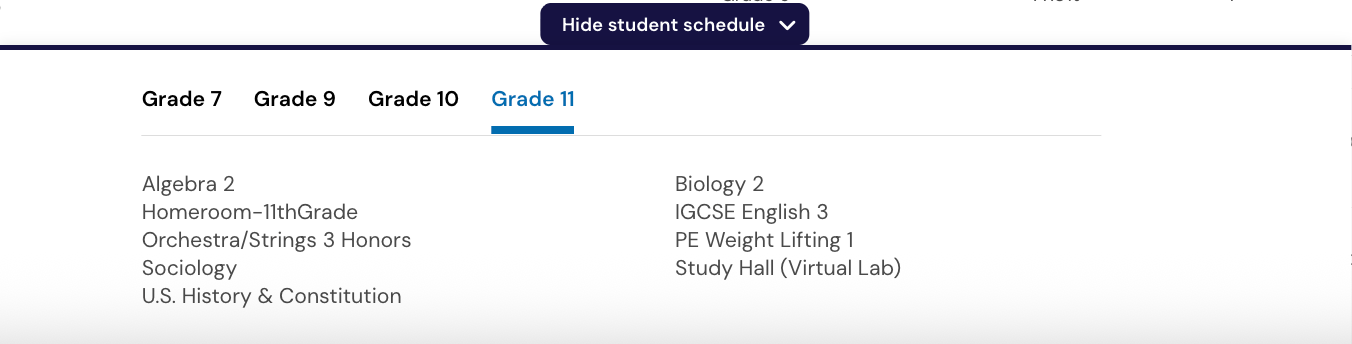
The Show student schedule button at the bottom of the page opens a clear list of your classes across your high school years.

You can see your current schedule and any past classes that count toward high school credit, all in one place. This helps you check what you’re taking now, what you’ve already completed, and how your classes connect to your graduation, CTE, or distinction goals.
Frequently Asked Questions
What does “On Track” mean?
You’re taking the classes you need and earning the credits your grade level expects. You’re moving toward graduation right on pace.
What does “Off Track” mean?
You might be missing a class or credit you’re supposed to have by now. Your counselor can help you get a plan together to get back on track.
Why can I see classes from middle school?
Some middle school classes count as high school credit, like Algebra 1 or certain language classes. If they count toward graduation, they show up here.
Why does a class say “Scheduled”?
It means you’re currently taking it. Once the semester ends and grades are in, the credit will update automatically.
What if something looks wrong?
Schedules and transcripts get updated all the time. Just check in with your counselor so they can make sure everything is correct.
Can my family see this?
Yes. Your family can log in with you and see your progress together!