How do I log into my Panorama account?
Last updated: November 13, 2026
Sign in to Panorama to access your school or district’s Panorama account. Use this article to find your sign-in method, reset a Panorama password, or troubleshoot a sign-in issue.
Who this is for: Teachers, school administrators, and district administrators with a Panorama account. If you need access, contact the person who manages Panorama at your school or district.
Sign in for the first time
If you received a welcome email from Panorama Education, begin with that invitation.
Open your welcome email and select Visit my Panorama Account.
Follow the prompts to set up your account using the email address that received the invitation.
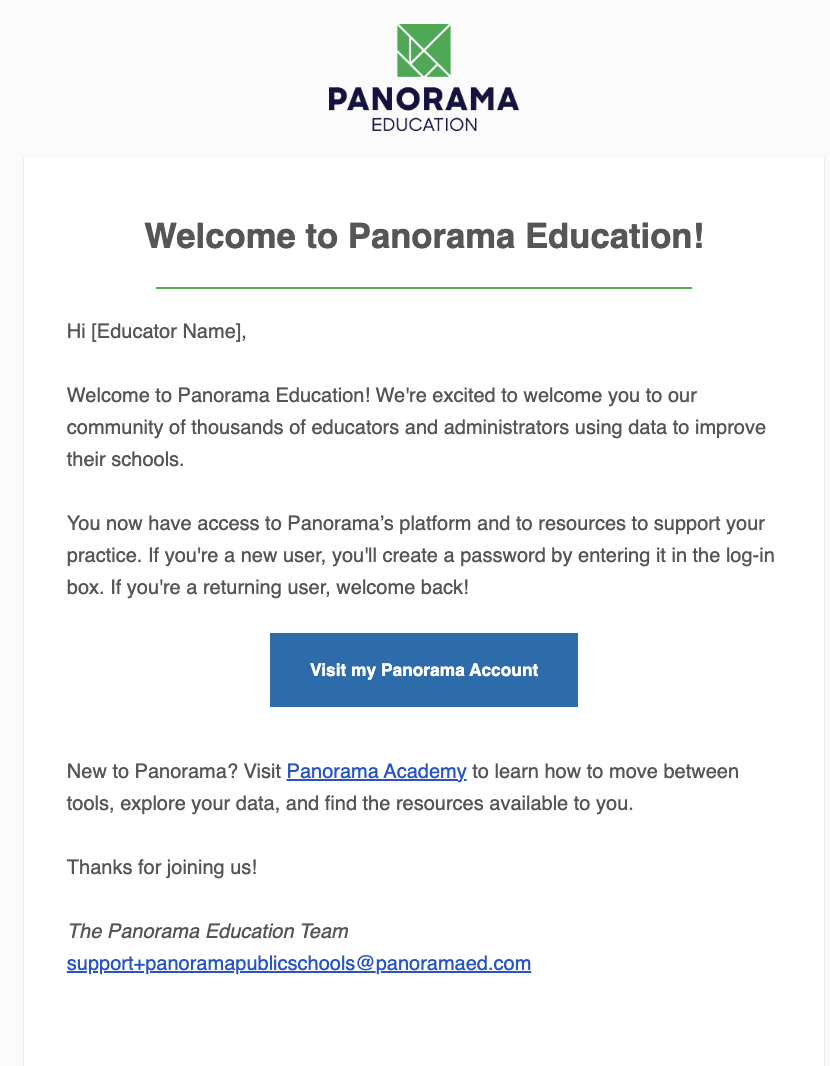
Email invitations will come from support+[clientURL]@panoramaed.com. The subject line of the email will be "Welcome to Panorama Education!" If you haven’t received an invitation, contact the person who manages Panorama at your school or district.
Sign in with your email and password
To access your Panorama account you can go to mystudents.panoramaed.com.
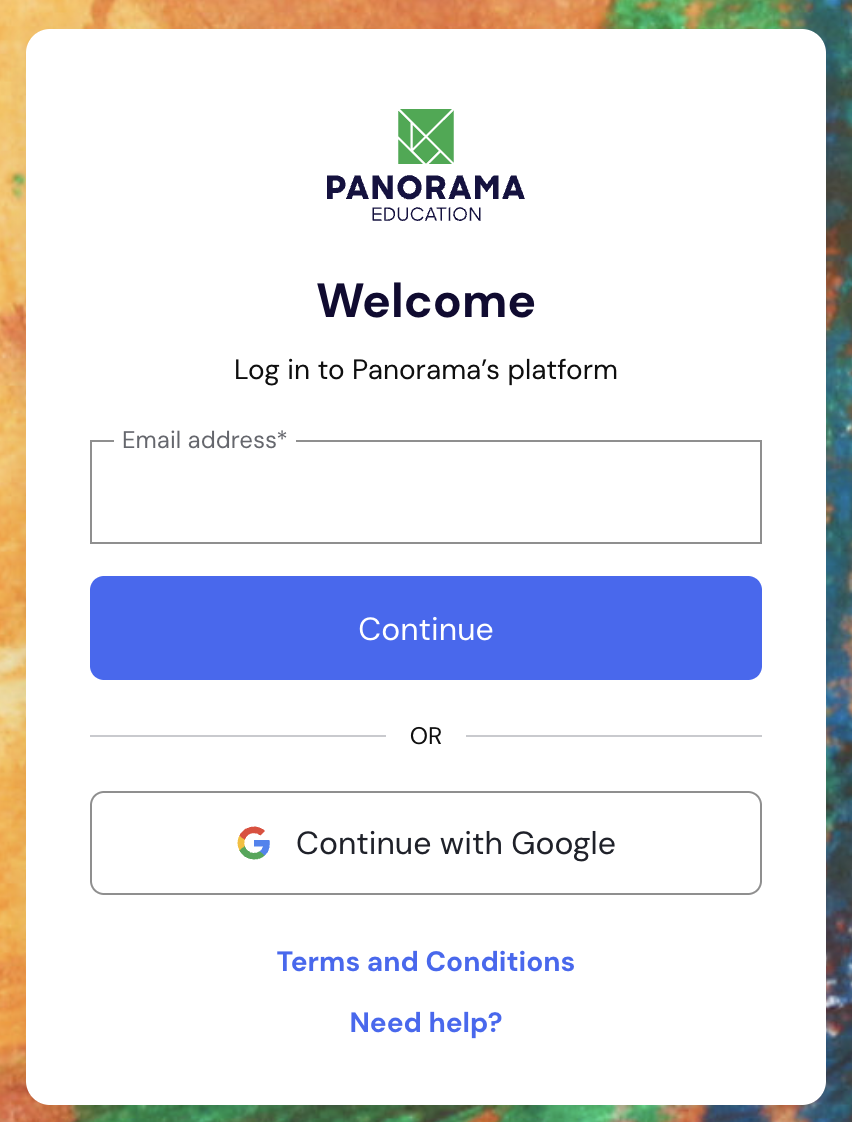
Enter the school or district email address associated with your Panorama account.
Select Continue.
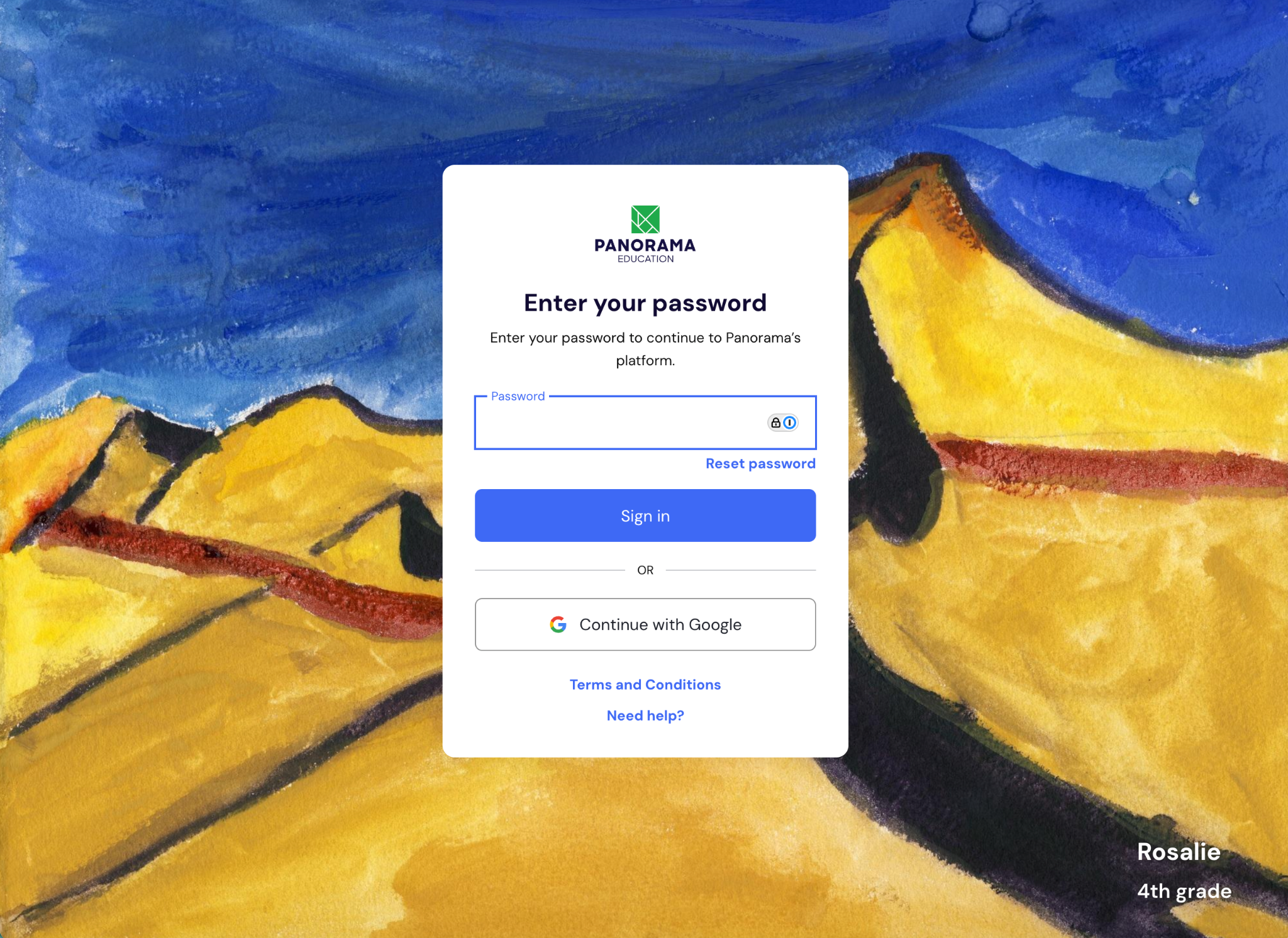
On the password screen, enter your Panorama password.
Select Sign in.
Sign in with Google
To access your Panorama account you can go to mystudents.panoramaed.com.
Select Continue with Google.
Choose the Google account with the same school or district email address as your Panorama account.
Complete the Google sign-in prompts. You’ll return to Panorama after signing in.
Note: Your district may require Google sign-in. If so, an email-and-password option may not be available.
Reset your Panorama password
Use these steps if you sign in with a Panorama password. If you use Google to sign in, follow your school or district’s process for help with your Google account.
Request a password reset email
To access your Panorama account you can go to mystudents.panoramaed.com.
Enter the school or district email address associated with your Panorama account and select Continue.
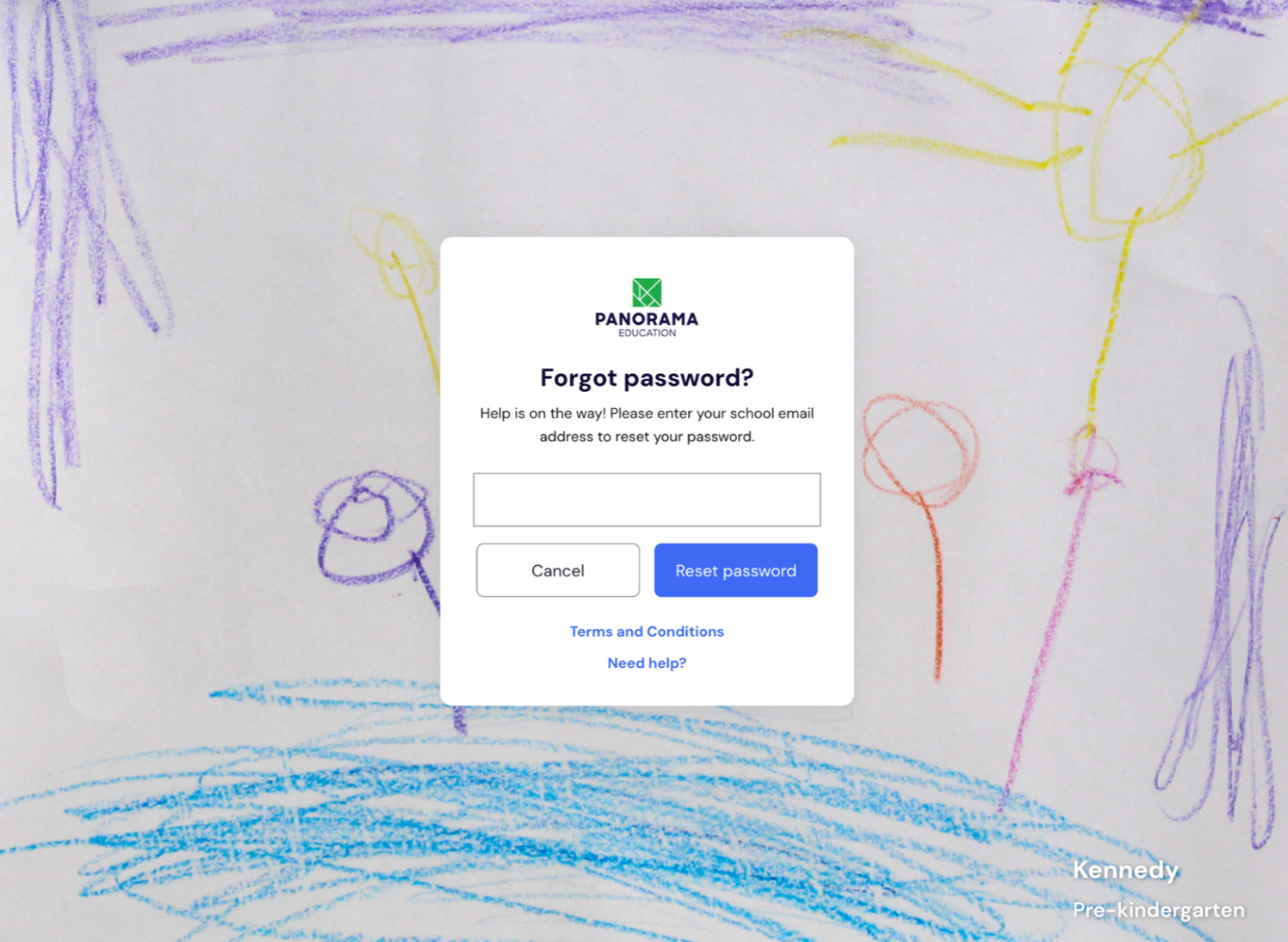
On the password screen, select Reset password. If your screen says Forgot password?, select that link instead.
On the reset form, confirm your email address.
Select Reset password.
You’ll see a confirmation message or a Check Your Email page. Check the inbox for the address you entered.
Set your new password
Open the password reset email from Panorama.
Select the password reset link.
On the Change Your Password page, enter a new password that meets the requirements shown.
In Re-enter new password, enter the same password again.
Select Reset password.
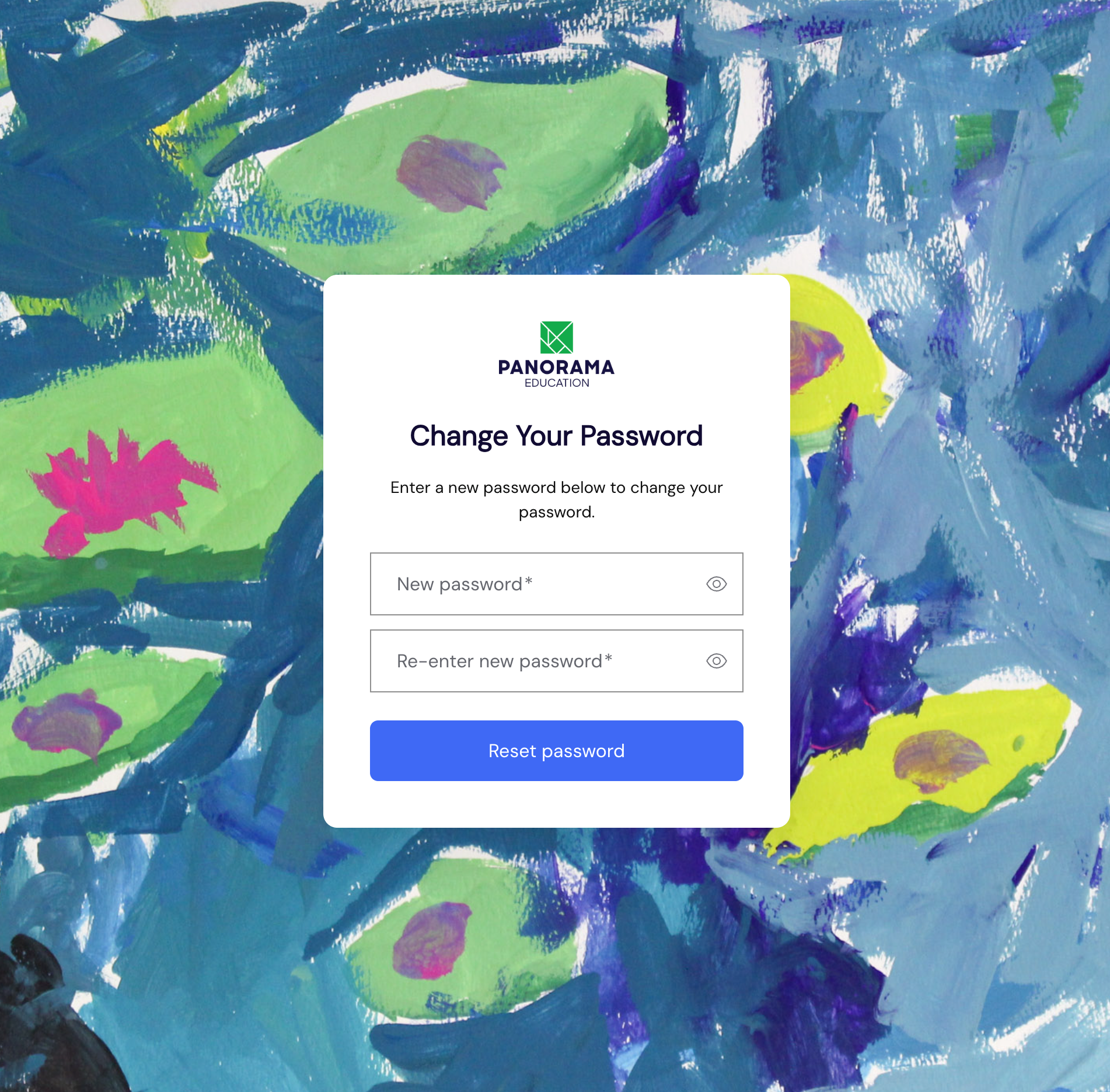
You’ll see Password Changed! when the reset succeeds. You’ll see a confirmation message in your inbox.
Troubleshoot Panorama sign-in
Choose the issue that matches what you’re experiencing.
I see “Invalid username or password”
Check that you’re using the email address associated with your Panorama account.
Try your usual sign-in method: your Panorama password or Continue with Google.
If you use a Panorama password and still can’t sign in, follow Reset your Panorama password.
If you’re unsure whether you have access, contact the person who manages Panorama at your school or district.
I didn’t receive the password reset email
Check your spam or junk folder.
Search your inbox for messages from Panorama.
Confirm that you requested the reset for the email address associated with your Panorama account.
If the confirmation page includes Resend email, select it to request another message.
If the email hasn’t arrived within an hour, contact Panorama Support at support@panoramaed.com.
My password reset link has expired
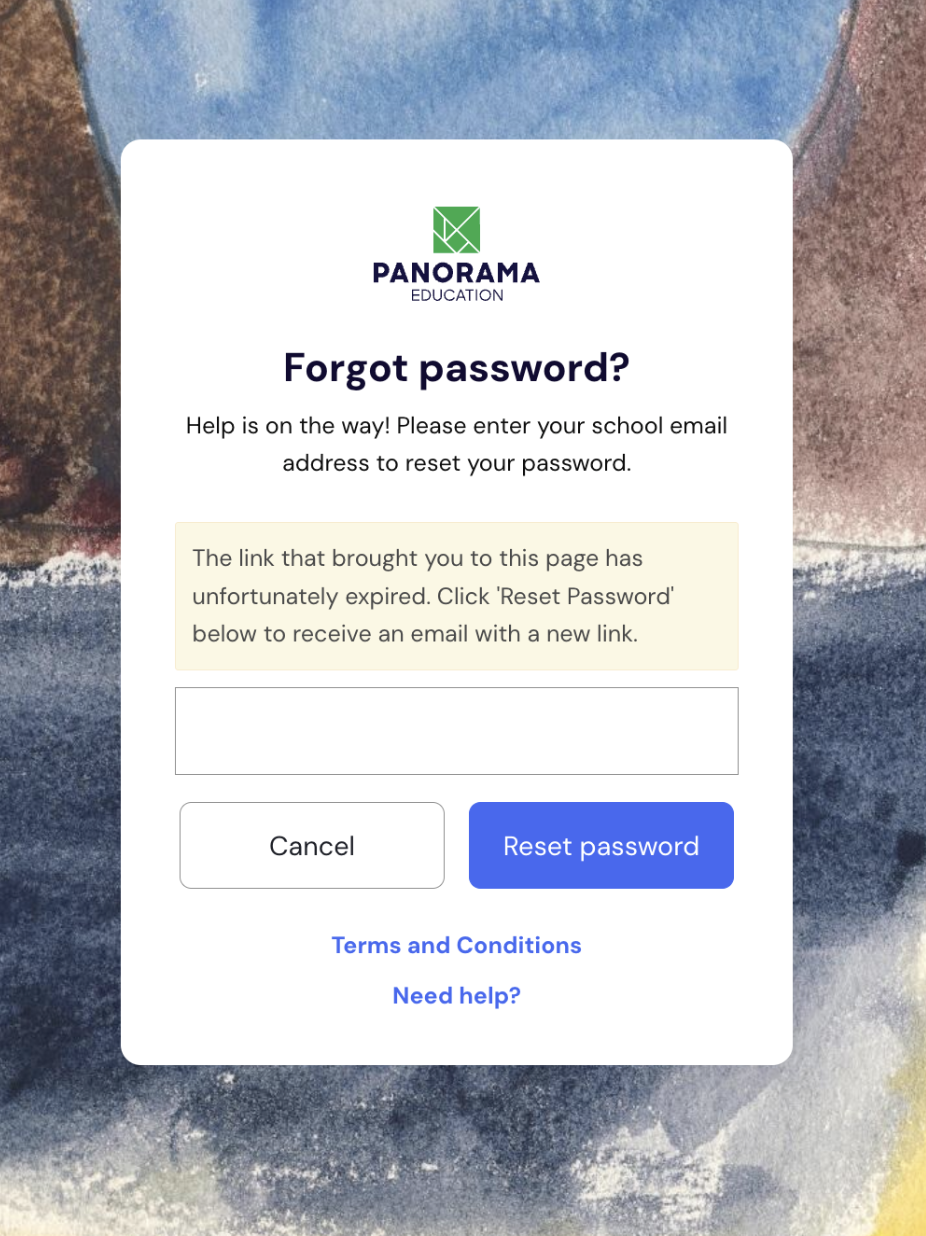
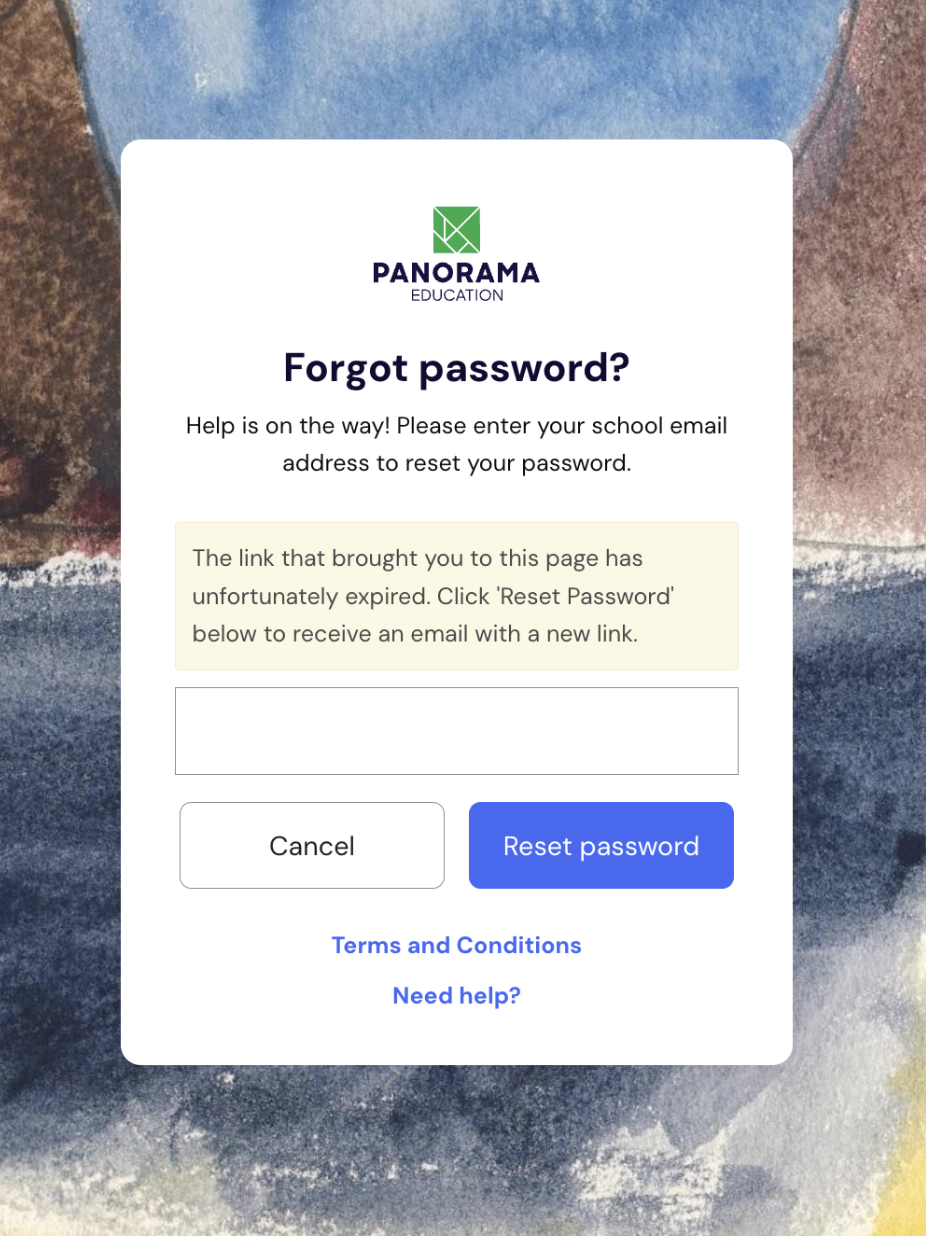
On the expired-link page, confirm your school or district email address.
Select Reset password to request a new email.
Open the new email and follow its password reset link.
Enter and confirm your new password, then select Reset password.
If you can’t request a new email from the expired-link page, return to the Panorama login page mystudents.panoramaed.com and request a password reset email.
An older link sends me to the new sign-in page
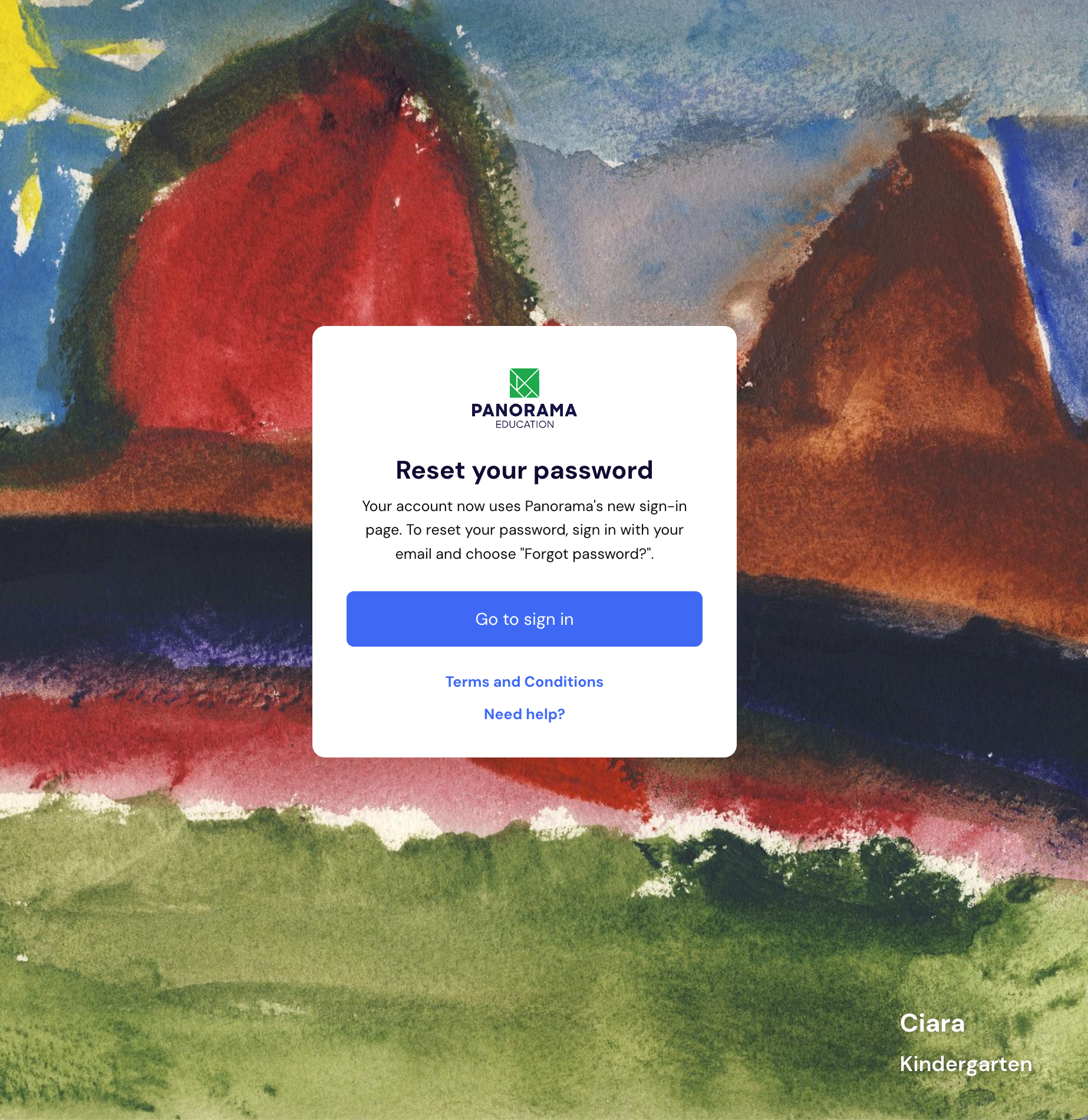
An older password link may display a Reset your password message directing you to Panorama’s new sign-in page.
Select Go to sign in.
Enter your school or district email address and select Continue.
On the password screen, select Reset password or Forgot password?
Follow the prompts to request a new reset email.
Open the new email and follow the link to set your password.
I don’t have access or an invitation
Confirm which school or district email address should be used for your Panorama account. Then contact the person who manages Panorama at your school or district to ask about access or an invitation.
If you previously had access and still need help signing in, contact Panorama Technical Support by submitting a ticket here.
Frequently asked questions
Do I need a Panorama password to sign in with Google?
No. Continue with Google uses your Google account. Choose the school or district Google account associated with your Panorama account.
Where is the password reset option?
The password reset option appears on the password screen after you enter your email address and select Continue.
Does setting a password give me access to Panorama?
Setting or resetting a password doesn’t replace getting access to Panorama. Contact the person who manages Panorama at your school or district about access.
Why isn't my new password being accepted?
Panorama's password requirements are based on the latest security research and best practices. In order to keep you and your students' data secure, we require:
Passwords to be at least 8 characters long
New passwords that haven't been previously used
Passwords that do not include your name, "panorama," "password," or other common phrases that are found on the internet
For example, "mydogisspot" is a typical password that would not be accepted as a Panorama password; it can be a common phrase and found on the Internet. We recommend that you use a long password made up of a sentence or a series of words that is easy for you to remember, such as "WalnutPleatGauzeAnythingCulminate"(This password is used for illustrative purposes, please do not reuse this example sentence for your account password).
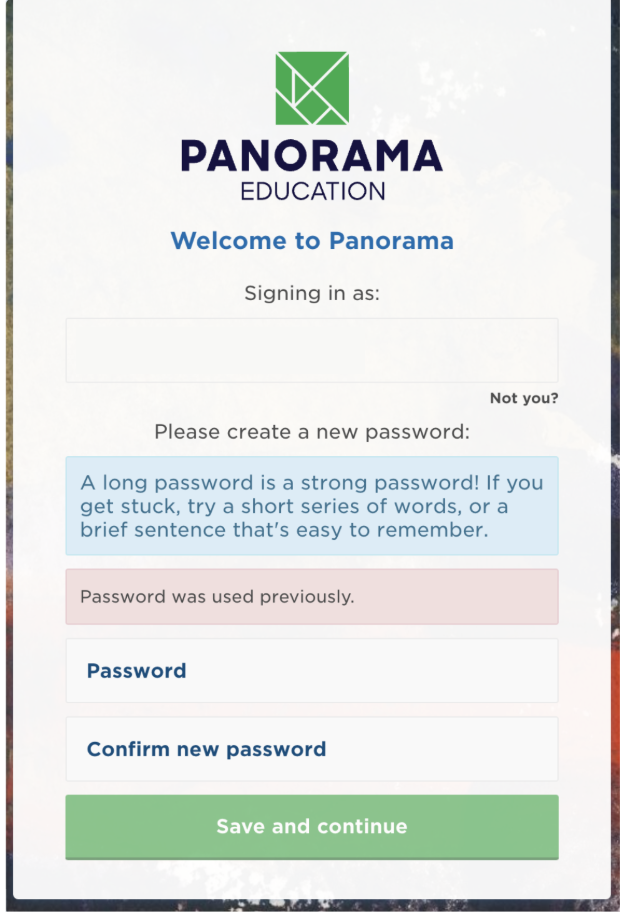
These standards are in place as a protective measure to protect the data of your district and students, as well as many others around the country.
What if I can't remember my password?
If you have already created a password, but are still having trouble logging into the platform, you can use the "Forgot Password?" link. This will send you an email that will allow you to create a new password. If you do not receive this email within an hour, you should reach out to our Support Team at support@panoramaed.com and they will be able to assist you.
Can I sign in with Google?
Yes. Click Continue with Google if your Google Account matches the email on your Panorama account (your school or district email). If you decide to use Google to sign in, you should continue to do so each time you log in. In some cases, your district may only allow you sign in with Google, so you may not see the option to sign in with your email and password. Signing in with Google is recommended because it means you will not need to create or remember an additional password.
What should I do if I don’t receive the password reset email?
If you don’t see the password reset email, check your spam or junk folder. The email may take a few minutes to arrive.
You can also search your inbox for messages from Panorama or for the subject line related to resetting your password. If you do not receive this email within an hour, you should reach out to our technical support team via the chat widget.