How to Create and Use Knowledge Bases in Solara
Last updated: August 4, 2026
Knowledge Bases give districts one centralized place to manage documents and reference materials across related custom tools. Administrators can upload content once and connect it wherever it’s needed, reducing duplicate work and helping maintain consistency.
Your district can create Knowledge Bases for strategic plans, policies, instructional frameworks, student support procedures, professional learning resources, and other collections that educators may need to reference across different workflows.
This article explains how Knowledge Bases work, how to create one, and how to connect it to a custom tool.
What You'll Learn
In this article, you’ll learn how to:
Understand how Knowledge Bases provide context in Solara
Create a focused collection of district documents
Connect a Knowledge Base to a custom tool
Review and update Knowledge Base content
Overview: What is a Knowledge Base?
A Knowledge Base (Figure 1) is a centralized collection of district documents that connected custom tools can search when responding to educators.
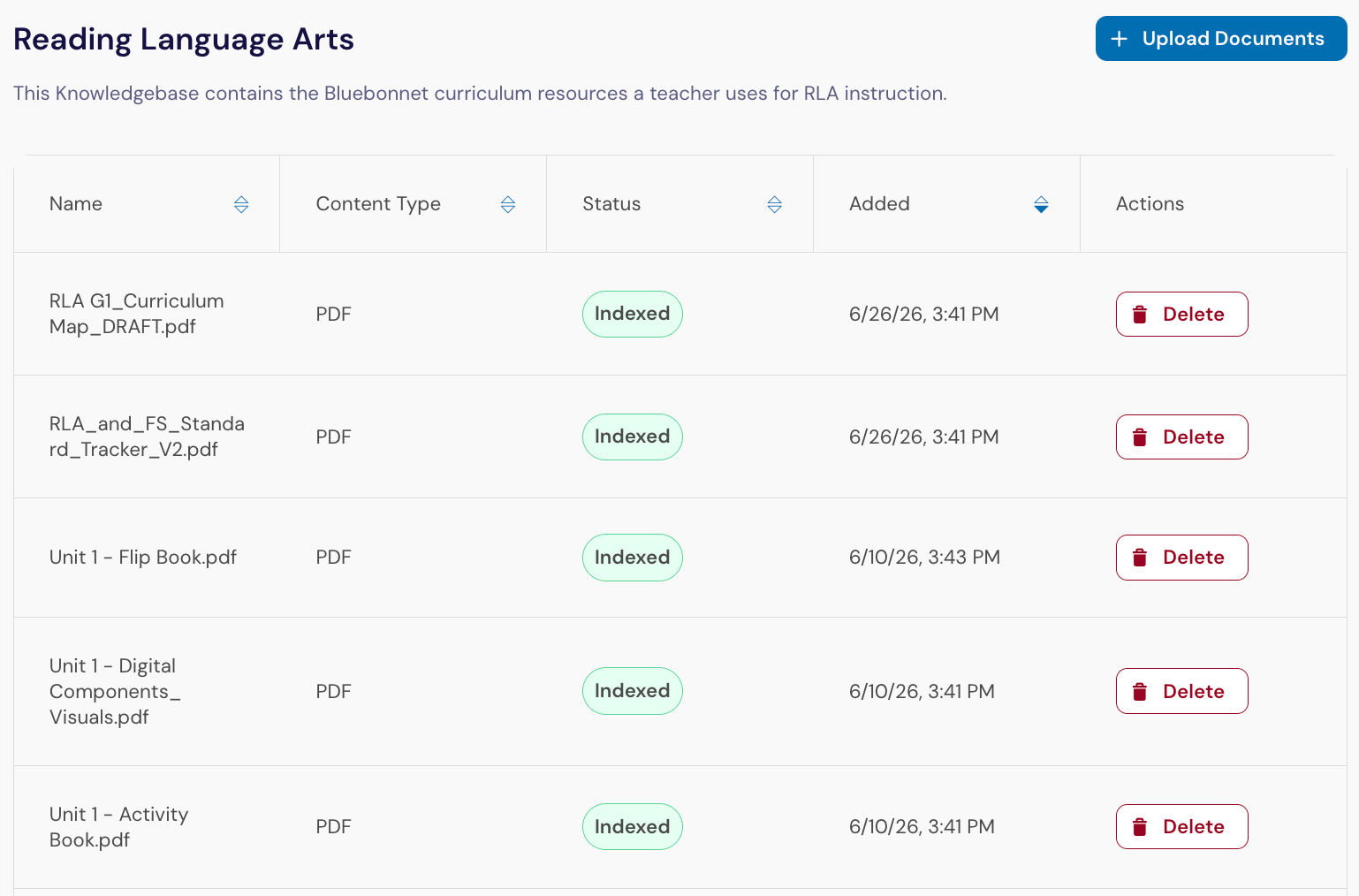
When you use a Knowledge Base, you do not need to identify which individual document contains the information you need. Ask a focused question, and Solara searches the documents in a Knowledge Base, identifies information relevant to the request, and uses that context to generate a response.
How Knowledge Bases Work in Solara
Knowledge Bases provide reusable context for custom tools in Solara.
Custom tool creators can attach a Knowledge Base to a custom tool when the tool should consistently reference the same district materials as part of a repeatable workflow.
For example, you might connect:
A strategic plan Knowledge Base with the district’s mission, vision, strategic priorities, and planning documents connected to a school improvement planning tool
A family communication Knowledge Base with district messaging guidelines, approved terminology, translation guidance, and sample communications connected to a family letter generator
An attendance guidance Knowledge Base with district attendance policies, intervention protocols, family outreach resources, and escalation procedures connected to an attendance planning tool
An instructional framework Knowledge Base with instructional expectations, observation rubrics, lesson design guidance, and examples of effective practice connected to a lesson review tool
An ELA instructional materials Knowledge Base with lesson slides, unit overviews, facilitation guides, pacing information, assessments, and supporting resources connected to lesson planning or instructional support tools
When an educator uses a connected custom tool, Solara retrieves the content most relevant to the request. The response includes source information showing which document and text passage informed the answer, making it easier to review and verify the output.
A single Knowledge Base can provide context to multiple custom tools. A custom tool can also reference multiple Knowledge Bases when it needs information from more than one collection.
Each document that is uploaded to Solara passes through Panorama’s safety guardrails before it is added to the Knowledge Base. If a file cannot be processed safely, Solara will reject it and display an error.
Common Knowledge Base Examples
The examples below can help your district identify additional collections that may work well as Knowledge Bases.
Knowledge Base | Example Documents | Possible Uses |
District Strategic Plan | Strategic plan, annual priorities, success measures | Leadership updates, planning, and progress summaries |
District Policies | Board policies, staff procedures, implementation guidance | Policy questions, summaries, and communications |
Attendance Guidance | Procedures, outreach templates, intervention guidance | Attendance planning and family communication |
Instructional Frameworks | District expectations, walkthrough tools, implementation guides | Lesson review, coaching, and professional learning |
Family Communication | Style guidance, approved templates, translation guidance | Letters, emails, newsletters, and text messages |
School Improvement Planning | State guidance, district templates, planning rubrics | School improvement plans and leadership reviews |
ELA Instructional Materials | Unit overviews, lesson slides, pacing guides, and other instructional materials from a specific program | HQIM delivery, lesson planning, pacing guidance, differentiation |
Documents that educators regularly use together are often good candidates for the same Knowledge Base.
How to Create a Knowledge Base
Select your initials in the lower-left corner of your screen. Select Platform Admin from the pop-out menu (Figure 2).
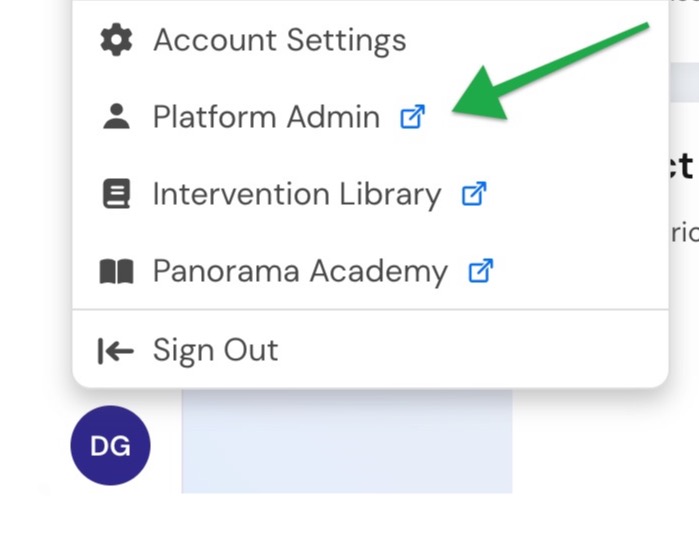
Figure 2. The Applications menu in the Panorama platform.
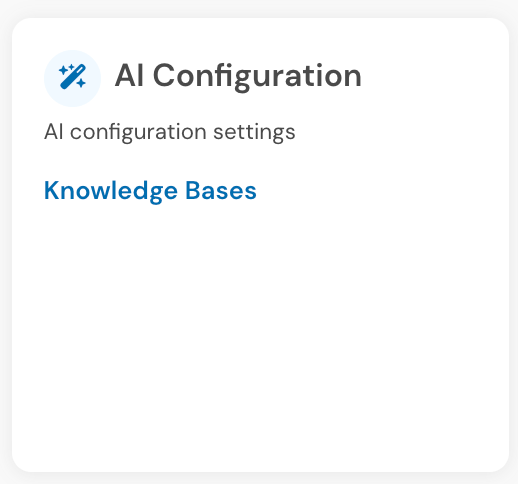
Scroll down to the “AI Configuration” tile (Figure 3) and click on “Knowledge Bases.” This page lists all Knowledge Bases that your district has created.
Click on the "+ Create Knowledge Base" button (Figure 4) in the upper right-hand corner.

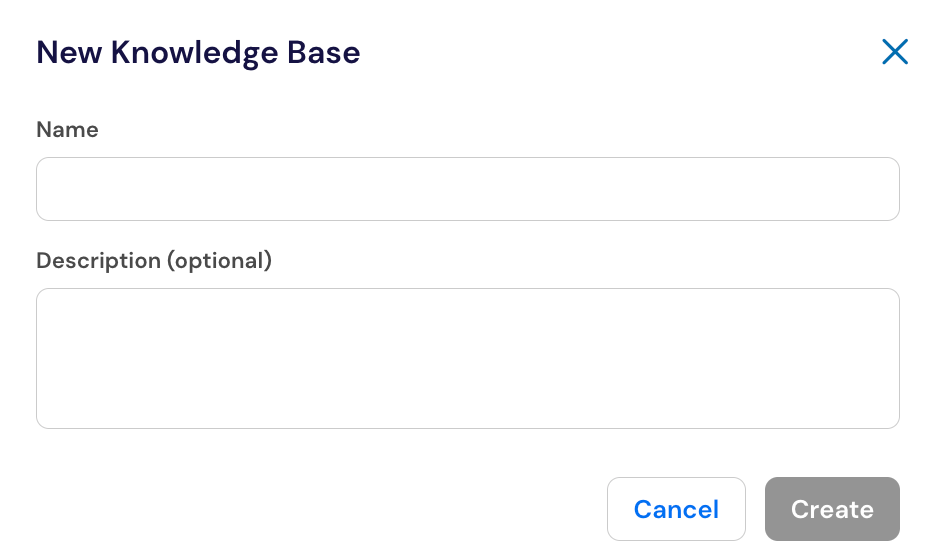
Enter a name and description (Figure 5) for the Knowledge Base before selecting "Create."
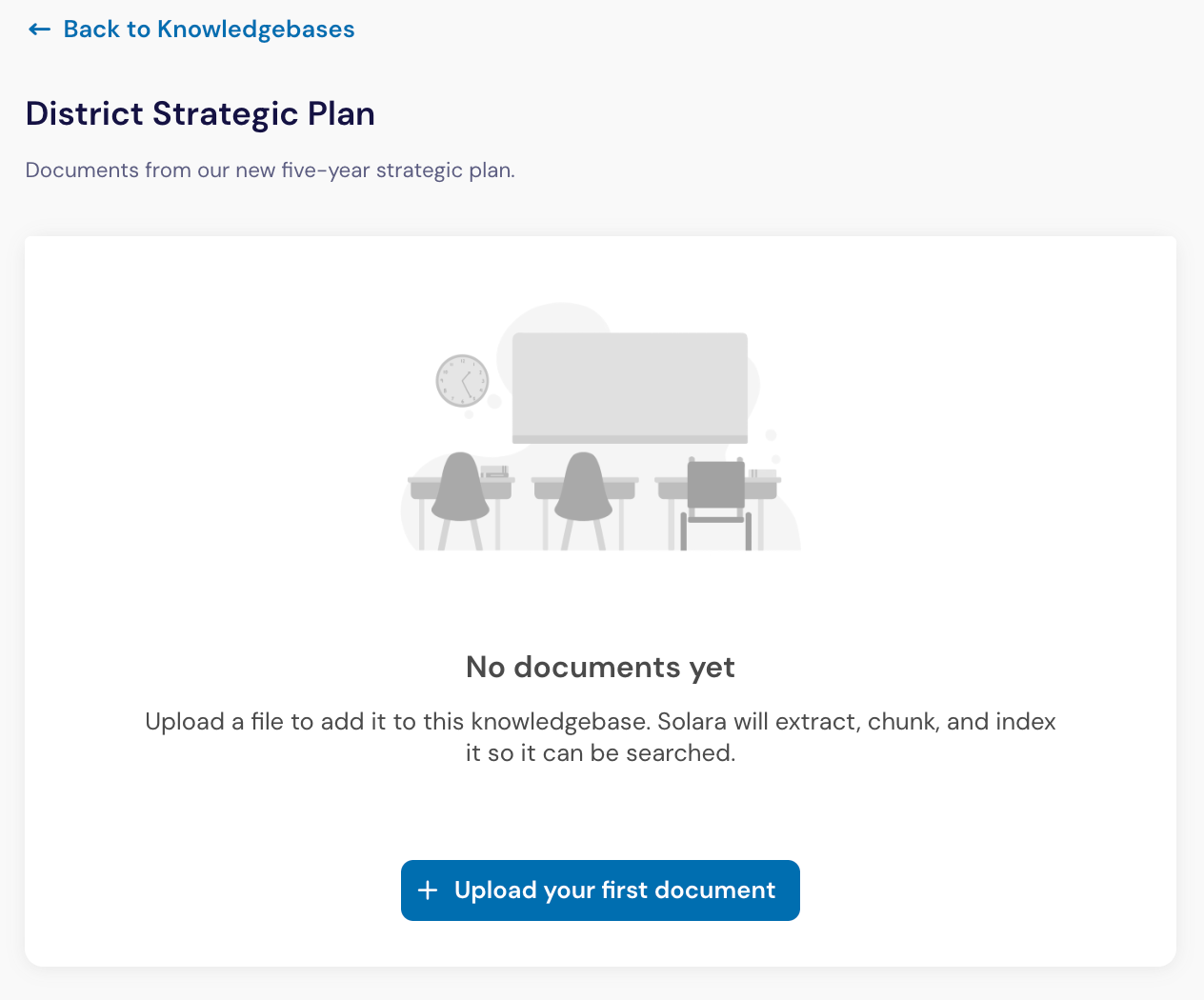
Once the Knowledge Base is created, click on the "+ Upload your first document" button (Figure 6) and select files to upload.
Solara will process each file and display its status in the Knowledge Base. A file has been fully processed once the status is set to "Indexed" (Figure 7).
After documents have been uploaded to a Knowledge Base, educators can see the file name, uploader, upload date, and processing status. The list of documents can be sorted by these criteria and there are options to download or delete files.
Connect a Knowledge Base to a Custom Tool
Connect a Knowledge Base to a custom tool when the tool should use district materials each time an educator runs it.
Open the Tool Library and click on the "Manage Custom Tools" button.
Create a custom tool or edit an existing one.
Navigate to the "Knowledge Bases" section of the tool creator.
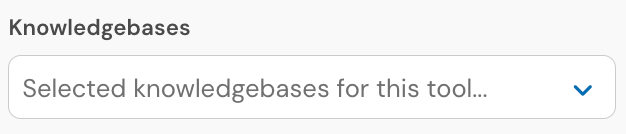
Select one or more Knowledge Bases from the dropdown menu (Figure 8).
Preview the tool using realistic inputs.
Best Practices for Building a Knowledge Base
Define one clear purpose
Create each Knowledge Base around a recognizable topic, body of guidance, or collection of materials.
A focused Knowledge Base makes it easier for educators to understand when to use it and helps Solara retrieve relevant context.
Include documents that answer real questions
Before uploading files, identify what educators are likely to ask.
For a strategic planning Knowledge Base, they may need to know:
Which priorities relate to a proposed initiative?
How is progress measured?
Which responsibilities belong to school leaders?
Which strategies apply across all schools?
Confirm that the documents in the collection can support those questions.
Separate unrelated resources
Do not use one Knowledge Base as a general storage location for every district file.
For example, a district policy collection and an instructional framework collection may support different questions and workflows. Keeping them separate can make each Knowledge Base easier to understand and maintain.
Keep documents current
Review Knowledge Bases whenever policies, plans, templates, or district guidance change.
During each review:
Replace superseded files
Remove outdated or duplicate documents
Confirm that the description still matches the collection
Test connected custom tools after major updates
Whenever possible, update the existing Knowledge Bases rather than creating another collection with a similar name.
Frequently Asked Questions
How is a Knowledge Base different from uploading a document to a chat?
An uploaded document provides context within a specific interaction. A Knowledge Base is a reusable collection that can provide context across multiple custom tools.
How is a Knowledge Base different from uploading files into a custom tool’s Knowledge?
When creating a custom tool, you can upload up to five files directly into the tool’s Knowledge section. These files provide context only for that specific custom tool.
A Knowledge Base supports much larger collections of materials. You can upload hundreds of documents into a Knowledge Base, then connect that Knowledge Base to one or more custom tools. You can also connect multiple Knowledge Bases to the same custom tool.
This makes Knowledge Bases useful when a tool needs to reference a large body of district materials or when several tools should use the same collection of resources.
Connecting a Knowledge Base is optional for each custom tool. Existing tools that are not connected to a Knowledge Base will continue to work as they do today.
Can multiple custom tools use the same Knowledge Base?
Yes. A single Knowledge Base can provide context to multiple custom tools.
Can a custom tool use multiple Knowledge Bases?
Yes. This can be useful when a workflow needs more than one type of district guidance. For example, a school improvement planning tool might reference both state requirements and district planning expectations.
Who can use this feature?
District administrators can create and manage Knowledge Bases. District administrators can also grant specific users permission to manage Knowledge Base documents without giving them full administrative access.
What documents should I include?
Include current, authoritative resources that directly support the Knowledge Base’s purpose. These may include policies, procedures, templates, frameworks, strategic plans, implementation guides, exemplars, and approved reference materials. Knowledge Bases support PDF, DOCX, PPTX, and TXT files. You can upload files in batches of up to 100, and each Knowledge Base can contain hundreds of documents.
Does updating a Knowledge Base affect connected custom tools?
Yes. When you add, remove, or replace documents in a Knowledge Base, connected custom tools will use the updated collection as context.
Because the source materials have changed, the tool’s responses may also change. Preview and test connected custom tools after making significant updates to confirm that their outputs are still accurate and high-quality.
Can you delete a Knowledge Base?
Yes, administrators with proper permissions can delete a Knowledge Base from Solara. Deleting a Knowledge Base removes the documents it contains and makes it unavailable to connected custom tools. Review any connected tools before deleting it.