Configure and publish Public Survey Reports
Last updated: September 30, 2026
Public Survey Reports let you configure, preview, and publish selected survey results for families, community members, and other stakeholders who do not have Panorama accounts. Before publishing, you can review which reporting levels, results, and filters will be available publicly.
Who this is for: Global Administrators who manage public survey reporting. Only Global Administrators can configure, preview, publish, and unpublish Public Survey Reports.
How Public Survey Reports work
Public Survey Reports provide a dedicated public reporting experience for approved survey results. Public viewers can explore published results without signing in to Panorama.
Each Panorama client has one public reporting link. As you publish additional survey administrations, those results become available within the same public reporting experience rather than creating separate public links.
Public Survey Reports use the same underlying reporting behavior as Survey Reporting where applicable. This includes features such as existing scoring, response counts, confidentiality thresholds, benchmarks, change over time and organization groups configurations.
Public Survey Reports are configured separately from your internal Survey Reporting experience. This allows you to control what community members can access without changing what internal Panorama users see.
What information can be shared publicly
Global Administrators can configure which eligible survey administrations and reporting levels are available publicly.
Depending on your organization's configuration, public reporting can include:
Student survey results
Teacher and staff survey results
Family survey results
Topic scores and visualizations
Response counts
Eligible demographic breakdowns
You can configure public reporting at supported organizational levels, including:
State, for applicable multi-district organizations
District
School
When you enable a reporting level, all eligible organizations at that level are included. You cannot select individual schools within an enabled reporting level.
Create a Public Survey Reports configuration
A configuration template determines how eligible survey administrations appear in your public reports. You can reuse a template across administrations that should have the same public reporting settings.
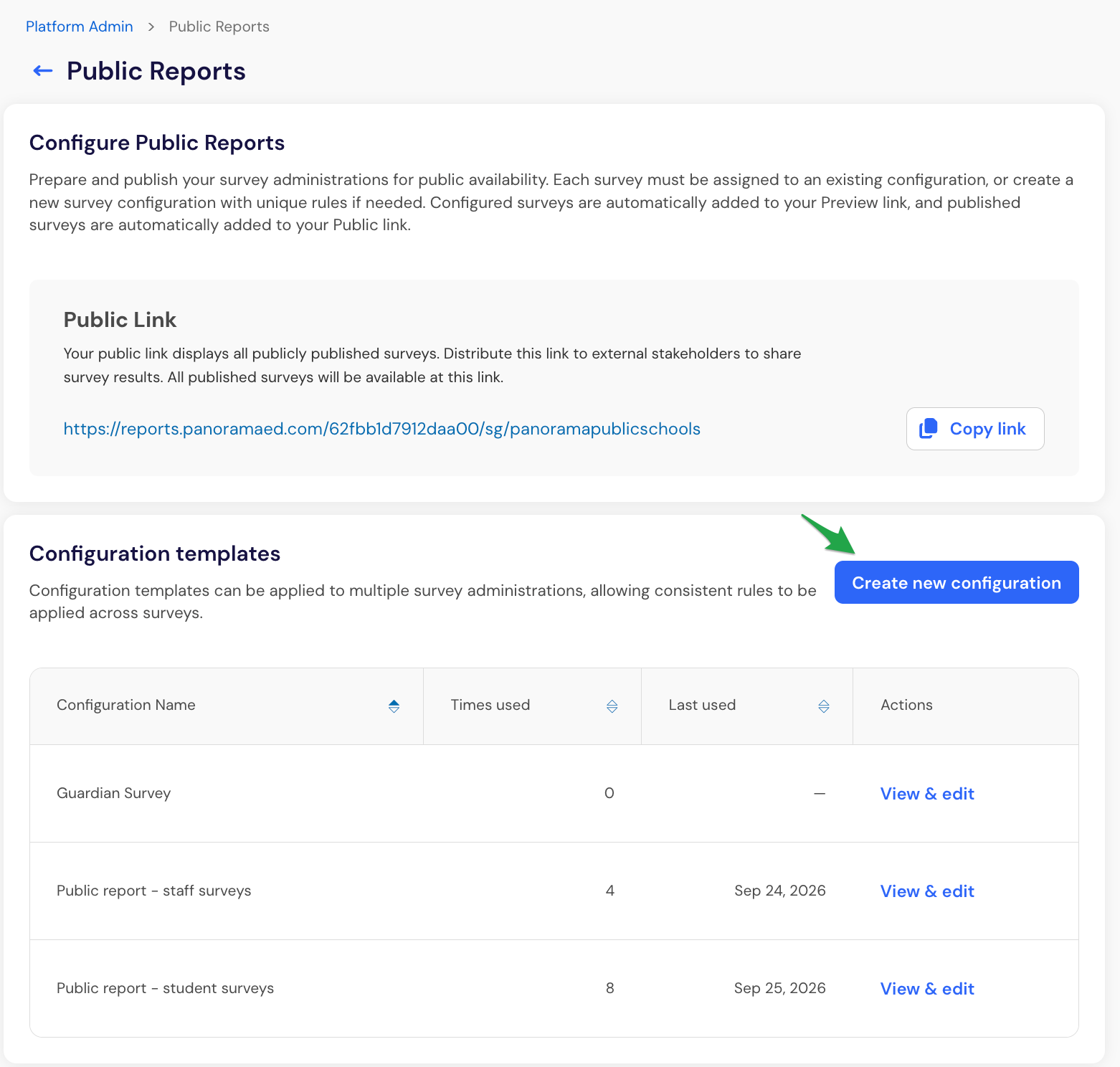
In Platform Admin, under Surveys, open Public Reports.
Under Configuration templates, select Create new configuration.
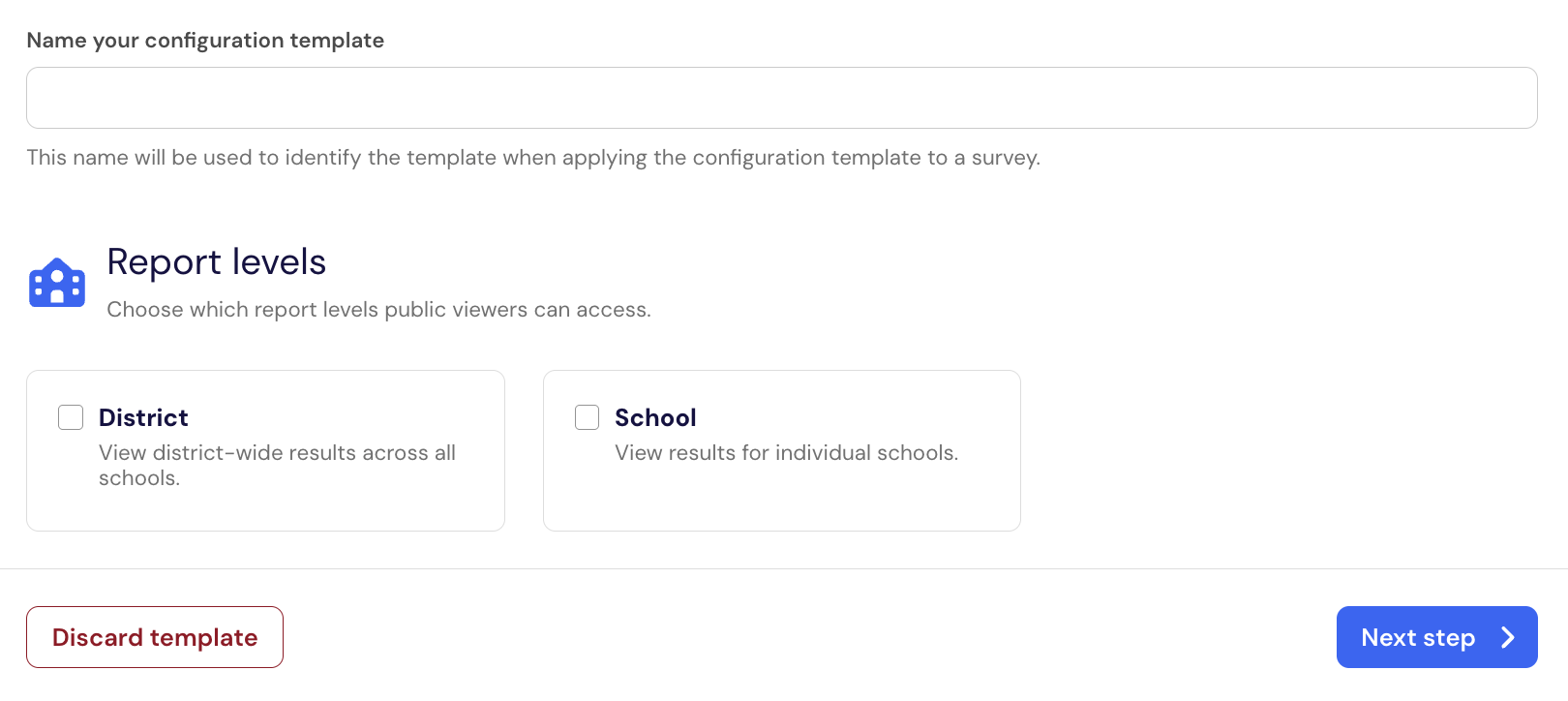
Enter a name that helps your team identify how the configuration will be used.
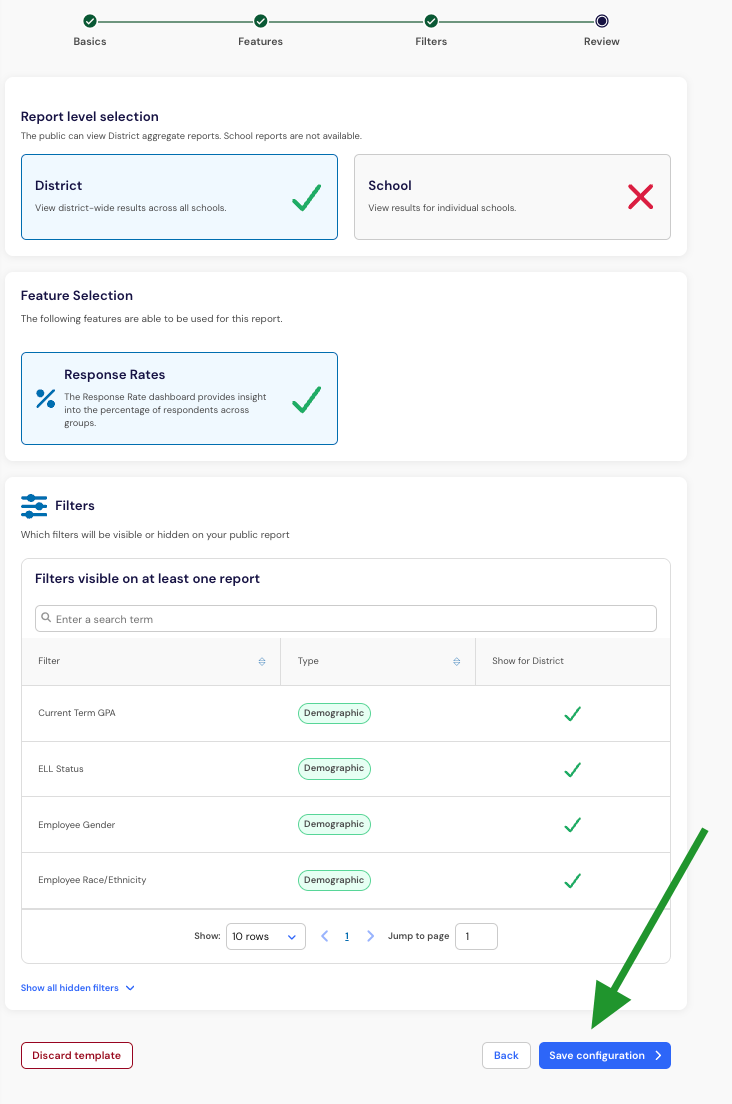
Under Report levels, select the reporting levels you want to make publicly available.
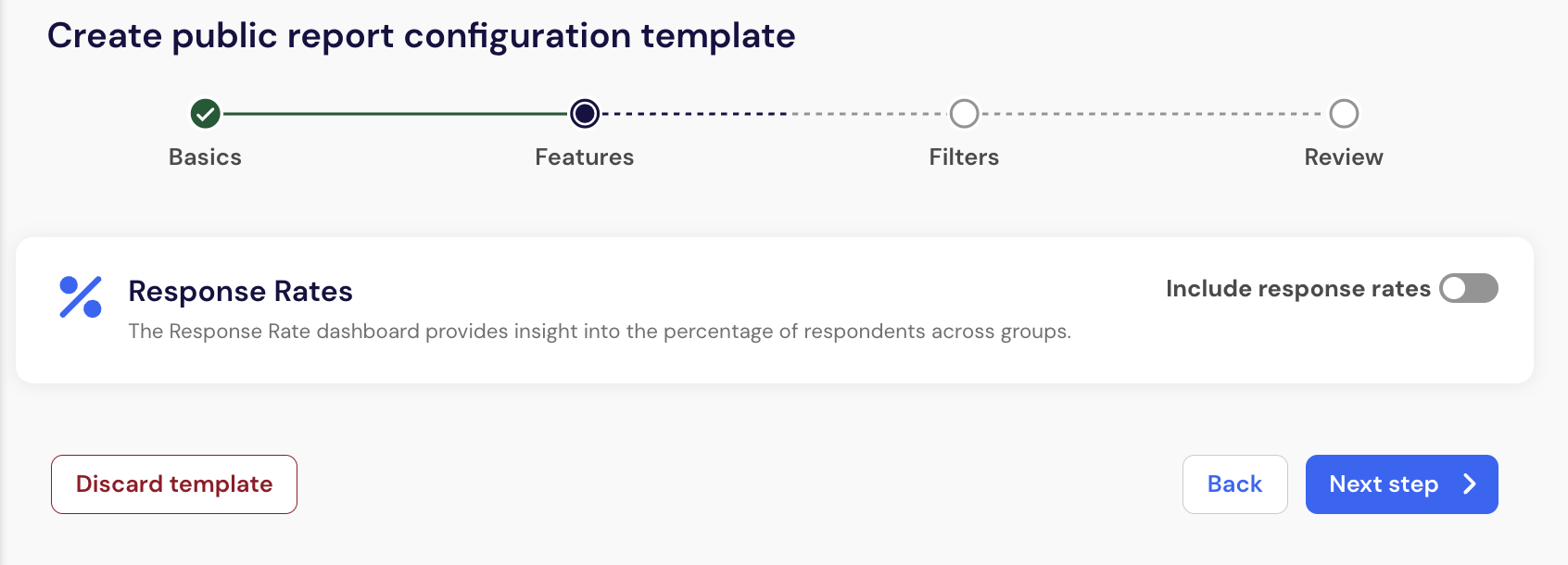
In Features, indicate whether to include Response Rates in the public report.
In Filters, decide whether to include demographic filters in your public survey reports.
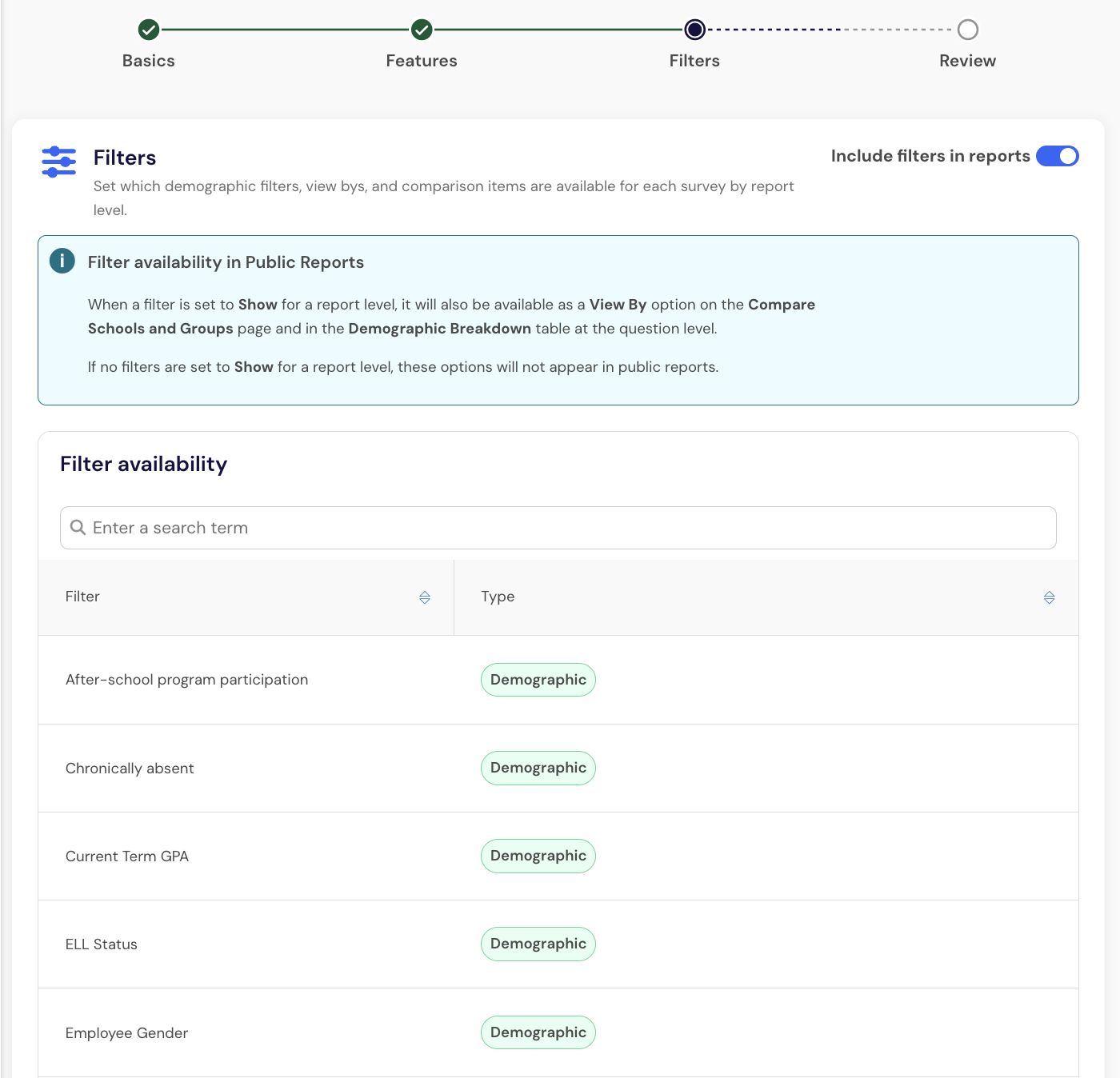
Filters can be configured separately for supported reporting levels. Available filters depend on the demographic data included in each survey administration.
When a demographic filter is available publicly, it can also affect available View By options and question-level demographic breakdowns.
Important note: Public viewers can apply one filter at a time.
In Review, review the configuration and select Save configuration.
The template will now be available to assign to eligible survey administrations.
Assign a configuration to survey administrations
Survey administrations need a configuration template before they can be previewed and published.
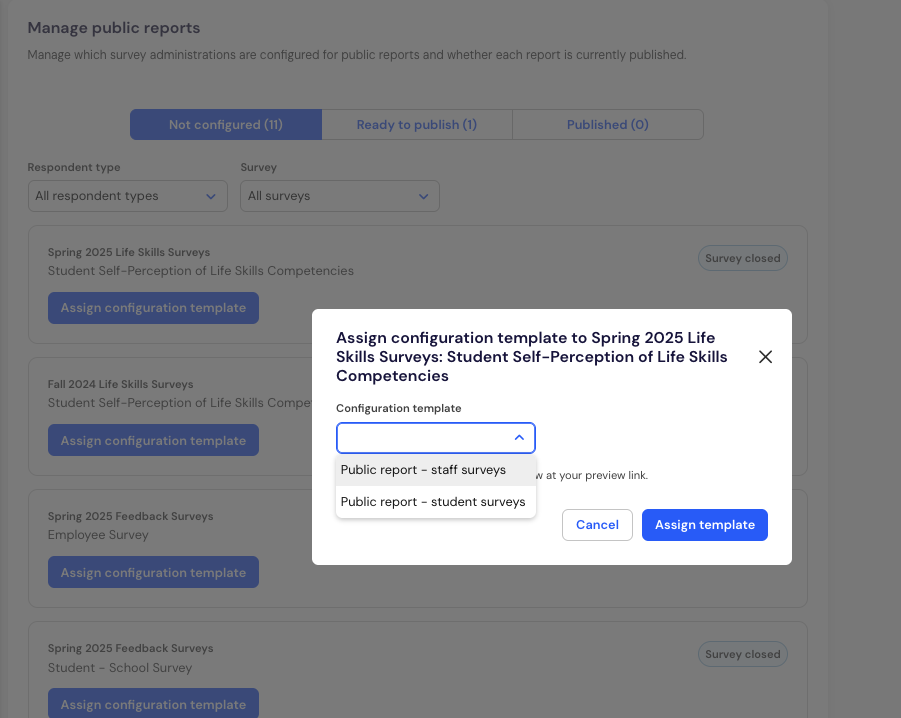
On the Public Reports page, locate the survey administration you want to configure.
Select Assign configuration template.
Choose the appropriate configuration template, then select Assign template.
After you assign a configuration, the survey administration will move into a state where you can review it before publishing.
Preview Public Survey Reports before publishing
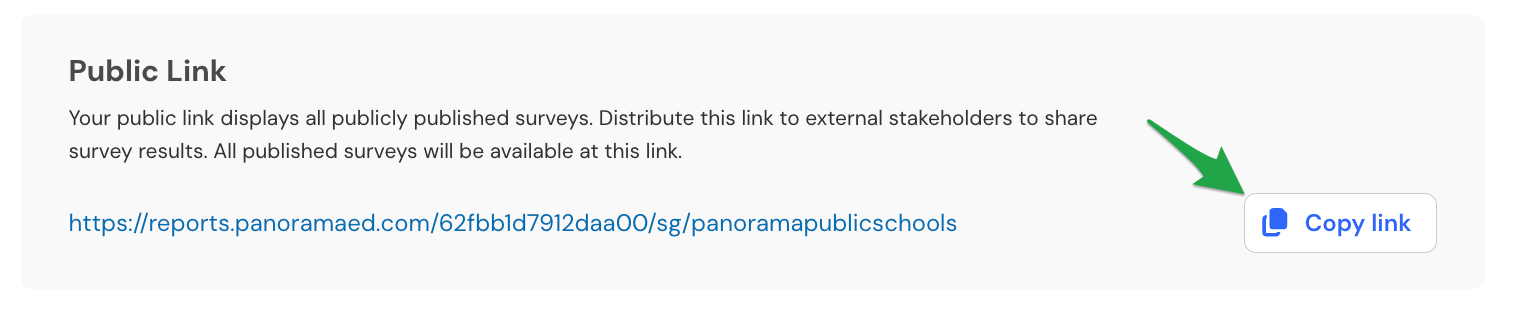
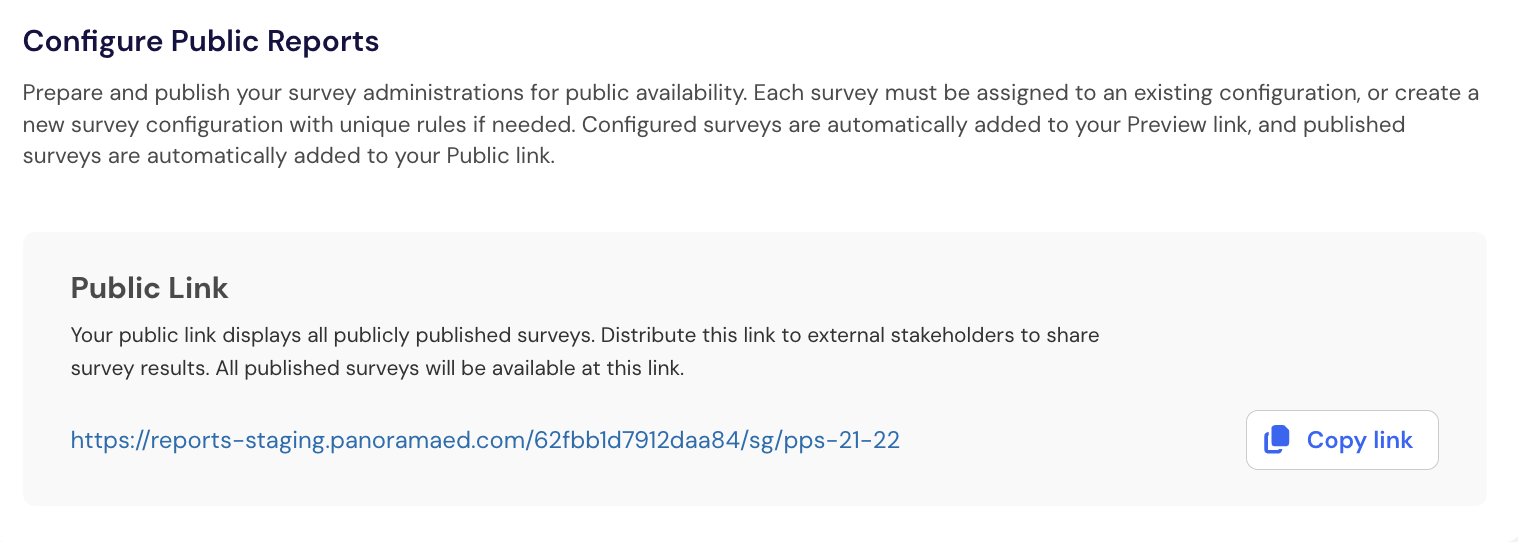
Previewing your reports helps you confirm what community members will see before results become publicly available. To preview what your reports will look like, click on the public link URL or select Copy link and paste this into your browser.
As you are reviewing the public reports, make sure to check for:
Are the right survey administrations published and unpublished?
Are all the reporting levels showing up as expected and as you set?
Are the right demographic filters showing up for each of your surveys and the appropriate reporting levels?
Are you seeing what you expect at the topic-level and question-level?
Are you seeing the expected confidentiality thresholds being upheld?
The preview can include reports that are already published alongside reports that are ready to publish. This helps you review how the combined public experience will appear.
Tip: Review reports from the perspective of a community member who does not use Panorama regularly. Confirm that the available information supports your organization's communication goals.
Publish Public Survey Reports
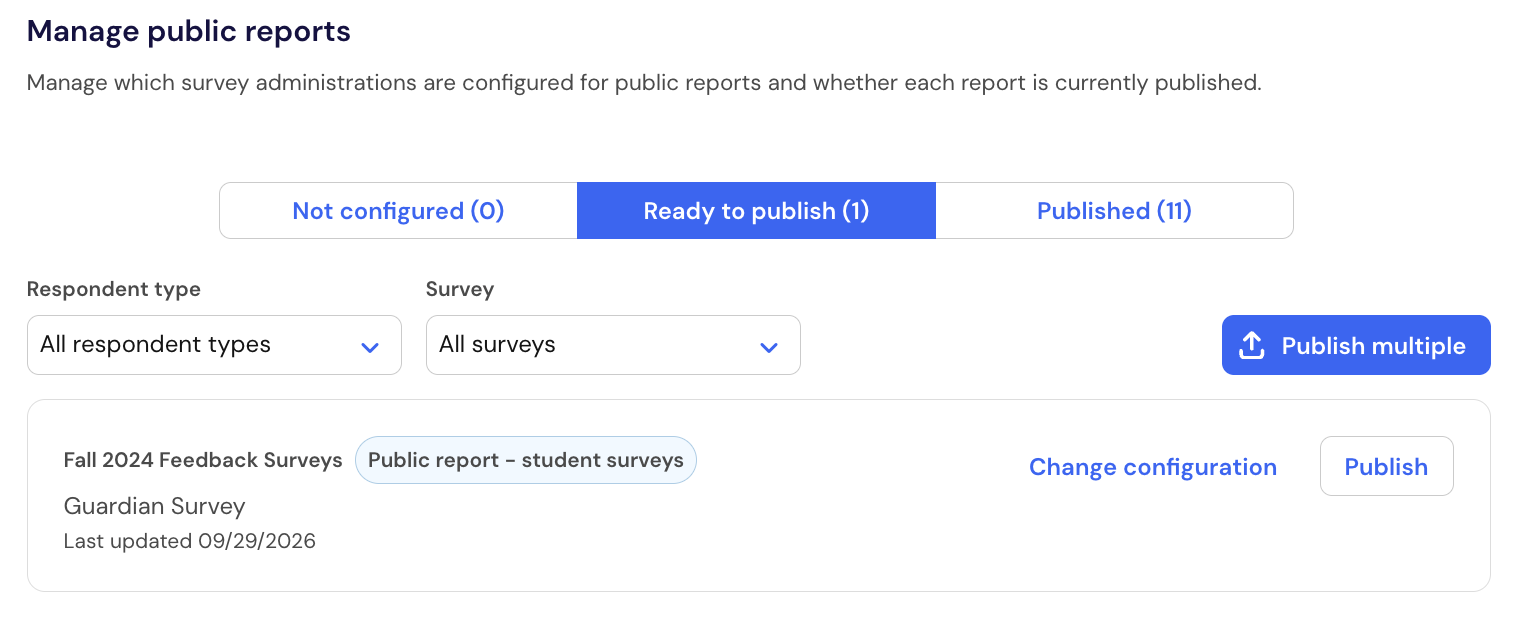
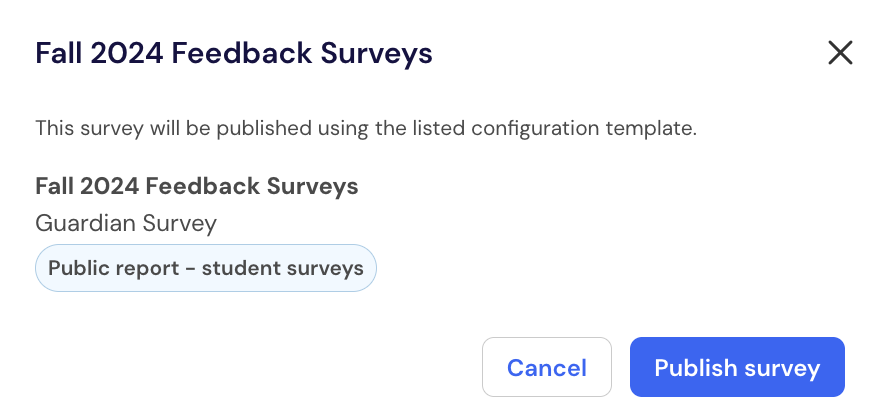
Publish a survey administration after you have reviewed its configuration and confirmed that the public experience is ready.
On the Public Reports page, locate the survey administration under Ready to publish.
Review the assigned configuration.
Select Publish.
The survey results become available immediately through your organization's public reporting link.
You can publish additional survey administrations over time. Newly published reports are added to the same public reporting experience.
Share your public reporting link
Your organization has one main public reporting link for all published Public Survey Reports.
The public link becomes available after a configuration template has been created. You can share the link through locations such as:
Your district or school website
Newsletters
Family communications
Community reports
Other stakeholder communications
Public viewers do not need a Panorama username, password, or account.
Public reporting can also support links to more specific locations within the published experience, such as a particular survey, topic, project, or reporting page.
Navigate the public reporting experience
Public viewers can navigate among the results your organization has published.
All Survey Results
The All Survey Results page provides an overview of the survey results available for the selected organization and project.
Viewers can explore published topics and use approved demographic filters when available.
Topic Reports
Viewers can select a topic to explore more detailed results, including question-level information when available.
Question-level confidentiality continues to apply throughout Topic Reports.
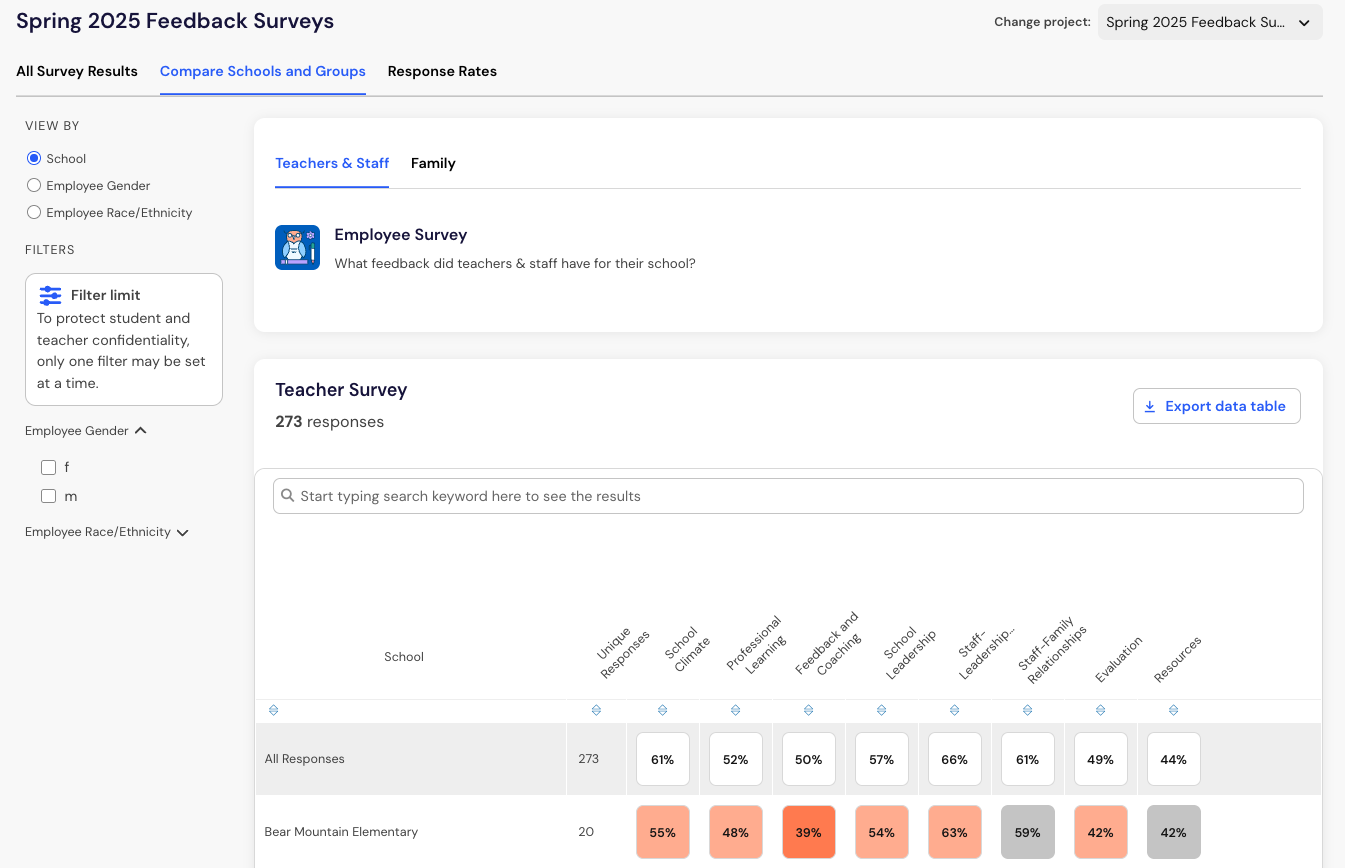
Compare Schools and Groups
When available, viewers can compare published results across eligible schools and groups.
The available View By options and filters are determined by the public reporting configuration.
Change or unpublish a report
You can update your public reporting experience as your organization's needs change.
To adjust a survey administration, return to Public Reports and update its assigned configuration.
To remove published results from public access, select Unpublish for the applicable survey administration.
Unpublishing takes effect immediately.
Important: A configuration template cannot be deleted while survey administrations are assigned to it.
Frequently Asked Questions
Do public viewers need a Panorama account?
No. Anyone with access to the published public reporting link can view the available results without signing in.
Does publishing a report make everything in Survey Reports public?
No. Public Survey Reports have their own configuration, and some information is excluded from public reporting.
Global Administrators control which eligible survey administrations, reporting levels, and demographic filters are available publicly.
Can I preview reports before publishing?
Yes. The preview experience lets you review reports that are ready to publish alongside reports that are already publicly available.
Can I reuse a configuration template?
Yes. You can apply the same configuration template to multiple eligible survey administrations that should use the same public reporting settings.
Can I remove a report after publishing it?
Yes. Select Unpublish to remove the survey administration from the public reporting experience.
How do Public Survey Reports protect confidential information?
Public Survey Reports follow the same confidentiality rules as Survey Reporting. Topic, question, and demographic results remain hidden when they do not meet the applicable confidentiality threshold. Confidential demographic groups are also suppressed according to your existing confidentiality rules.
What information is not available in Public Survey Reports?
Public Survey Reports do not include About Teacher results, About Student results, free-response data, student-level data, AI Insights, or Completion Lists. Teacher filters and teacher comparisons are also not available in the public reporting experience.
Can public viewers use demographic filters?
Yes. Public viewers can apply one demographic filter at a time when demographic filters are included in the public report configuration. Before publishing, review the public report to confirm the available filters and results match your organization’s intended public reporting experience.