Contact Panorama Education for help
Last updated: July 27, 2026
If you need assistance with Panorama Education, choose the option below based on the type of help you need.
Whether you're looking for answers in Panorama Academy, need to report a technical issue, or want to check the status of an existing request, the sections below explain each support option in more detail.
If you want to... | Best option |
|---|---|
Find answers to common questions | |
Get a quick answer to a question | |
Report a technical issue | |
Check the status of an existing request | |
Contact Technical Support directly |
Important: If you're experiencing a widespread service interruption, check the Panorama Status Page before submitting a support request. If the issue is already being investigated, you'll find updates there as they become available
Search Panorama Academy
Panorama Academy includes articles, videos, and guides that answer common questions about Panorama products and features. Searching Panorama Academy is often the quickest way to find answers without waiting for Technical Support.
In order to access the full library, you must be logged in to your Panorama Education account.
Log in to Panorama Academy
Select Login in the top right corner and then select Login as Customer.
Sign in using your Panorama account.
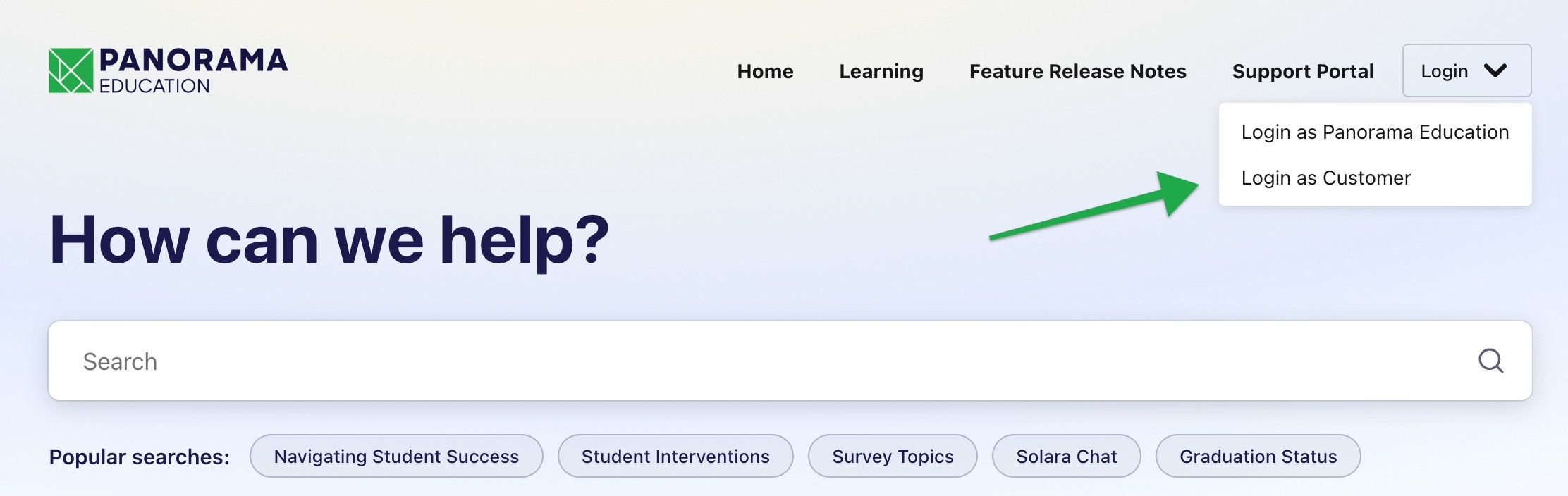
After signing in, you can:
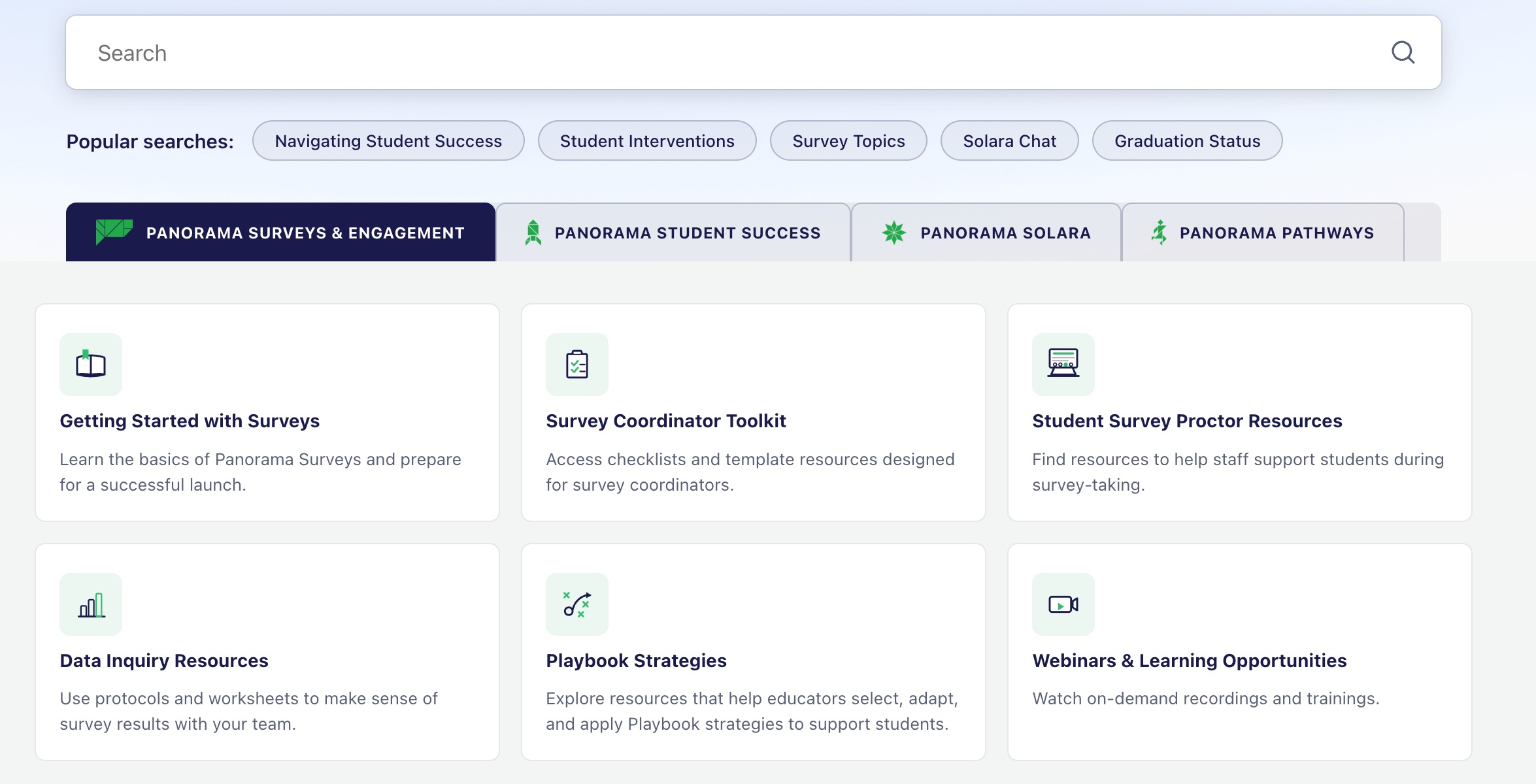
Search for topics using the search bar.
Browse resources by product.
Access guides, videos, and feature documentation.
Whether you're launching surveys, reviewing student data, or using other Panorama products, Panorama Academy includes resources to help you get started and answer common questions.
Chat with Technical Support
Need a quick answer? Start a conversation using the chat widget in Panorama Academy or on most pages on our platform.
When you begin a chat, Panorama's AI assistant will first help answer your question using information from Panorama Academy and other support resources. Many common questions can be resolved immediately, helping you get back to work more quickly.
If the AI assistant isn't able to answer your question or you need additional support, you'll automatically be connected with a member of our Technical Support team during support hours. If you start a chat outside of support hours, you can leave a message and our team will follow up as soon as we're available.
Start a chat from Panorama Academy
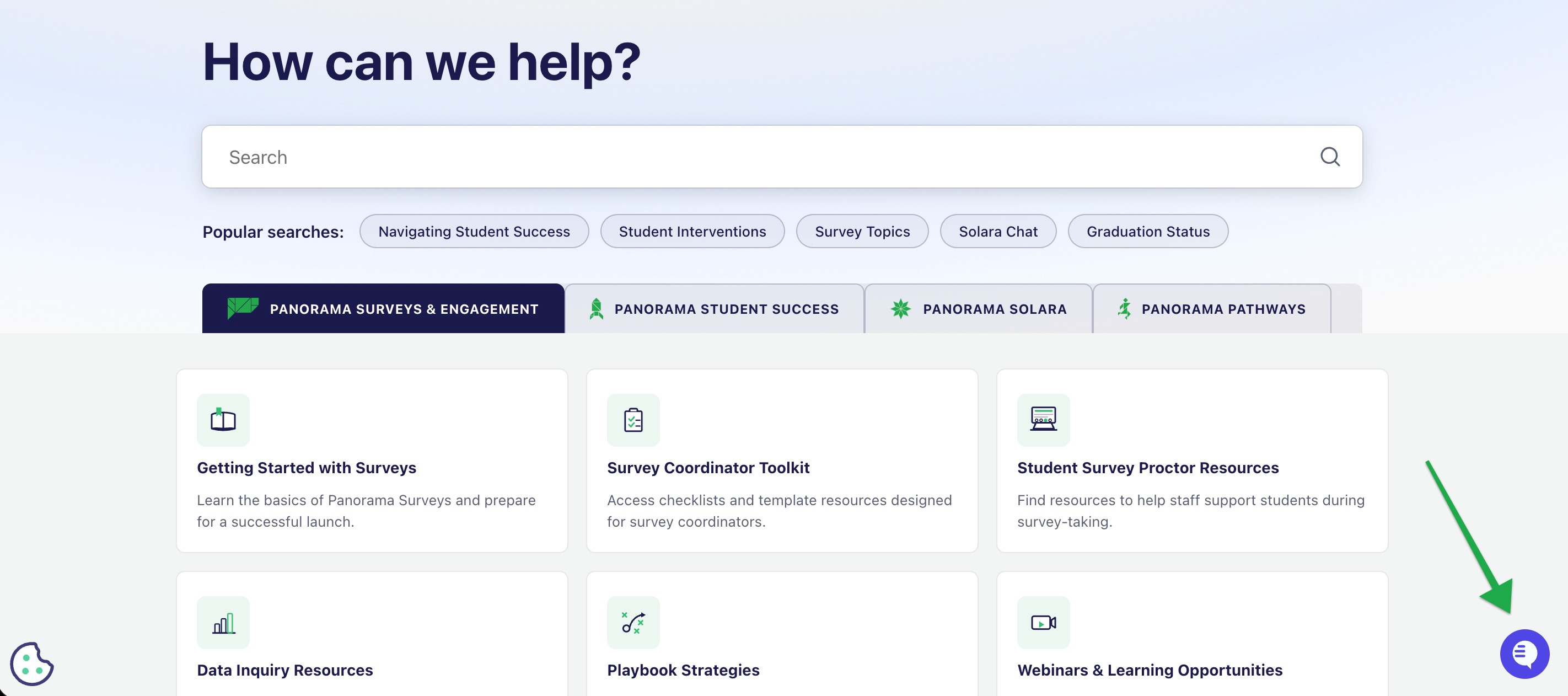
Select the chat icon in the lower-right side of the screen.
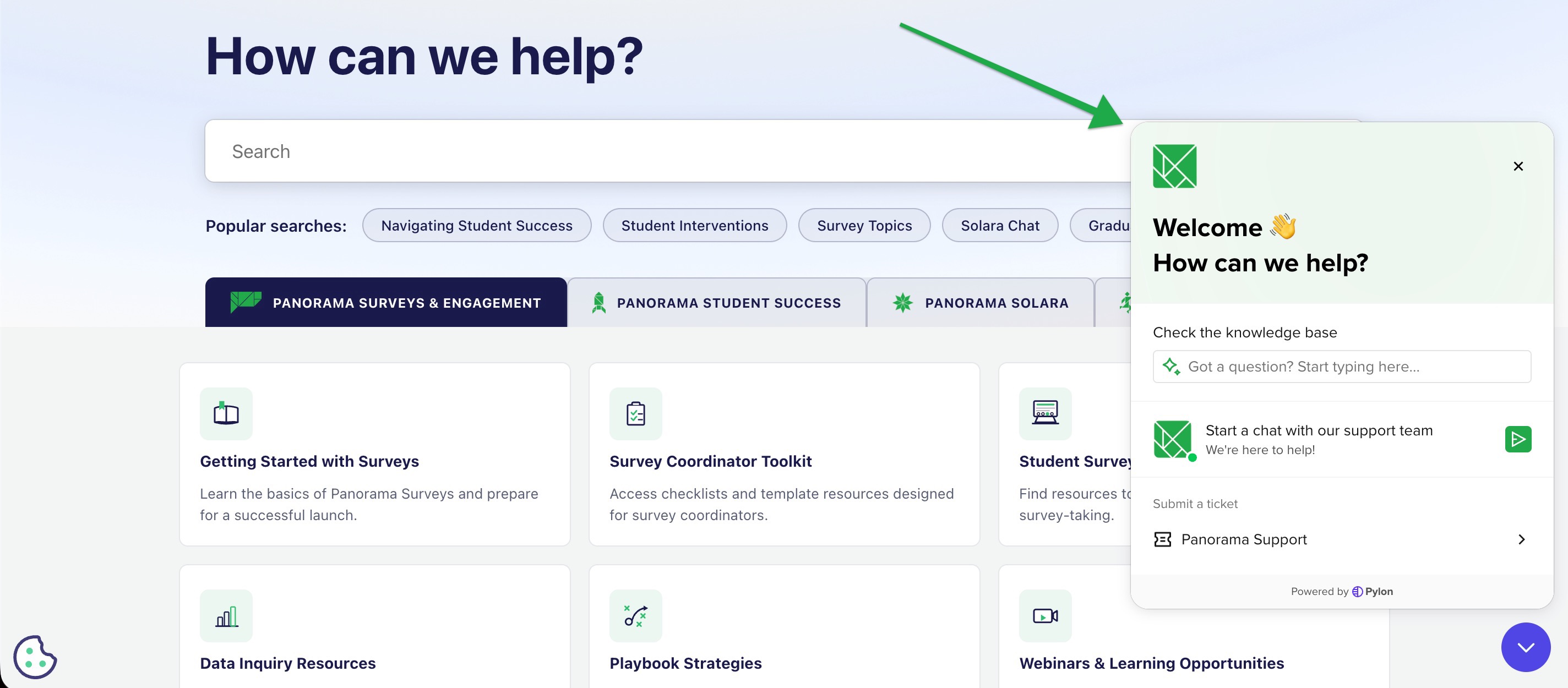
A chat window will appear on the lower-right side of your screen. You may type your questions in the window to initiate a chat.
Start a chat from the Panorama Platform
Select the Help (?) icon in the lower-left corner of the screen when you're logged in to the platform.
A chat window will appear on the right side of your screen. You may type your questions in the window to initiate a chat.
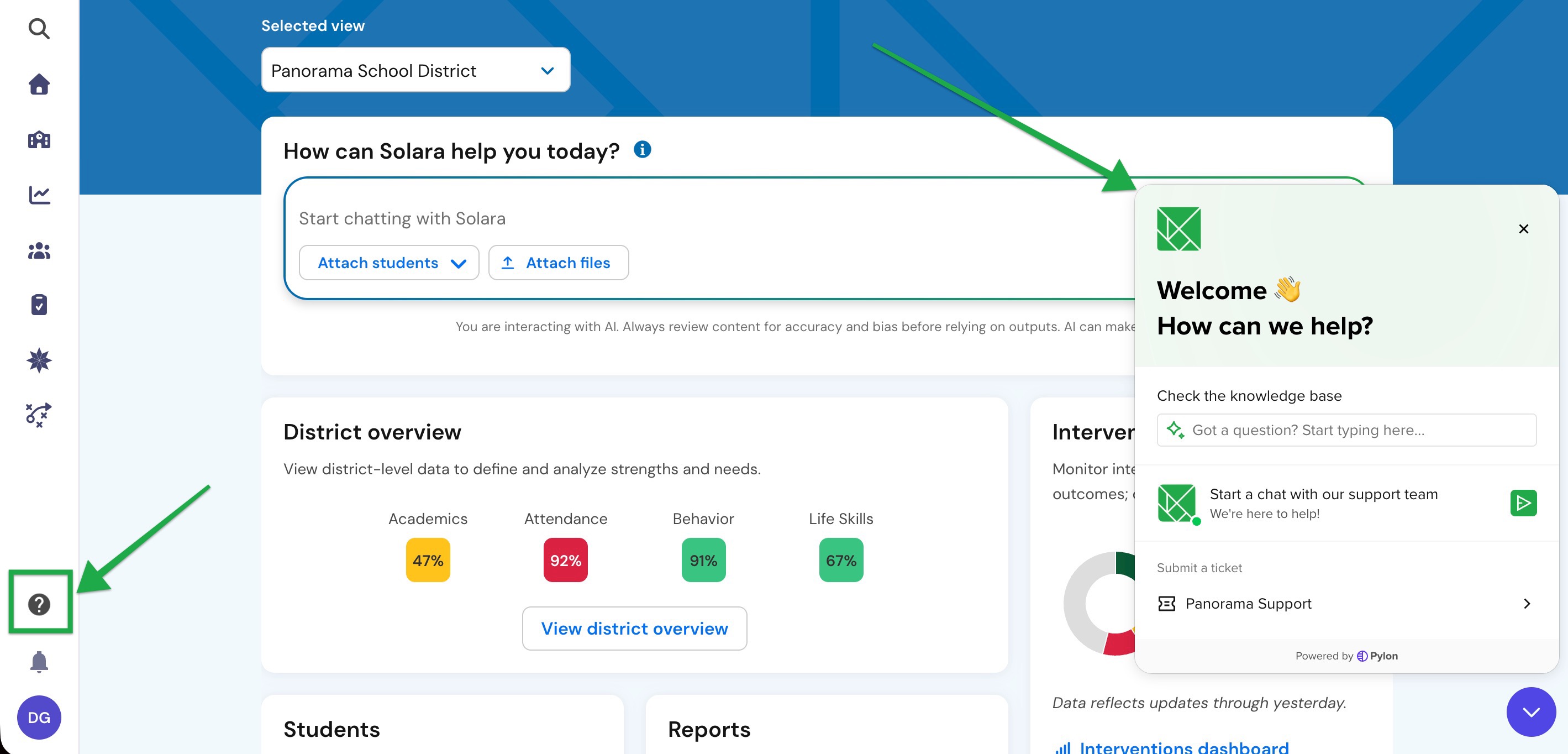
If your issue requires additional investigation, file attachments, or ongoing updates, our Technical Support team may recommend creating a support request. This helps ensure your issue can be tracked and followed through to resolution.
Contact Technical Support
If you can't find the information you need in Panorama Academy, our Technical Support team is here to help.
Technical Support can help with product issues, unexpected errors, account access, permissions, troubleshooting, and other technical questions. If you're not sure whether Technical Support is the right place to start, submit a request and we'll route it to the appropriate team if needed.
The Support Portal is the recommended way to contact Technical Support because you can:
Track the status of your requests
Add updates or additional information
Upload screenshots and files
View your complete support history
Submit a support request through the Support Portal
Recommended: Submit your request through the Support Portal whenever possible. It lets you track your request, upload files, and communicate with Technical Support in one place.
Follow these steps to submit your request.
Sign in to Panorama Academy.
Scroll to the bottom of the homepage.
Select Contact Support.

Complete the support form using the following information:
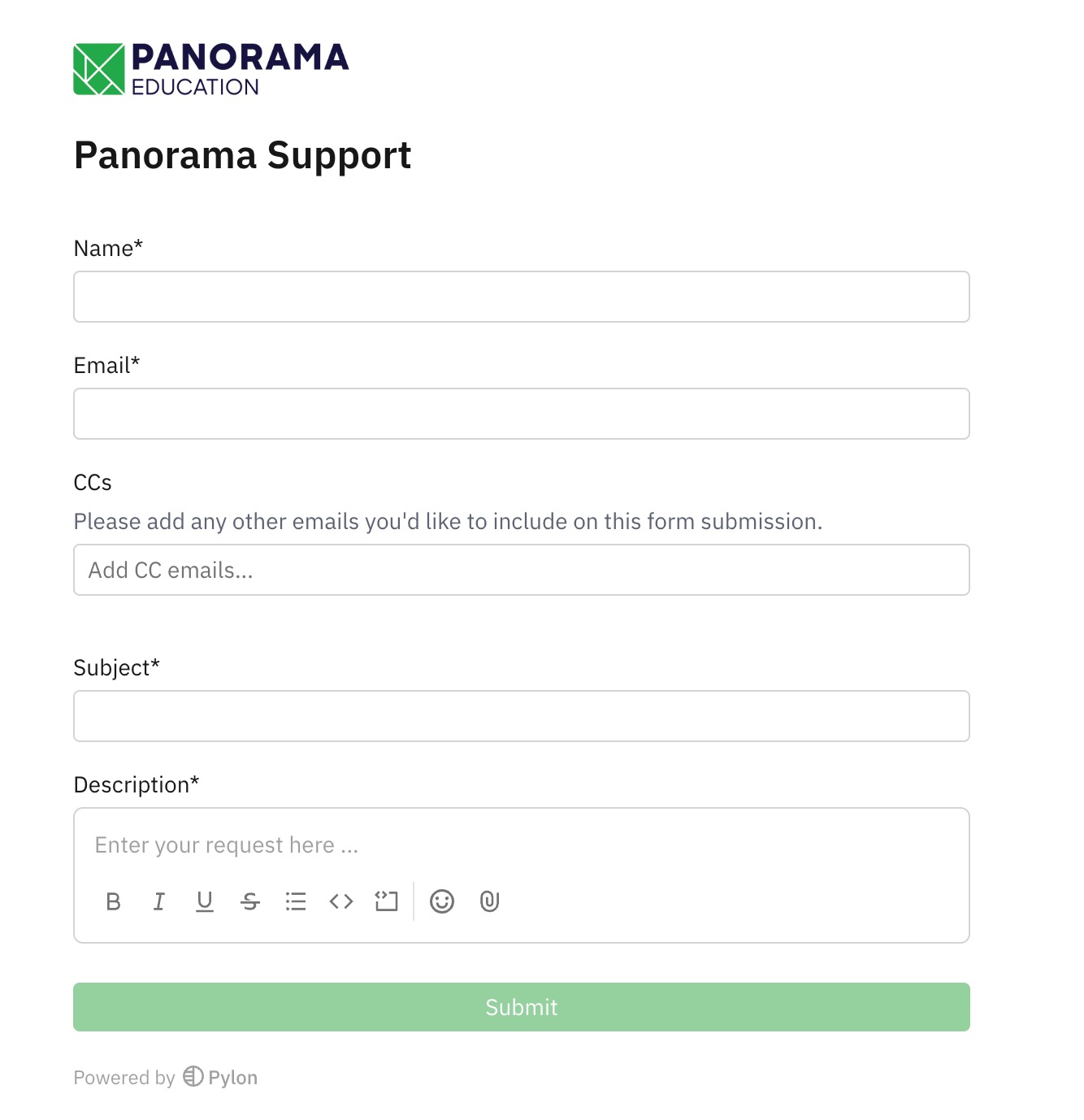
Name – Your name.
Email – The best email address to reach you.
CCs – Anyone else you'd like to copy on the request.
Subject – A brief summary of the issue.
Description – Include:
what you were trying to do
what happened instead
any error messages you received
the page or feature where the issue occurred
steps you've already tried
Attachments – Screenshots, screen recordings, or other supporting files that help illustrate the issue.
Tip: Including screenshots or screen recordings often helps our team investigate your request more quickly. Before uploading files, make sure they don't include student information or other sensitive data.
Select Submit
After you submit your request, a support ticket is automatically created in the Support Portal. You'll also receive a copy of your request at the email address you provided.
A member of our Technical Support team will review your request and respond as quickly as possible.
Email Technical Support
If you prefer email, you can contact Technical Support using your school or district's dedicated support email address.
If you don't know your organization's dedicated support email, send your request to:
Call Technical Support
Although submitting a support request is the recommended option, you can also contact Technical Support by phone.
Phone: +1 (617) 356-8123, Ext. 2
After your call, we'll send a follow-up email summarizing:
the conversation
any troubleshooting completed
recommended next steps
Technical Support hours
Technical Support is available:
Monday–Friday
9:00 AM–8:00 PM ET
Excluding company holidays
Urgent issues are also monitored outside normal business hours, including evenings, weekends, and holidays.
Check the status of your requests
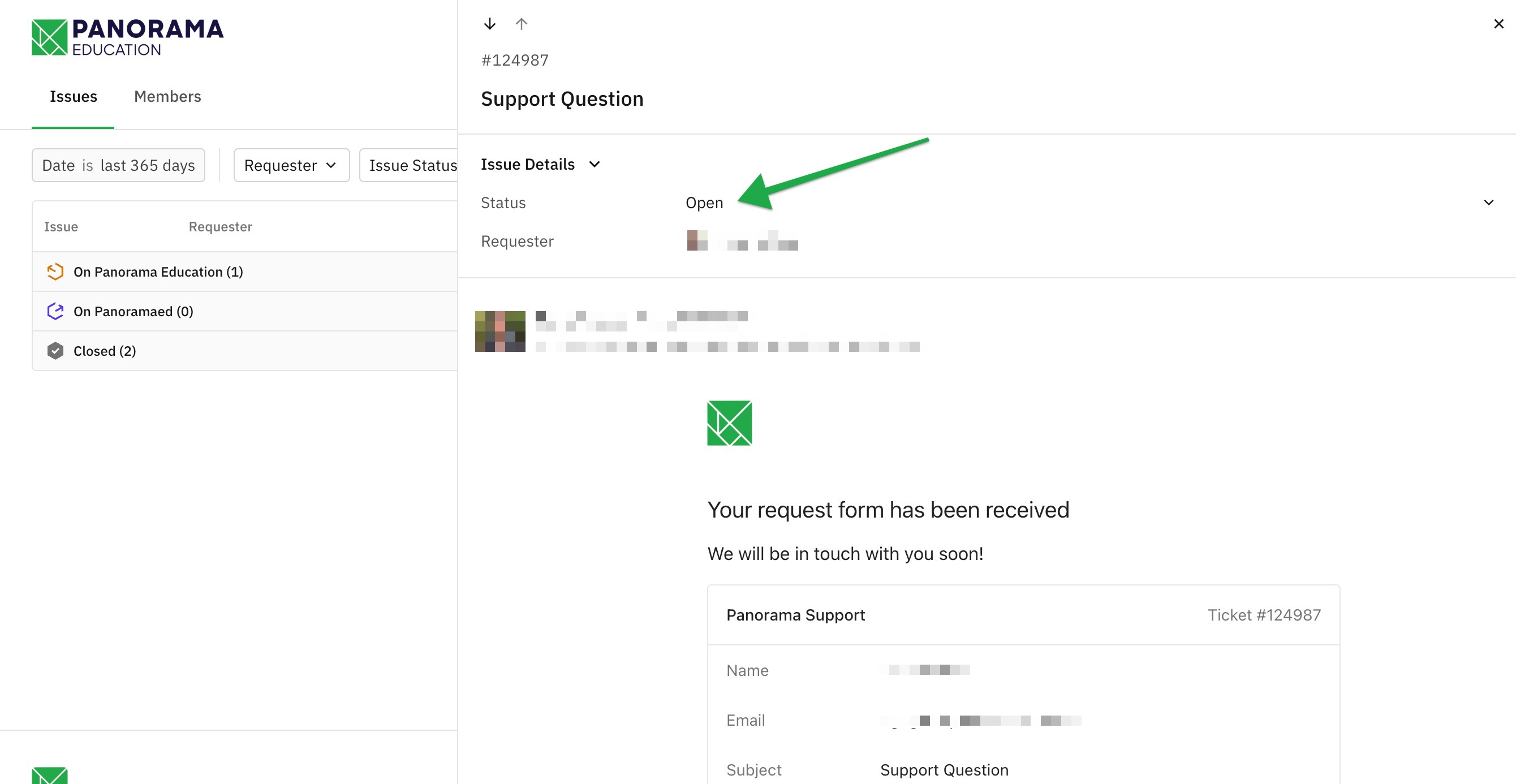
You can view the status of any support request you've submitted through the Support Portal.
Open the Support Portal
Sign in to Panorama Academy.
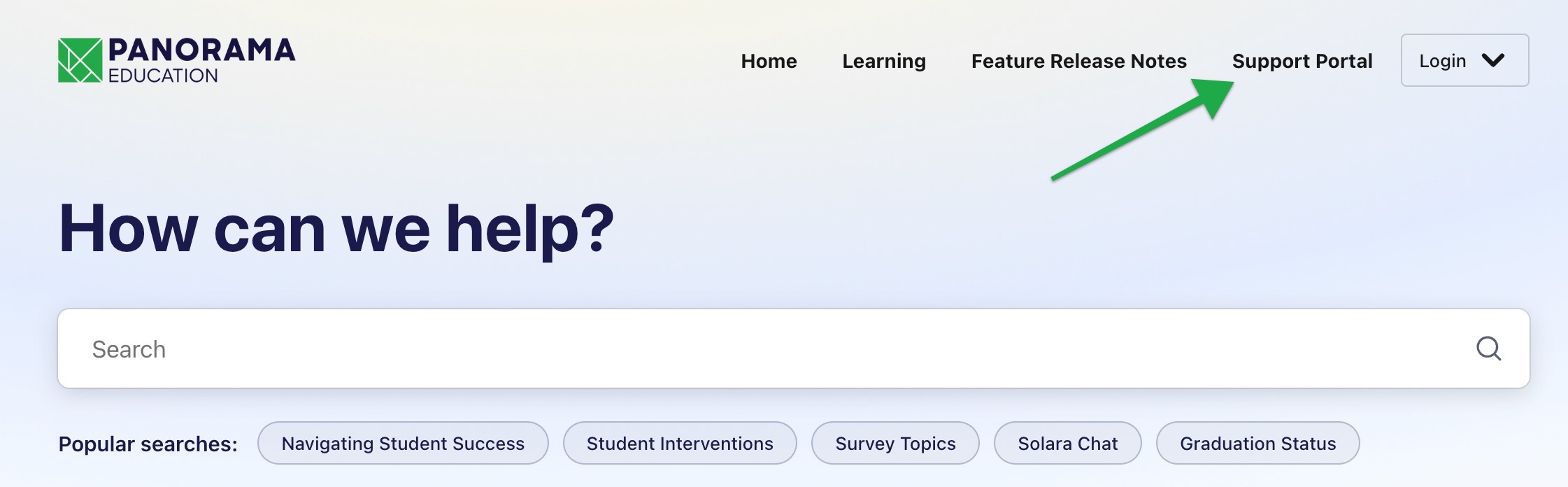
Select Support Portal in the upper-right corner.
Common ticket statuses include:
Status | Meaning |
|---|---|
On Panorama Education | Your request is with our team, and we'll provide an update as soon as possible. |
On [Your District Name] | We've responded and need additional information before we can continue. |
Closed | The request has been resolved. Reply to the ticket if you have additional questions to reopen it. |
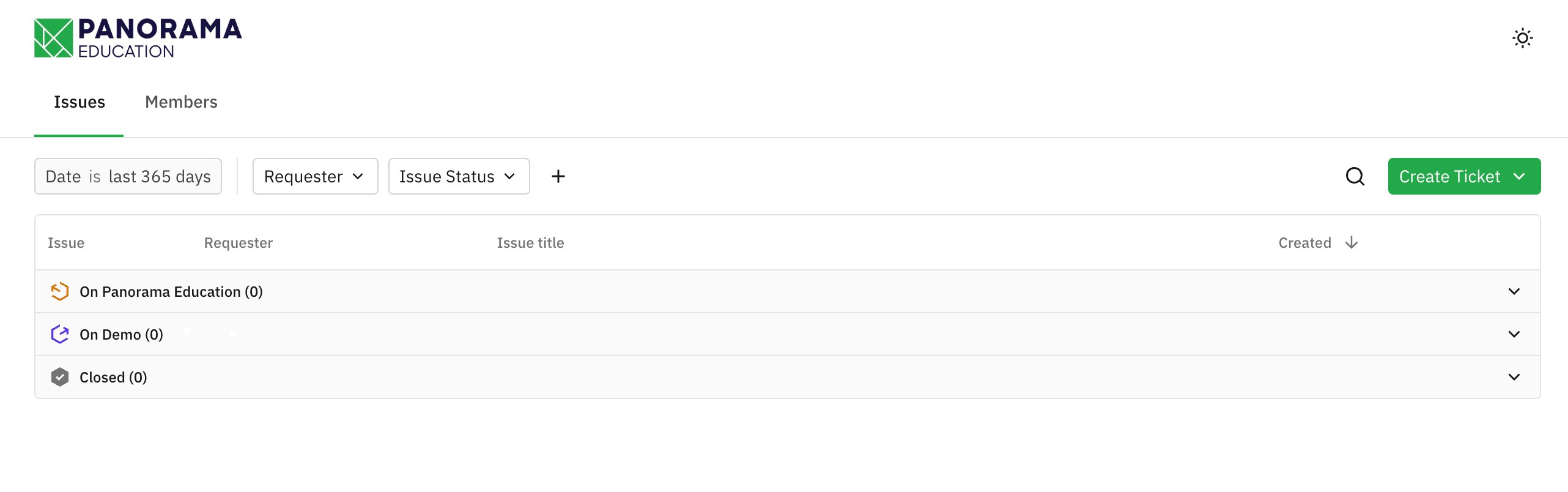
You can also:
Search for existing requests
Filter requests by status
Submit a new request

You can reply directly to existing tickets and close requests that have been resolved.
Tips for submitting an effective support request
Following these recommendations can help us resolve your request more quickly.
Protect sensitive information
Do not include personal or sensitive information in support requests or screenshots.
This includes information about students, teachers, staff, administrators, or other individuals.
If sensitive data is needed to investigate your issue, our team will work with you to securely transfer that information in accordance with our Data Security best practices.
Include as much detail as possible
Helpful details include:
what you were trying to accomplish
what you expected to happen
what happened instead
links to the affected page
error messages
screenshots or screen recordings (when appropriate)
Submit one request for each issue
If you have multiple unrelated questions or problems, submit a separate request for each one.
If you have additional information about an existing request, reply to that request instead of creating a new one.
Keeping each issue in a separate conversation helps us investigate and resolve requests more efficiently.
Let us know about important deadlines
If your request affects an upcoming survey launch, reporting deadline, or other time-sensitive event, include that information in your request.
Knowing your timeline helps us prioritize requests appropriately.
Frequently Asked Questions
Can I update my request after I submit it?
Yes. You can reply directly to the support email from your email inbox or open the request in the Support Portal and reply to the existing conversation.
What if I need to report another issue?
Submit a new request for each unrelated issue so our Technical Support team can investigate and track each issue separately.
Can I attach more files after I submit my request?
Yes. You can reply to the support email or open your request in the Support Portal to attach additional screenshots, screen recordings, or other files.