Understanding Conversational Data in Solara (Beta)
Last updated: October 20, 2026
Conversational Data in Solara helps you explore student trends across schools, grades, and other groups of students you have access to. Instead of selecting individual students or classes first, you can ask broader questions about available Panorama data and review the results in text, tables, or charts.
This article explains how Conversational Data works, what you can explore, and what to expect during the beta.
Related articles:
Who this is for: Conversational Data is designed for school and district leaders, teachers, counselors, and other educators who use Solara.
Access requirements: During the beta, a district administrator must enable Conversational Data in Solara Settings before educators can use it. Your existing data permissions determine which students and schools you can ask about.
If you're unsure whether the feature is available, ask your district administrator to check the Enable conversational data setting.
How Conversational Data works
Solara traditionally lets you add individual students or classes to a conversation when you want to explore their information or plan next steps.
Conversational Data expands this experience by letting you ask questions across larger groups of students without selecting each student individually. Solara uses available Panorama data within your existing access permissions to answer questions and identify patterns.
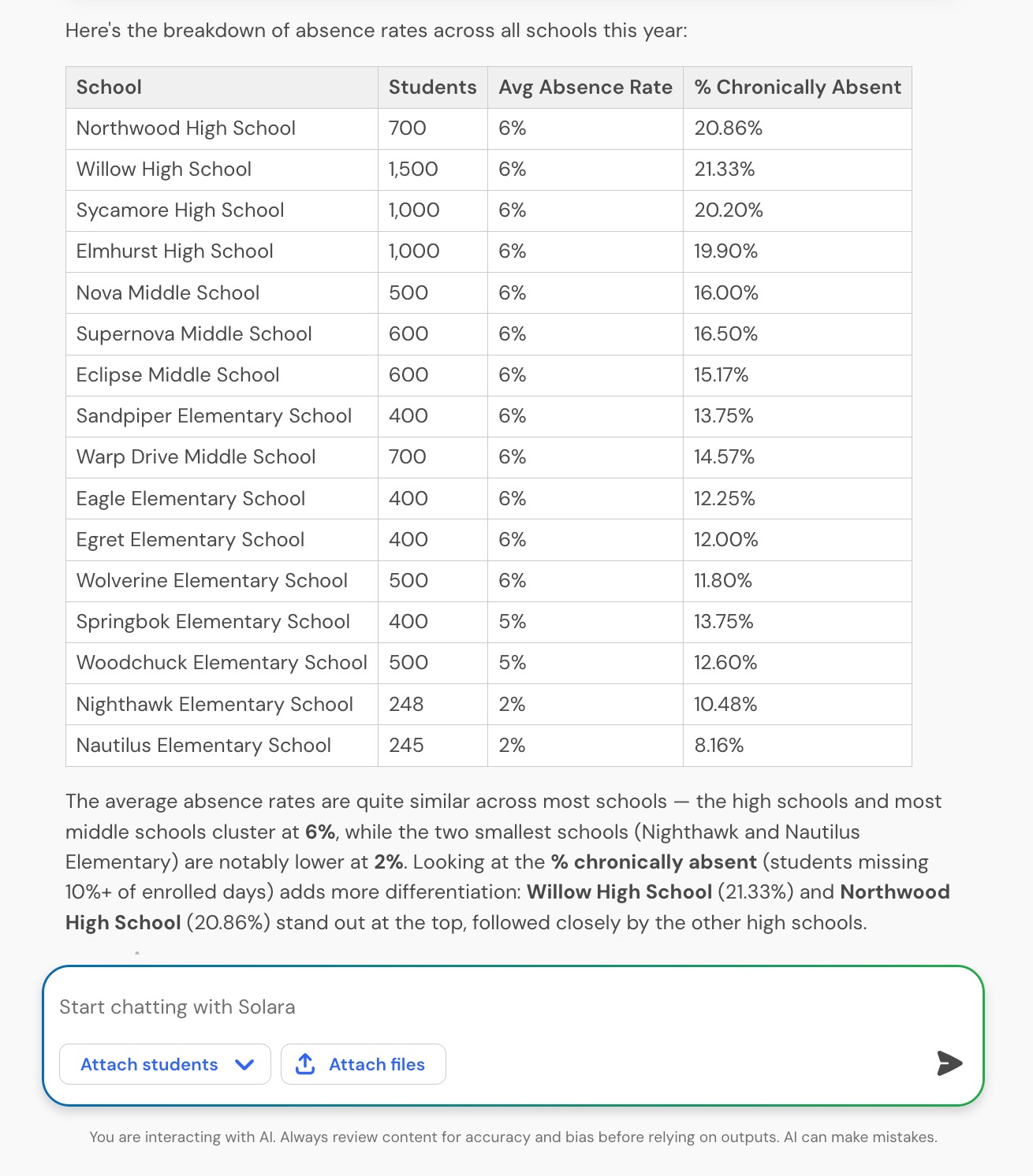
Depending on the question, Solara can provide a written response, a data table, or a simple bar or line chart. You can continue the conversation with follow-up questions to explore the results in more detail.
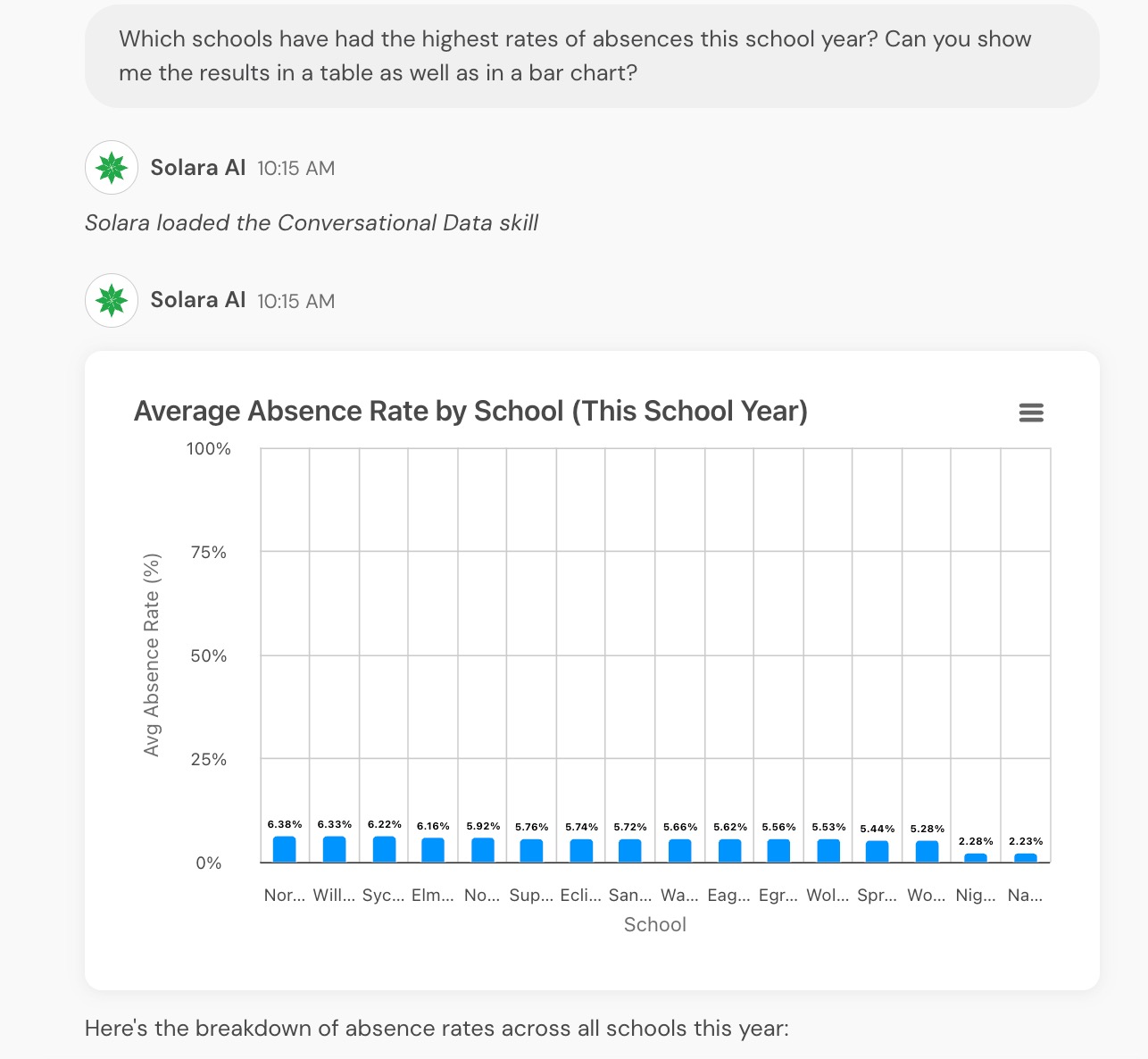
Bar charts highlight comparisons at a glance. Solara can also organize results into data tables, as shown in the following example.
When to use Conversational Data
Conversational Data is particularly useful when you want to investigate an open-ended question, compare information, or explore relationships between different measures.
If your district uses Panorama Student Success, its existing reports may be a better fit for monitoring established metrics over time. Custom Solara tools can help with repeatable tasks, such as preparing family communications or drafting student support plans.
What you can explore with Conversational Data
Conversational Data can help you:
Compare assessment results across schools or grade levels.
Explore patterns in grades, assessments, and available survey data.
Examine how different measures relate to one another.
Identify groups of students who may benefit from additional attention or support.
The data you can explore depends on your district's Panorama products, integrated data sources, and your existing access permissions.
Data supported during the beta
The information available in Conversational Data depends on your district's Panorama products, integrated data sources, and your existing access permissions.
During the beta, you can explore the following types of data when available to your district:
Data type | What you can explore |
|---|---|
Enrollment and rosters | Schools, classes, and student enrollment information. |
Assessments | Assessment results, performance levels, growth, and comparisons across student groups. |
Attendance | Absences, attendance rates, and chronic absenteeism. |
Grades and GPA | Course grades, GPA, and students meeting specific grade criteria. |
Interventions | Intervention status and progress monitoring information. |
Student indicators | District-defined indicators, such as chronic absenteeism or off-track status. |
Surveys | Available survey results, including student experiences, school climate, and trends over time. |
Behavior | Behavior incidents, incident counts, and patterns over time. |
Important: Conversational Data does not use race or gender information. You can ask questions using English Language Learner (ELL) and Section 504 status when that data is available in Panorama and your permissions allow access.
Ask questions about student trends
To get started, open a new Solara chat and ask a question about the student population or data you want to explore. You do not need to attach students or classes first.
Solara determines which available data it needs to answer your question. If additional details are needed, it may ask a clarifying question before returning results.
For more focused results, try including four elements in your question:
Outcome: The measure you want to investigate, such as assessment performance or attendance.
Population: The students, classes, schools, or grade levels you want to explore.
Time period or comparison: The dates, groups, or measures you want to compare.
Analytical action: What you want Solara to do, such as identify a pattern, compare results, or rank groups.
For example, you might ask:
"What percentage of students scored Below on our reading assessment? Break it down by grade."
"Compare the percentage of students scoring Below on our most recent reading assessment across the elementary schools I can access. Show the results by grade."
"Which students at my school have missed five or more days this year and are also earning a C or lower in a core class? Group them by grade."
"Which schools have had the most behavior incidents this school year? Show the results in a table."
Adjust the assessment names, performance categories, and time periods in these examples to match the data available for your district.
Ask follow-up questions to narrow your focus or confirm how Solara interpreted your request. For example, you might ask, "Which schools, students, and dates from the data set should we be focusing on for improvement?"
The data available for each question depends on your district's integrations and your existing permissions.
For more examples of questions about attendance, assessments, behavior, interventions, and surveys, see Ask effective questions with Conversational Data in Solara. For general prompting guidance, see Prompting with Solara Chat: Best Practices.
Review and interpret your results
Review the information in Solara's response, including any tables or charts, before using it to guide decisions.
Consider whether the response reflects the students, schools, and time period you intended to analyze. When making important decisions about student support, verify key findings against the available data in Panorama.
Check that the numbers and comparisons in Solara's written response align with any accompanying tables or charts. If Solara identifies missing data, uses a substitute measure, or makes an assumption, review that information before relying on the results.
Missing data does not establish whether a student meets the criteria in your question. Review any gaps or assumptions before drawing conclusions about individual students or groups.
When exploring relationships between measures, remember that a relationship or correlation does not necessarily mean that one factor caused another.
View the data behind a chart
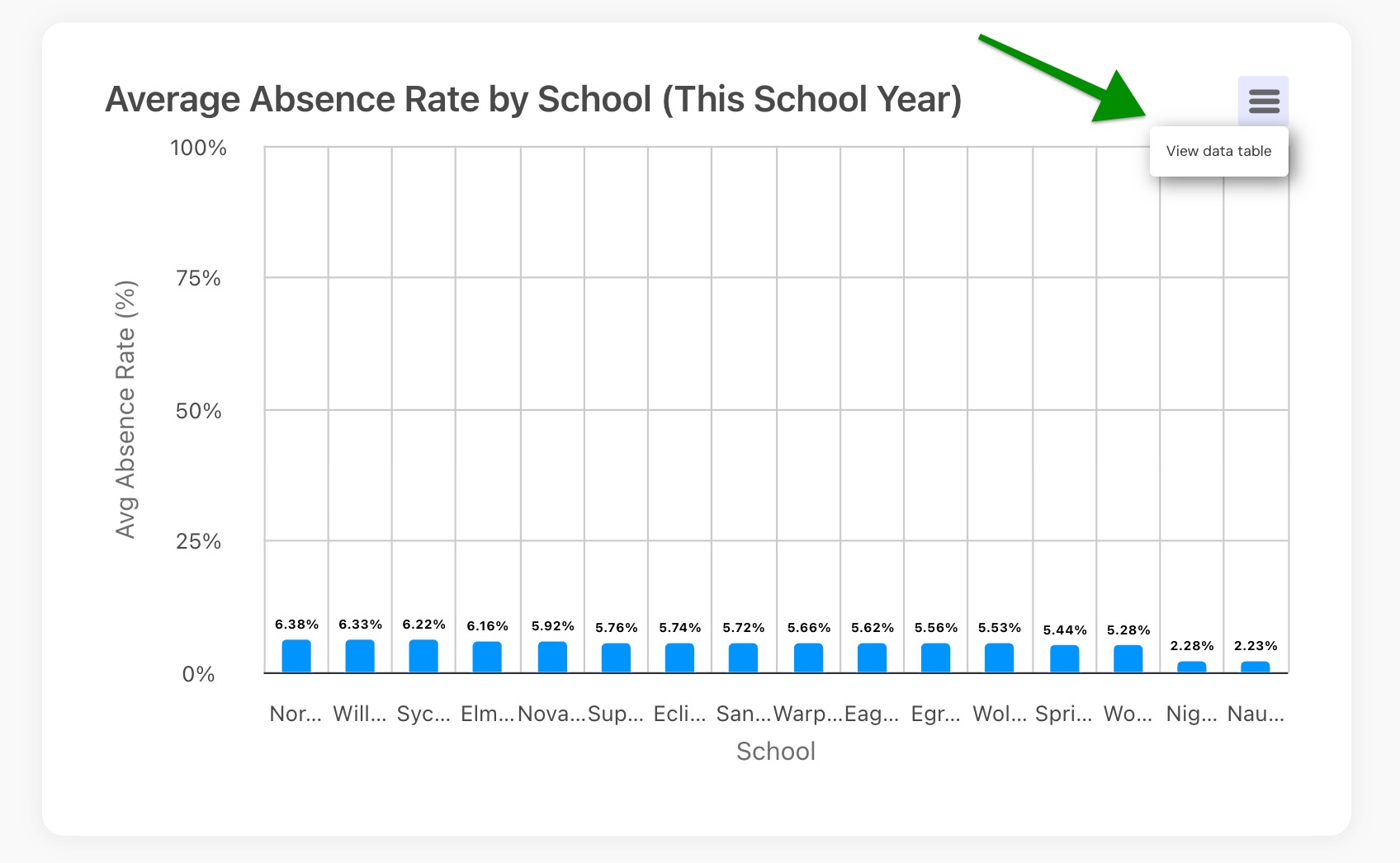
When Solara includes a graph in its response, you can review the underlying numbers in a data table.
Select the icon in the upper-right corner of the graph and select View Data Table. The table displays the data behind the visualization so you can review the values in more detail.
What to expect during the beta
Conversational Data is being introduced through an opt-in beta for Solara districts. During this period:
Solara can answer questions using available data and display results as text, data tables, and simple bar or line charts. Other chart types and chart formatting options are not currently supported.
Existing Solara role-based access permissions and conversation sharing continue to apply.
Conversational Data is not automatically enabled in existing district custom Solara tools. The feature must be enabled separately for each tool in the Tool Editor.
Some data sources are not yet supported, including support notes, referrals, college and career readiness information, Check-ins, and Class Companion assignment data. Solara may indicate when a question requires unavailable information.
Conversational Data does not create dashboards, saved reports, or automatically updating visualizations. You can continue to share and download Solara chats using the standard options, but downloading charts as separate images is not yet available.
Visualizations are limited to data tables and simple line and bar charts. Additional visualization types and graph formatting options are not currently supported.
Some questions may take several minutes to return a response, depending on the amount and complexity of the data. You can keep Solara open in a separate browser tab and return to check the result after a few minutes. Completion notifications are not available during the beta.
Share feedback about Conversational Data
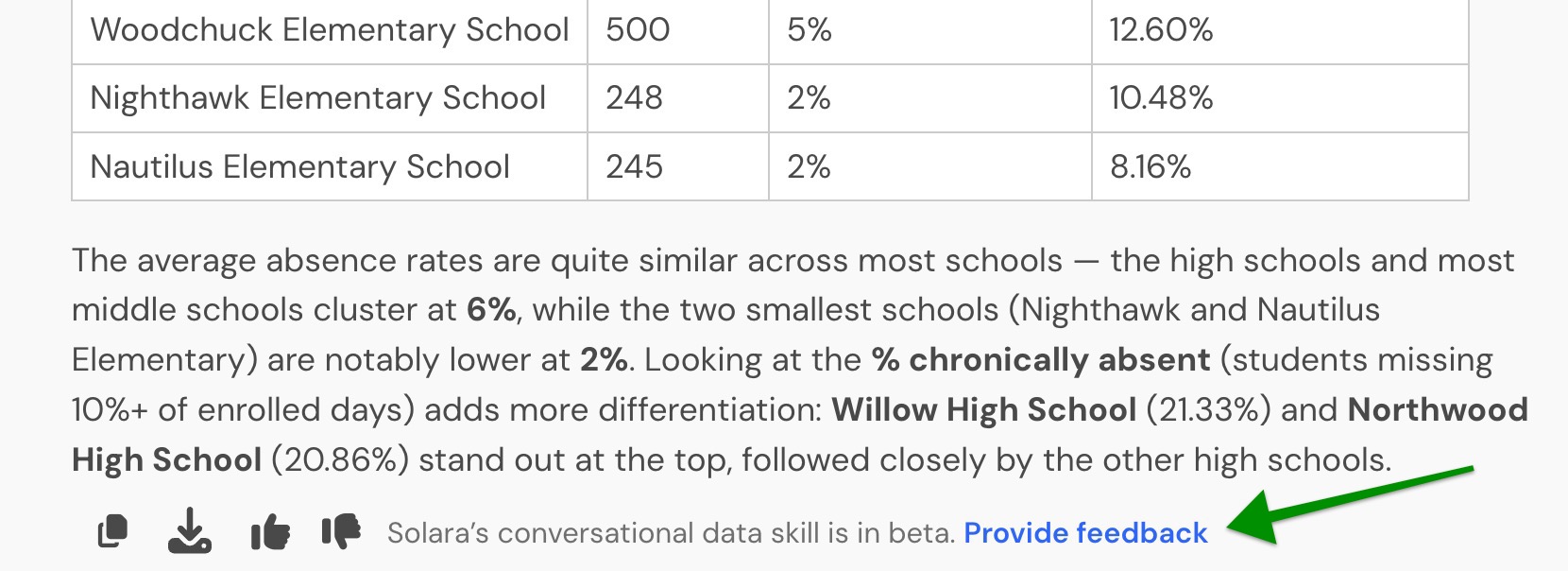
You can share feedback about Conversational Data directly from a Solara response.
Select Provide feedback beneath a response that uses Conversational Data to share your experience, including feedback about the accuracy of an answer, available data, visualizations, or performance.
Your feedback helps Panorama improve the feature throughout the beta.
Note: Conversational Data is a beta feature. Available data sources and functionality may change as Panorama gathers feedback and continues development.