Create and edit documents in Solara
Last updated: October 7, 2026
Document Editing in Solara turns document-style responses into editable documents. You can refine a document in Solara, return to it later, export it as a PDF, or save student-specific documents to Student Success.
Related articles
Who this is for: Educators who use Solara to create letters, lesson plans, meeting agendas, support plans, worksheets, and other documents.
Permission requirements: To save a document to a student profile, your district needs to enable this option in Solara Settings, and you need access to that student.
Create a document in Solara
Solara recognizes when a response may work better as a document. For example, Solara may suggest the document editor when you ask for a family letter, lesson plan, meeting agenda, or other long-form response.
Start a conversation in Solara or use a Solara tool that generates document-style content.
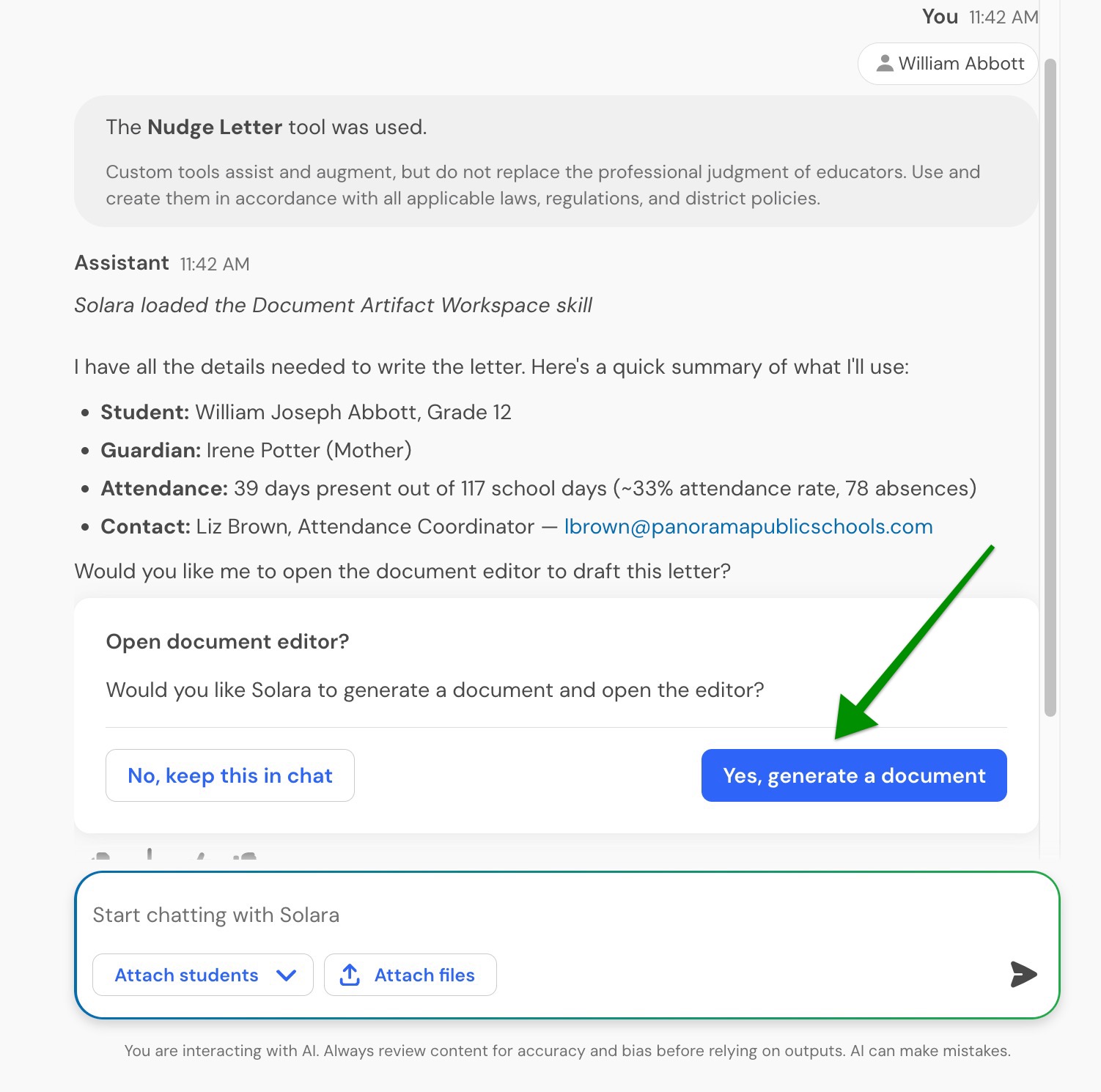
Review the Open document editor? prompt when Solara suggests creating a document.
Select Yes, generate a document to open the response in the document editor.
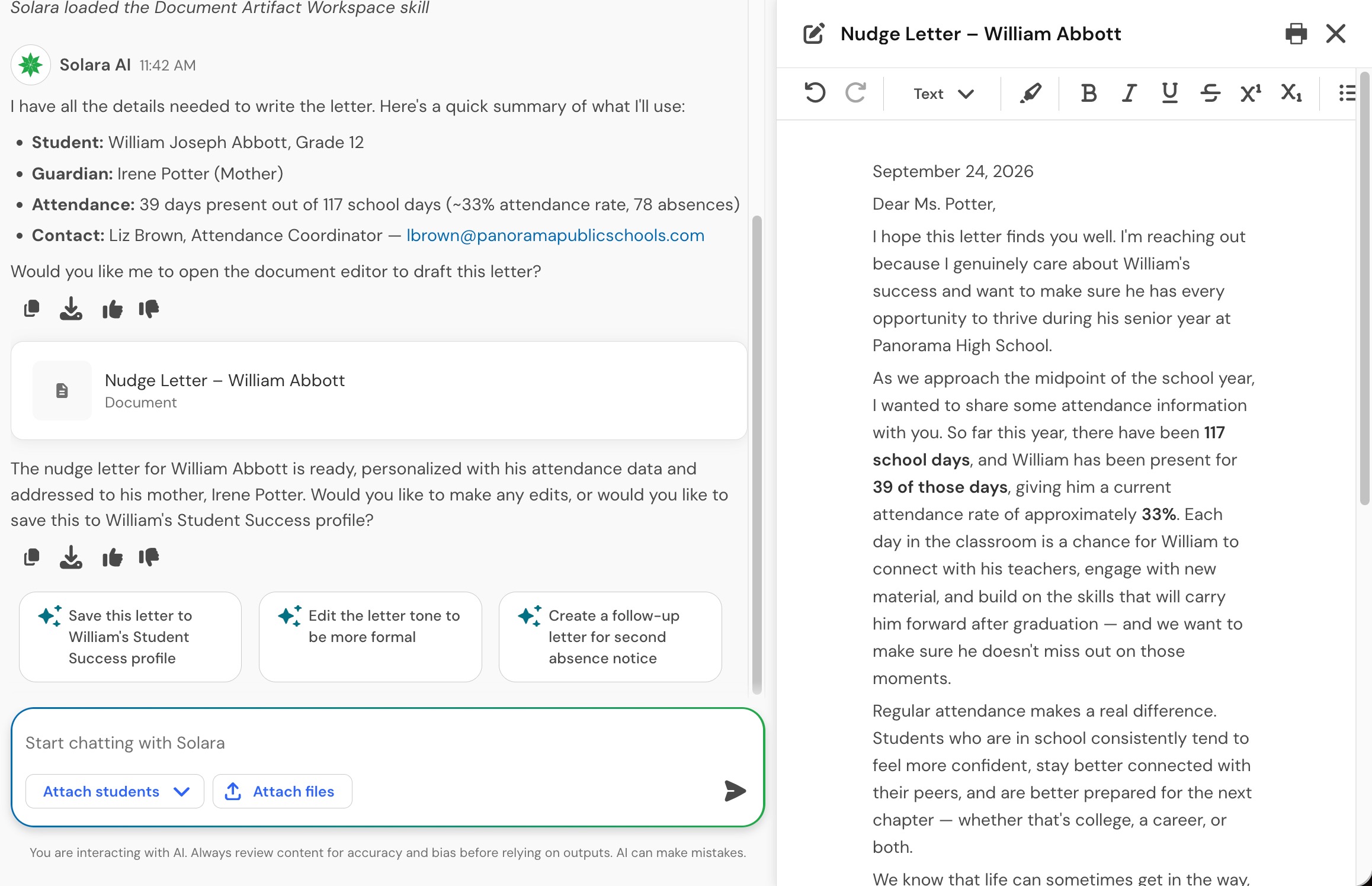
When selected, the document will open in a panel alongside your conversation.
If you prefer to keep the response in the conversation, select No, keep this in chat.
You can also ask Solara directly to create a document. For example, ask Solara to "turn this into a document."
Note: If you start Solara from another Panorama workflow and open a document, Solara moves the conversation to full Solara so you can continue working in the document editor.
Edit a document in Solara
You can update a document directly in the editor or describe the changes you want in the Solara chat.
Edit directly in the document
Select text in the document editor to update the content or formatting. The editor supports document formatting such as headings, lists, emphasis, and tables.
For tables, you can add, remove, and rearrange rows and columns. You can also add blank ruled lines under a question for printable worksheets or forms.
Changes are saved automatically with the Solara chat.
Ask Solara to make changes
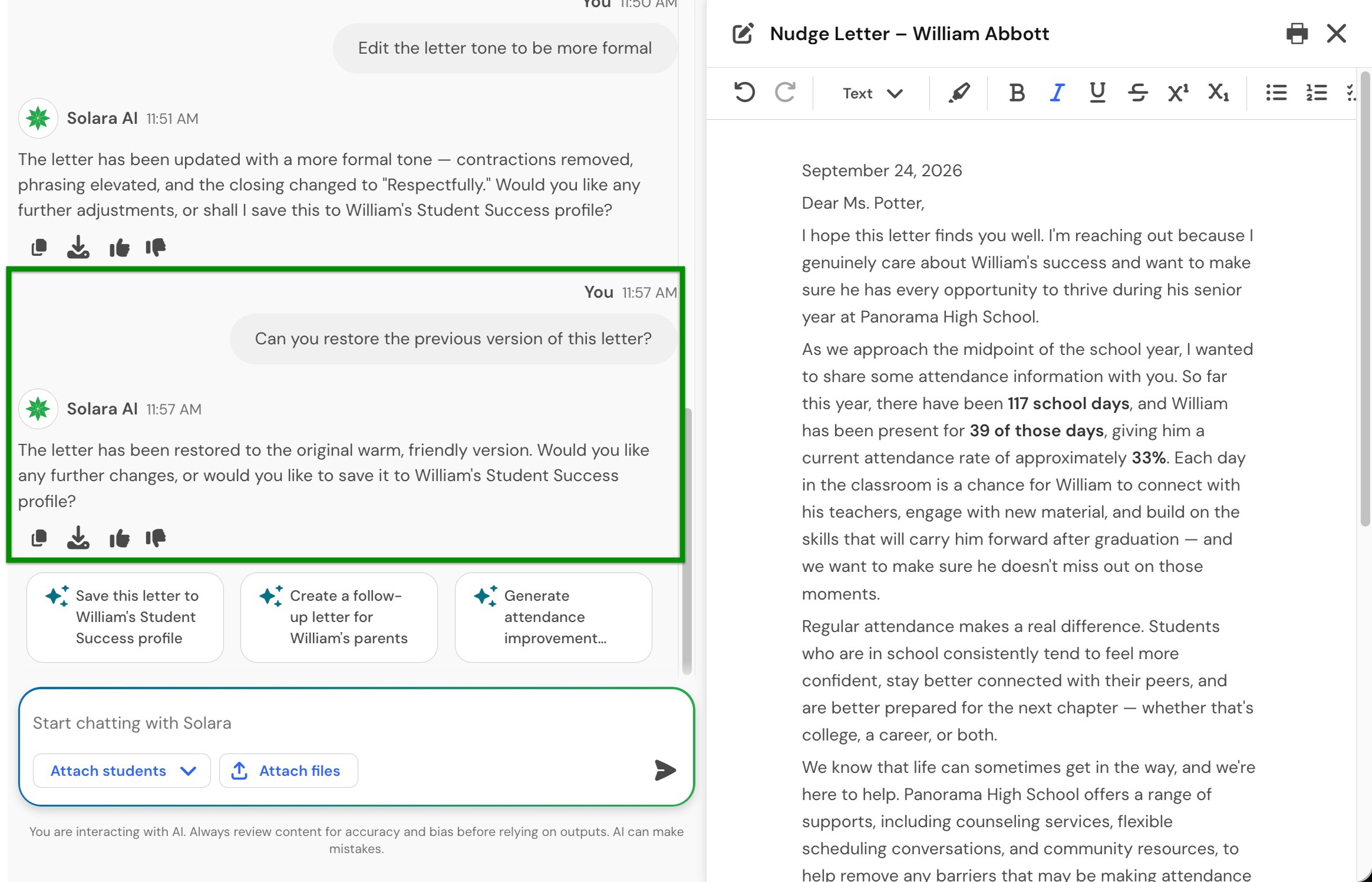
In the chat, describe the change you want Solara to make. For example, you can ask Solara to shorten a section, change the tone, or revise specific content.
Solara regenerates the document to reflect your request.
Important: A chat-based edit can rewrite the full document. Review the updated document after each change. If needed, you can restore an earlier version.
You can move between direct editing and chat-based editing as you refine the same document.
Solara does not set a separate limit on the number of document versions you can create within the conversation.
Return to documents in a Solara chat
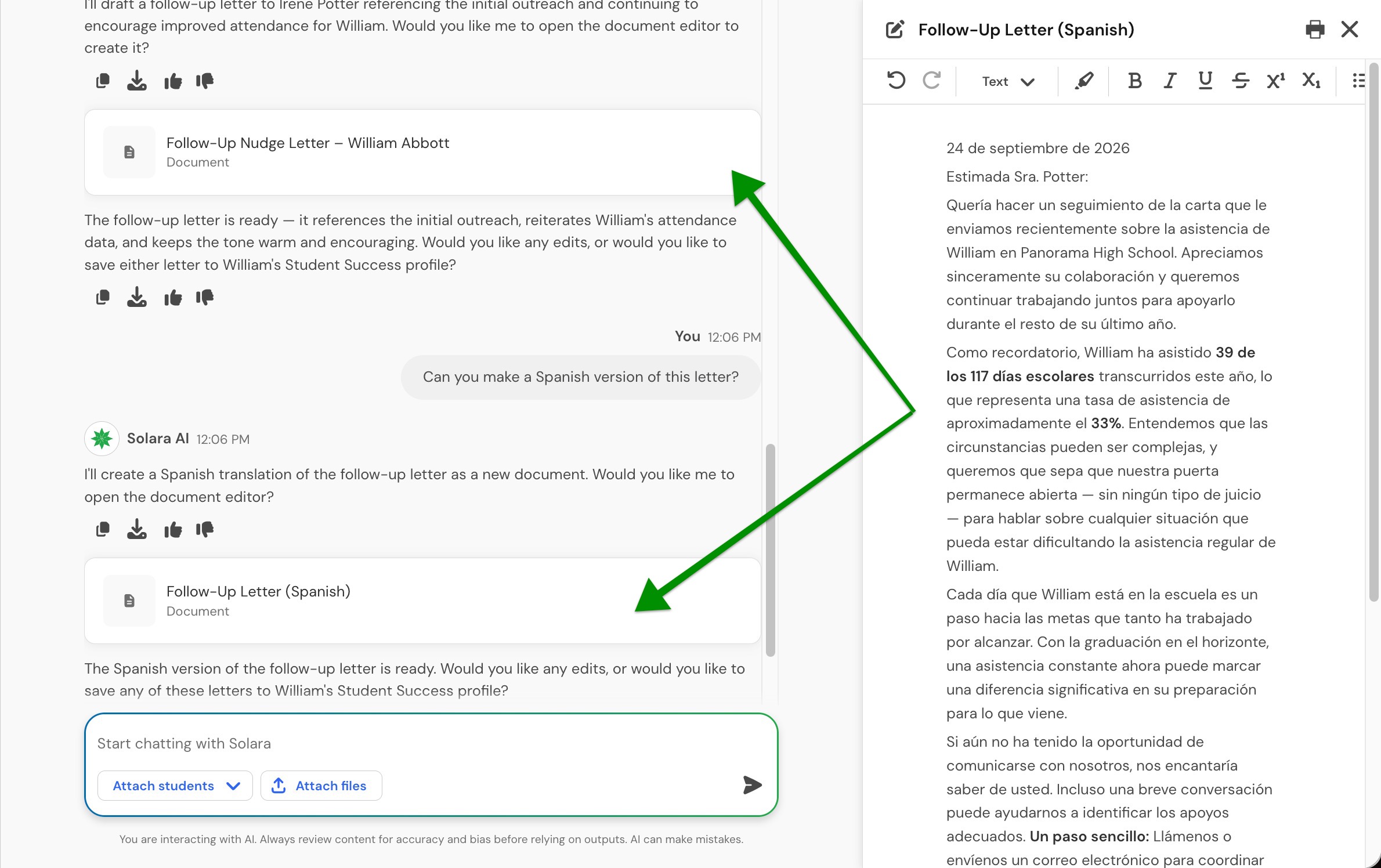
Documents are saved automatically as part of the chat history. You can close a document, return to the conversation later, and reopen the document in its last-edited state.
A single Solara chat can contain up to 20 documents.
Tip: If you're creating many documents, use separate Solara chats to keep each workflow focused and avoid reaching the document limit.
Export a document as a PDF
When your document is ready, review the content for accuracy before exporting it.
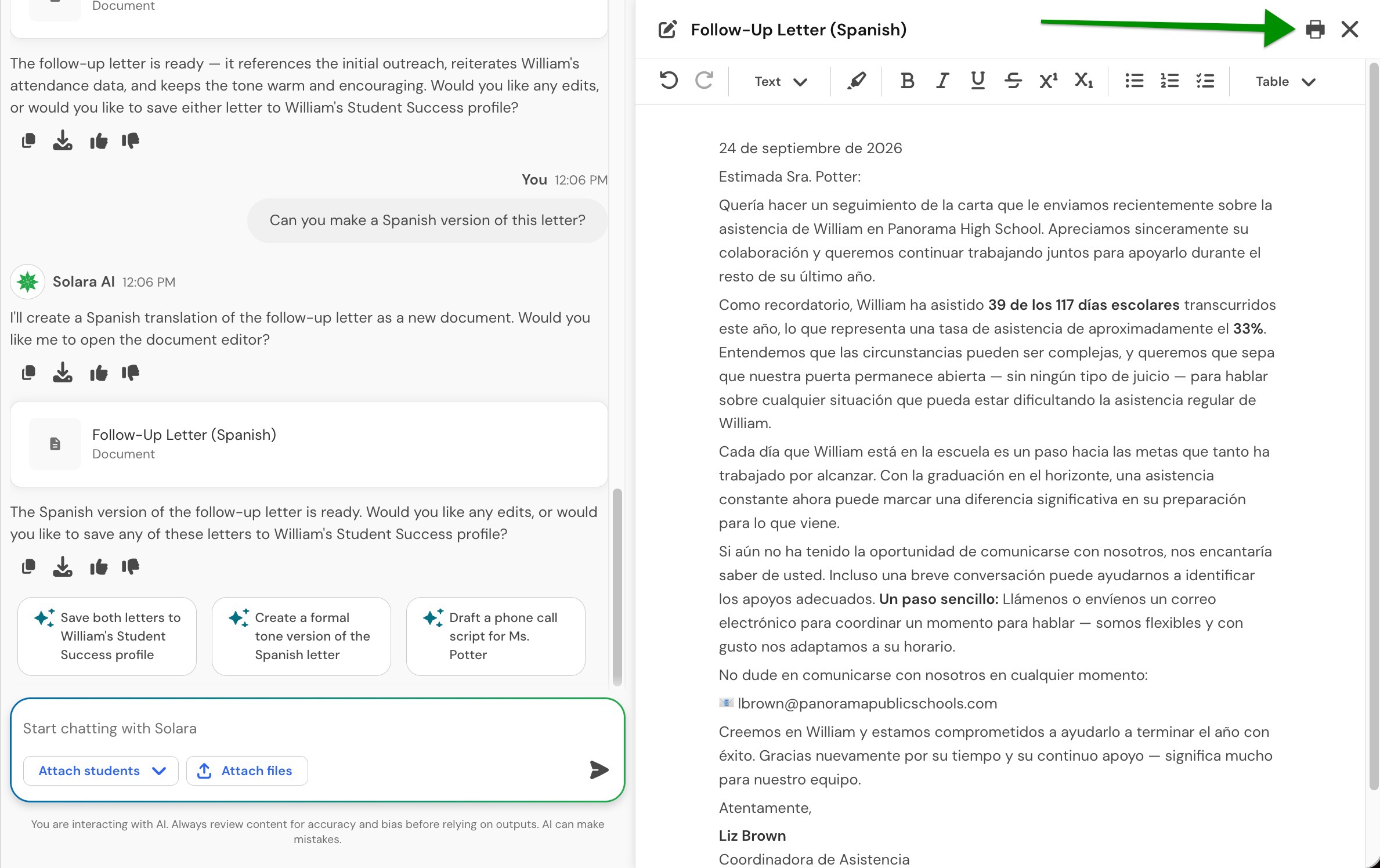
From the document editor, use the export control to export the current document as a PDF.
Document export is separate from Solara's existing option to export an entire chat.
Save a document to a student profile
When a document relates to an individual student, you can save a finalized copy to the student's Documents tab in Student Success.
Your district needs to enable saving Solara documents to student profiles in Solara Settings before this option is available.
You need access to the student, and the student needs to be attached to the Solara conversation before you can save the document.
In the Solara chat, attach the student associated with the document.
Review and finalize the document in the document editor.
Ask Solara to save the document to the student's profile.
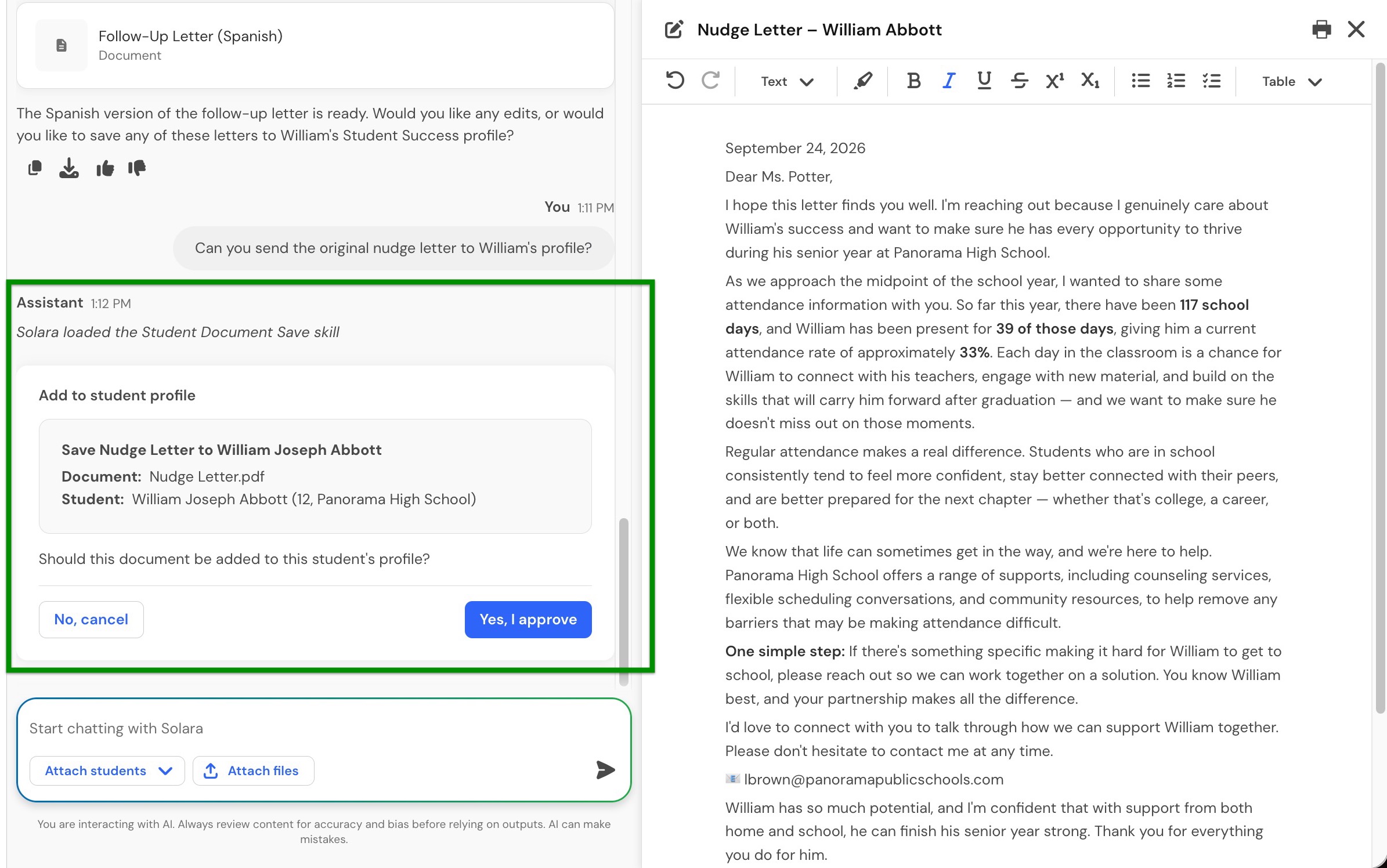
In the Add to student profile confirmation, review the document, student, and destination information.
Select Yes, I approve to save the document.
Solara will save a PDF copy to the attached student's Documents tab.
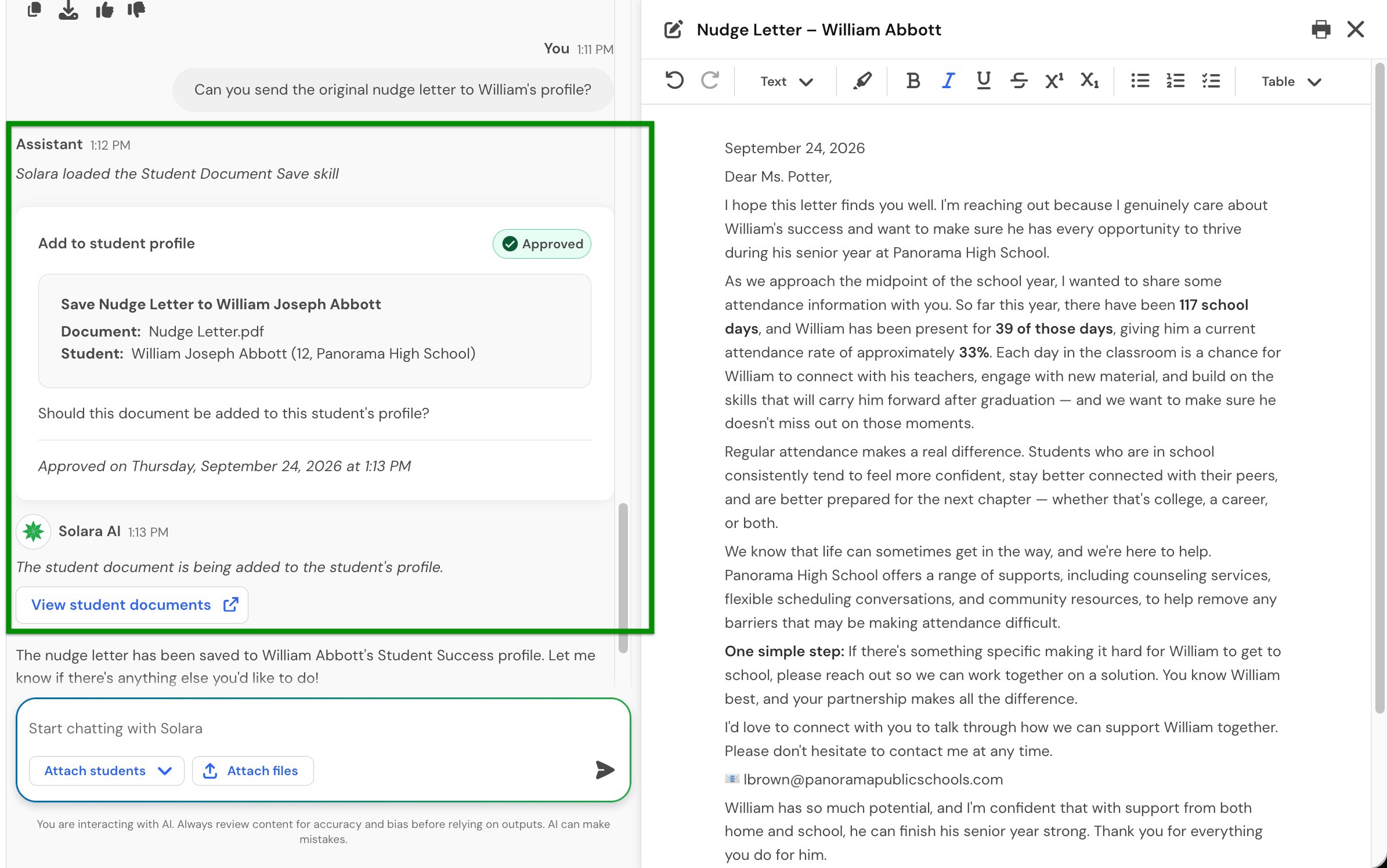
You can select View student documents after saving to open the student's documents.
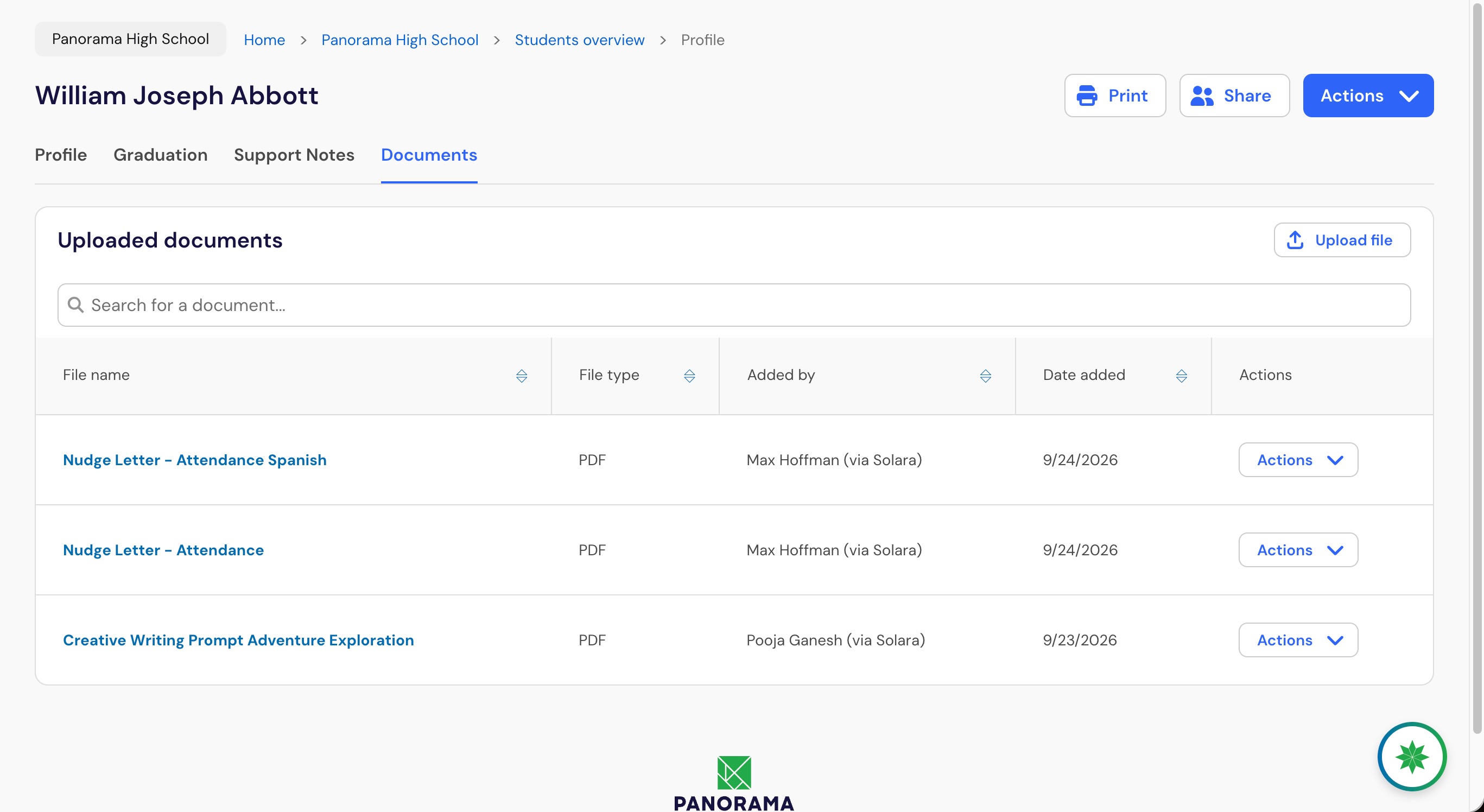
In the Documents tab, the saved PDF shows its file name, file type, who added it with "(via Solara)," and the date added.
Important: You can save the document only to the student attached to the current Solara chat.
Frequently asked questions
Can I create more than one document in a chat?
Yes. A Solara chat can contain up to 20 documents. If you're creating many documents, consider using separate chats to keep each workflow focused.
Can I restore an earlier version of a document?
Yes. You can restore an earlier version after making changes to a document. Solara does not set a separate fixed limit on document version history within the conversation.
Can custom Solara tools create editable documents?
Yes. District custom tools can be configured to generate editable documents when a document-style response is appropriate. The editing and export experience is the same once the document opens.
Can I keep editing a document after saving it to a student profile?
Continue editing the original document in its Solara chat. The copy saved to the student's Documents tab is a static PDF and does not reopen in Solara for editing.
Can I save a document to Support Notes?
No. Solara saves finalized documents to the student's Documents tab. Saving to Support Notes is not available through this workflow.
Does document export replace the full-chat export?
No. Exporting a document saves the individual document as a PDF. You can still use Solara's existing export option when you want to export the entire chat.
Can someone edit documents in a shared Solara chat?
People who receive a shared chat can view its documents, but they cannot edit them.