Create and manage Graduation Notes in Panorama Pathways
Last updated: November 24, 2026
Use Graduation Notes to record graduation-related context and actions on a student’s profile so colleagues can coordinate follow-up.
Related articles:
Who this is for: Counselors and other educators supporting graduation progress. You need Panorama Pathways access and All Students visibility at the applicable school or district. Contact your district’s Global Administrator or Panorama project team if you need help with access.
Open a student’s graduation information
Search for a student, or select a student from a student-level Panorama Pathways report.
In the student profile, open the Graduation area.
You’ll see graduation information and a Recent notes card. You can review recent notes across the views within the Graduation area.
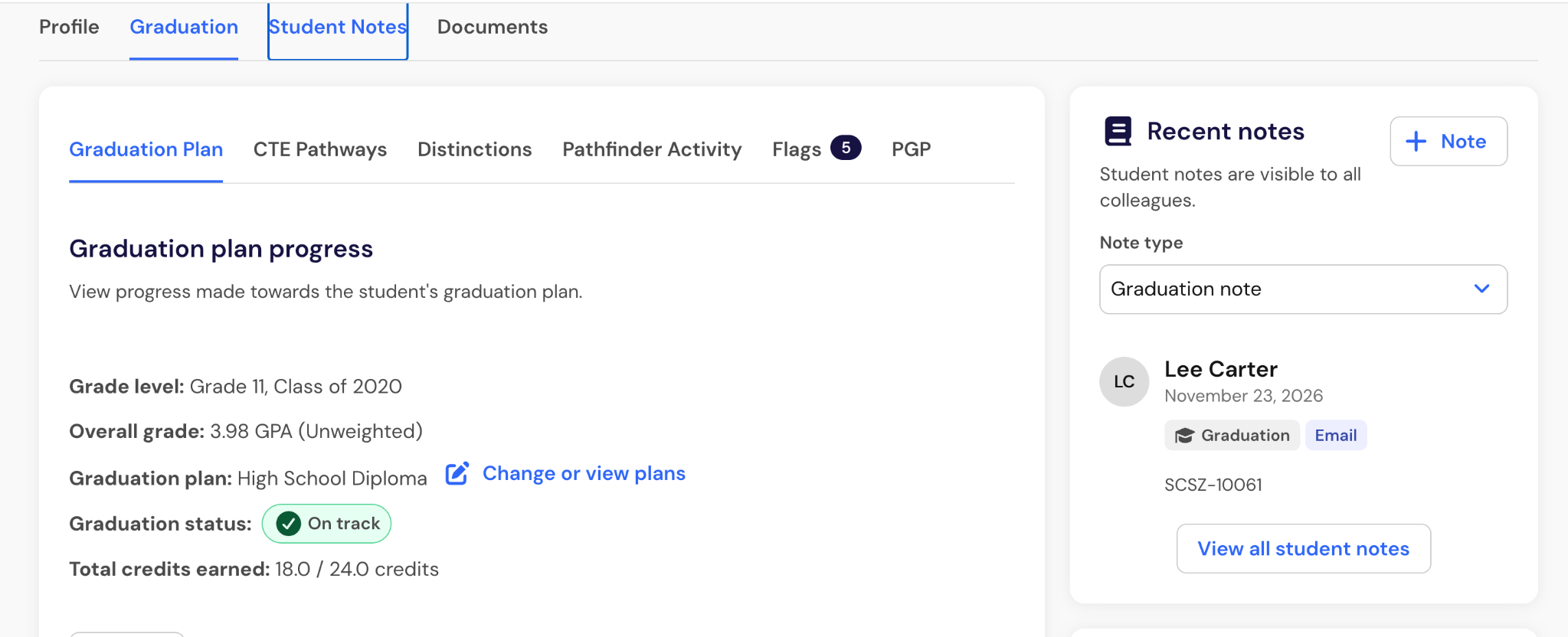
Add a Graduation Note
You can add a note for an active student, even when the student has no graduation flag. For example, record enrollment in a credit-recovery program so colleagues know which support is underway.
In Recent notes, select + Note.
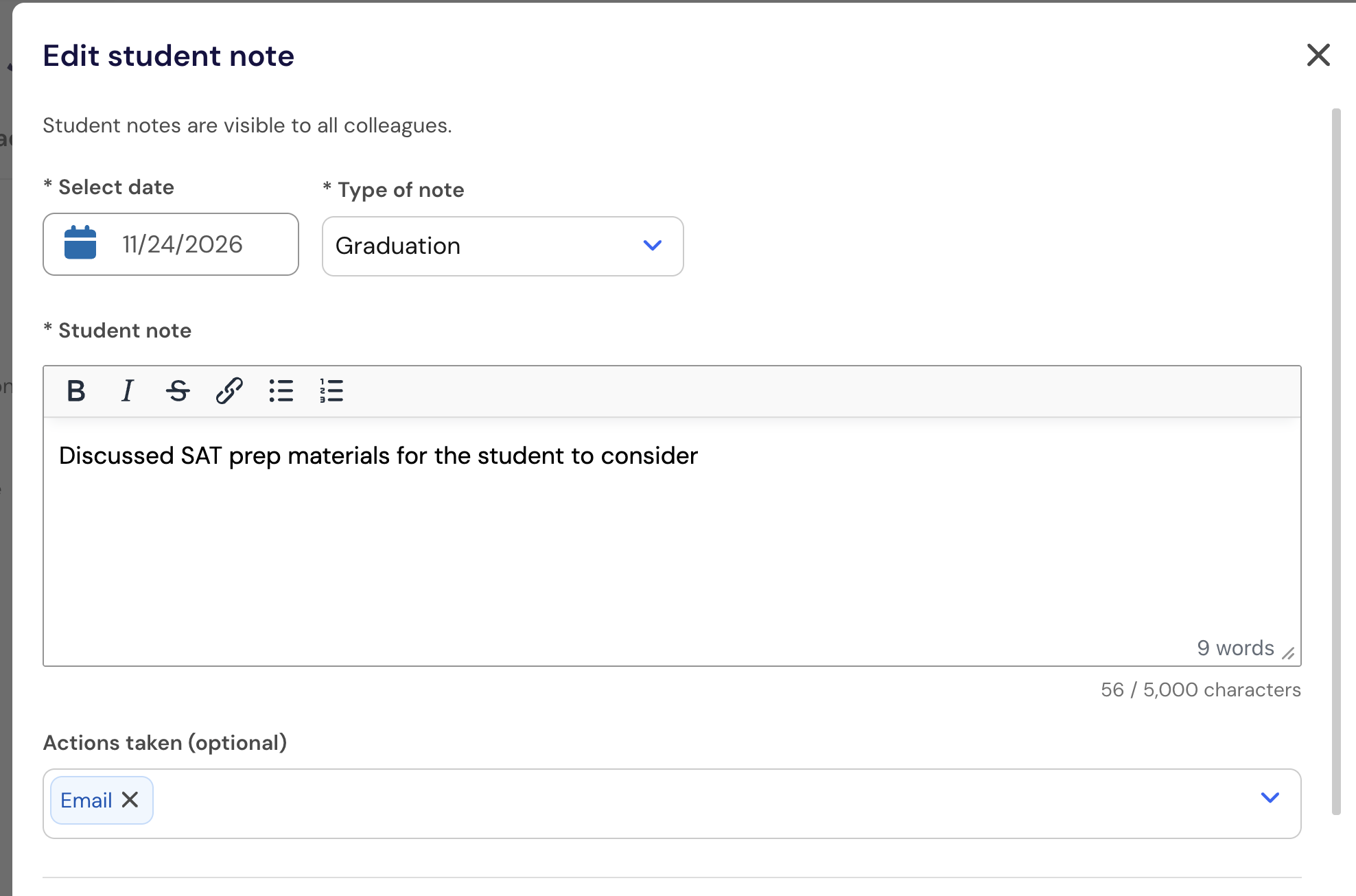
In Select date, enter the date for the note.
In Type of note, choose Graduation if the form offers a choice.
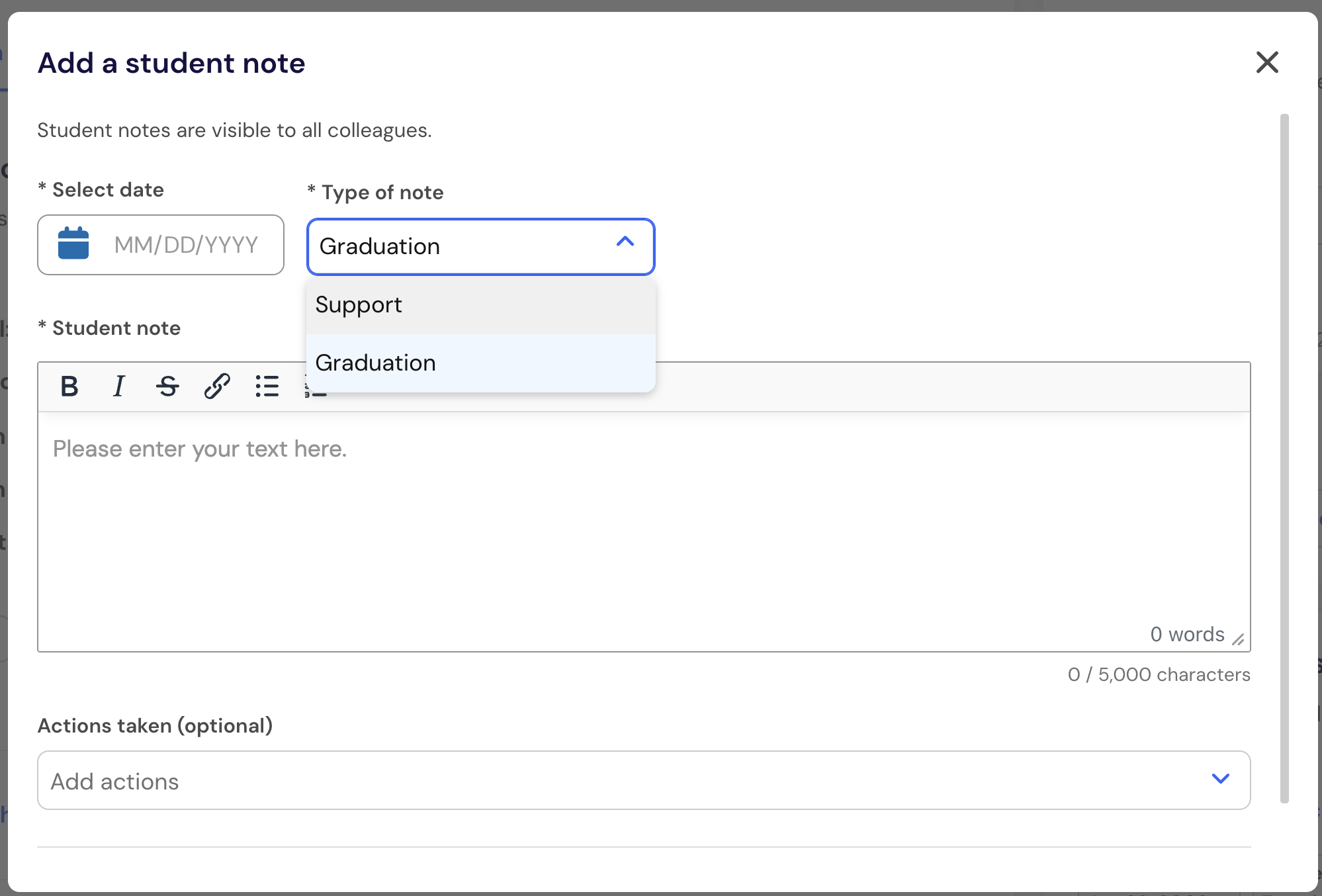
In Student note, enter the context or update you want to share.
In Actions taken, optionally record the actions that apply.
Select Add note.
Note: Text is required in the Student note field and can contain up to 5,000 characters. Select Cancel to close the form without adding a note.
If Graduation is your only available note type, the form selects it automatically and you cannot change it. If both types are available, a specific Recent notes filter preselects that type. All note types requires you to choose.
After saving, check the student’s notes list to verify the note’s date, type, and text.
Important: Graduation Notes are shared with colleagues who can access both the student and Graduation Notes. Follow your district’s expectations for recording student information.
Filter recent Graduation Notes
In the Graduation area’s Recent notes card, open Note type.
Select Graduation note.
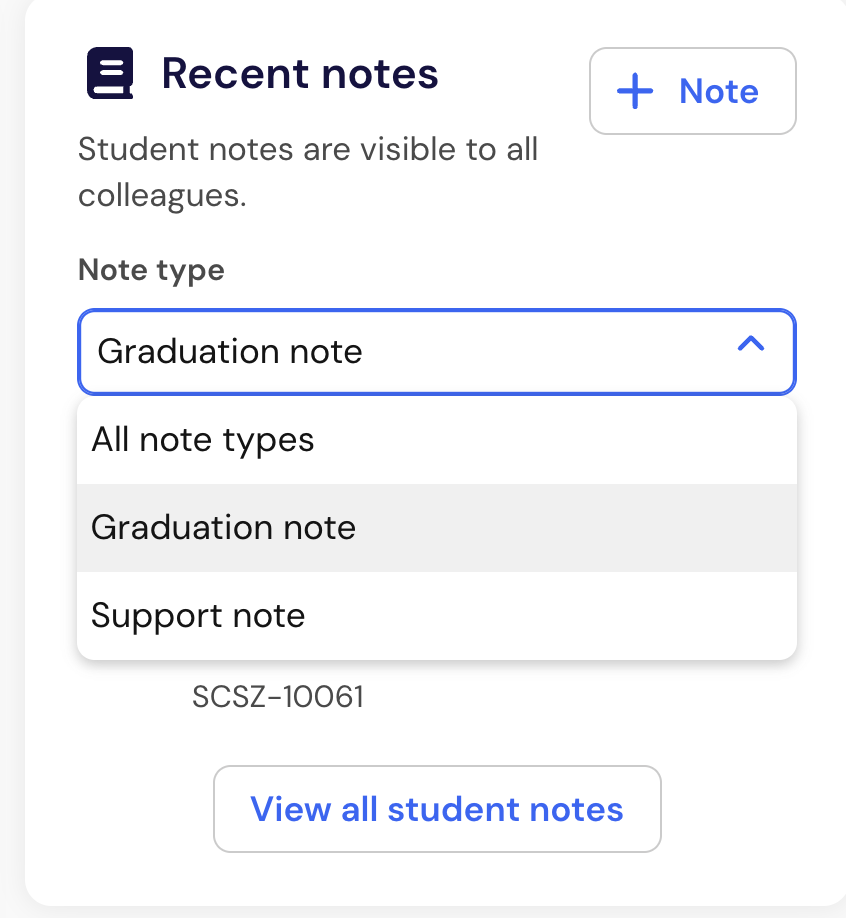
You’ll see up to three of the newest Graduation Notes for the selected enrollment. This filter excludes intervention and Share plan activity.
The Graduation area defaults to All note types. You’ll only see note types you can access.
If Support Notes are available to you, All note types and Support note can also include intervention and Share plan activity.
Review the full student notes list
In Recent notes, select View all student notes.
In Student Notes, use the Type and Actions filters to narrow the list.
Use the search field to find a specific note.
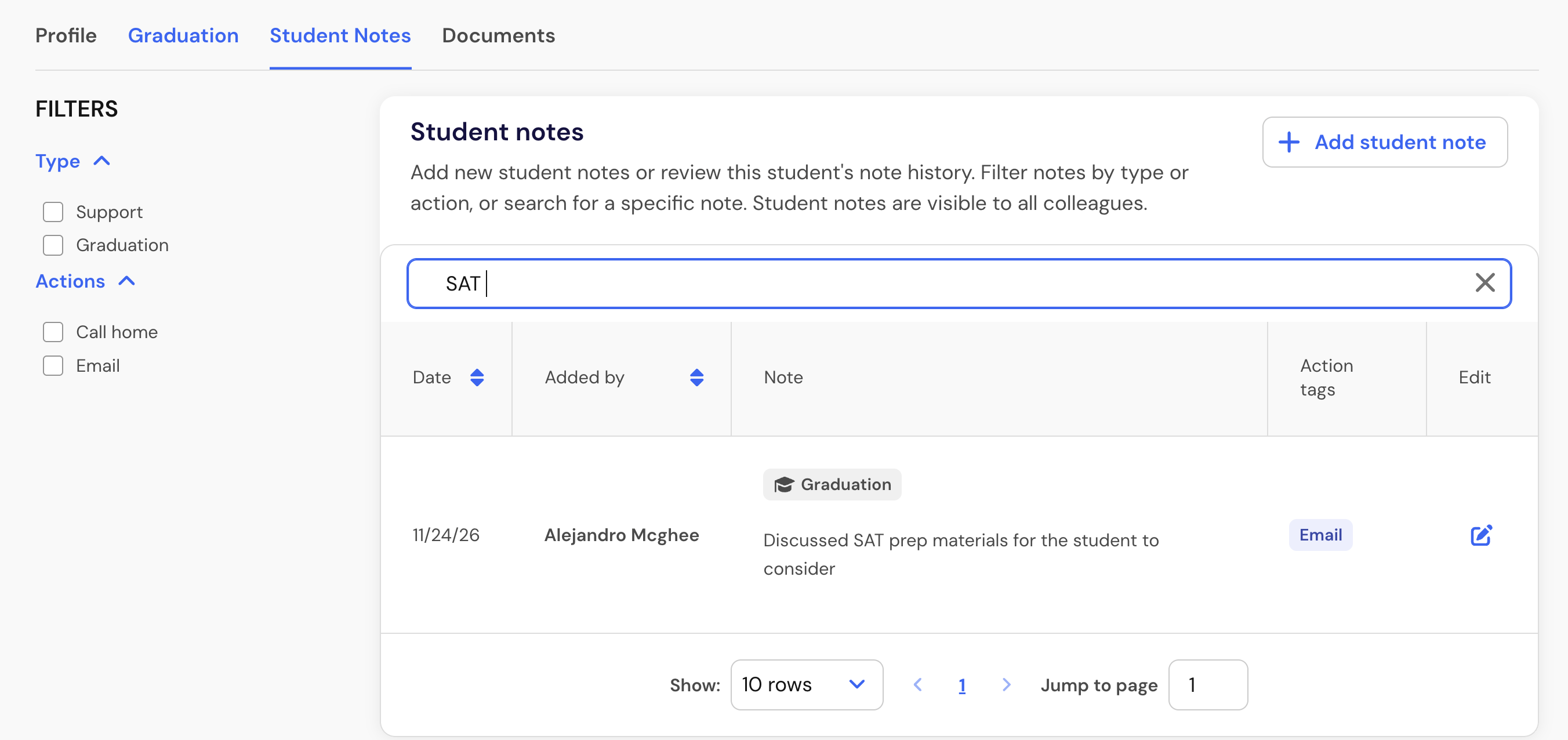
You’ll see the Support Notes and Graduation Notes you’re permitted to access, with each note’s type identified.
The full list keeps your selected school and year context, but does not carry over the Recent notes type filter. Apply the Type filter again if needed.
Student Notes can include notes from linked schools and enrollments. Recent notes shows entries for the selected enrollment.
You can also select Add student note from this tab to create a note.
Edit or delete your Graduation Note
You can manage notes you authored at the current school while you still have access to the note type. Notes from another linked school are read-only.
Edit your Graduation Note
In Student Notes, select the edit icon for an eligible note you authored.
In Edit student note, update the date, note text, or permitted note type as needed.
Select Apply edit.
Check the note to confirm your changes.
Delete your Graduation Note
In Student Notes, select the edit icon for an eligible note you authored.
In Edit student note, select Delete note.
Check the student’s notes list to verify that the note has been removed.
Troubleshooting
If Graduation Notes are unavailable
Availability depends on your Panorama Pathways access, All Students visibility, and district configuration. A district setting that disables student notes also disables Graduation Notes.
Ask your district’s Global Administrator to check your Panorama Pathways access and student visibility.
If access appears correct, contact your Panorama project team to review the district’s notes configuration.
The + Note button is available for active students. If you can review notes but cannot add one, check whether the student is active.
If you cannot edit a note
Editing requires that you authored the note, are viewing the current school, and still have access to the note’s type.
Check the note’s author and school context.
If you authored the note at the current school, ask your district’s Global Administrator to check your access to the note type.
Notes from another linked school remain read-only.
Frequently asked questions
Does adding a note change graduation status?
No. A Graduation Note records context or actions; it does not change the student’s calculated graduation status. You do not need a flag to add one.
What happens to existing Support Notes?
Existing Student Success notes remain Support Notes. They are not automatically reclassified as Graduation Notes.
Do I need Student Success to use Graduation Notes?
No. You can use Graduation Notes with Panorama Pathways alone when you have the required access. Support Notes follow separate access requirements.
Who can view notes from a student’s prior school?
The full Student Notes list can include notes from linked prior schools. Your current-school permissions determine which note types you can view.
Why does the recent notes filter change between areas?
The Profile area defaults to Support, while the Graduation area defaults to All note types. These defaults return when you reload or switch tabs.
Can I find Graduation Notes in reports or AI tools?
Graduation Notes appear in the student profile. Student Success roster note columns and filters, aggregate reporting, and Panorama AI student-notes tools exclude Graduation Notes.